OS - macOS: Difference between revisions
No edit summary |
|||
| (56 intermediate revisions by 5 users not shown) | |||
| Line 1: | Line 1: | ||
<metadesc>Communicate over USB with sensors, controllers, and relays with Phidgets! Program in macOS using a wide variety of programming languages.</metadesc> | |||
[[Category:OS]] | [[Category:OS]] | ||
==Quick Downloads== | ==Quick Downloads== | ||
Our libraries support macOS 10.11 and newer. | |||
*[ | * [https://cdn.phidgets.com/downloads/phidget22/tools/macos/Phidget22ControlPanel.dmg Phidget22 Control Panel] | ||
* | ** Recommended for Macs running macOS 10.15 or newer | ||
* [https://cdn.phidgets.com/downloads/phidget22/libraries/macos/Phidget22.dmg Phidget22 Installer] | |||
** Legacy installer, supports macOS 10.11 and newer | |||
** Required for working with Max and Java | |||
===Other Resources=== | |||
* [https://cdn.phidgets.com/downloads/phidget22/libraries/macos/Phidget22_macosdevel.zip macOS Development Files] | |||
* [{{SERVER}}/downloads/phidget22/libraries/macos/Phidget22/ Previous Releases (Installer)] | |||
* [{{SERVER}}/downloads/phidget22/tools/macos/Phidget22ControlPanel/ Previous Releases (Control Panel)] | |||
==Getting Started with macOS== | ==Getting Started with macOS== | ||
===Install=== | ===Install=== | ||
To get started, download the appropriate [[#Quick Downloads|package]] for your machine from the list above. This will install the Phidget Control Panel and the Phidget Network Server. These are powerful tools that will help you develop your Phidget applications. | |||
===Phidget Control Panel=== | |||
After downloading, drag the application into your Applications folder: | |||
[[Image:Macos_standalone_install.png|link=https://cdn.phidgets.com/docs/images/c/c8/Macos_applications_controlpanel.png|center|600px]] | |||
[[ | |||
You can then find the application in the Applications folder by searching for ''Phidget Control Panel''. | |||
[[ | [[Image:Macos_applications_controlpanel.png|link=https://cdn.phidgets.com/docs/images/c/c8/Macos_applications_controlpanel.png|600px|center]] | ||
When you open the application for the first time, you will see the following notice: | |||
[[Image:Macos_install_extension.png|link=https://cdn.phidgets.com/docs/images/9/9e/Macos_install_extension.png|300px|center]] | |||
The Phidgets | Follow the link in the pop-up, or navigate to ''System Settings > General > Login Items & Extensions > Extensions'', and give permissions: | ||
[[Image:Macos_install_extension_permission.png|link=https://cdn.phidgets.com/docs/images/a/ac/Macos_install_extension_permission.png|600px|center]] | |||
<center>''Note: The driver extension is only required for legacy USB Phidgets running a HID USB stack. Refer to your product’s specifications page for information about its USB stack.''</center> | |||
After running the application, you will see all the Phidgets that are plugged into your machine, as well as any Phidgets that are on your network. | |||
[[Image:Os_macos_controlpanel.png|600px|link=https://cdn.phidgets.com/docs/images/a/a1/Os_macos_controlpanel.png|center]] | |||
Click on the arrow beside a device to expand it so that you can see all available channels. Double-click on one of these channels to open up a window that lets you interact with it. | |||
[[File:Os_macos_controlpanel_example.png|link=https://cdn.phidgets.com/docs/images/3/37/Os_macos_controlpanel_example.png|center|600px]] | |||
The Phidget Control Panel can be used for testing devices, updating firmware, enabling a Phidget Network Server, and more. Visit the [[Phidget Control Panel|Phidget Control Panel page]] for more information. | |||
The Phidget Control Panel can be used for testing devices, updating firmware, enabling a | |||
===Programming=== | ===Programming=== | ||
When you are ready to develop your own applications, visit our [{{SERVER}}/docs/Programming_Resources programming resources page] and select your programming language to get started. | |||
== | ==Software License== | ||
By downloading the installer and/or development files, you agree to adhere to the terms of the [{{SERVER}}/documentation/Licenses/Phidgets_EULA.pdf Phidgets End User License Agreement]. The Phidget libraries and development files are covered by the The 3-Clause BSD License. | |||
Latest revision as of 20:23, 8 September 2026
Quick Downloads
Our libraries support macOS 10.11 and newer.
- Phidget22 Control Panel
- Recommended for Macs running macOS 10.15 or newer
- Phidget22 Installer
- Legacy installer, supports macOS 10.11 and newer
- Required for working with Max and Java
Other Resources
Getting Started with macOS
Install
To get started, download the appropriate package for your machine from the list above. This will install the Phidget Control Panel and the Phidget Network Server. These are powerful tools that will help you develop your Phidget applications.
Phidget Control Panel
After downloading, drag the application into your Applications folder:
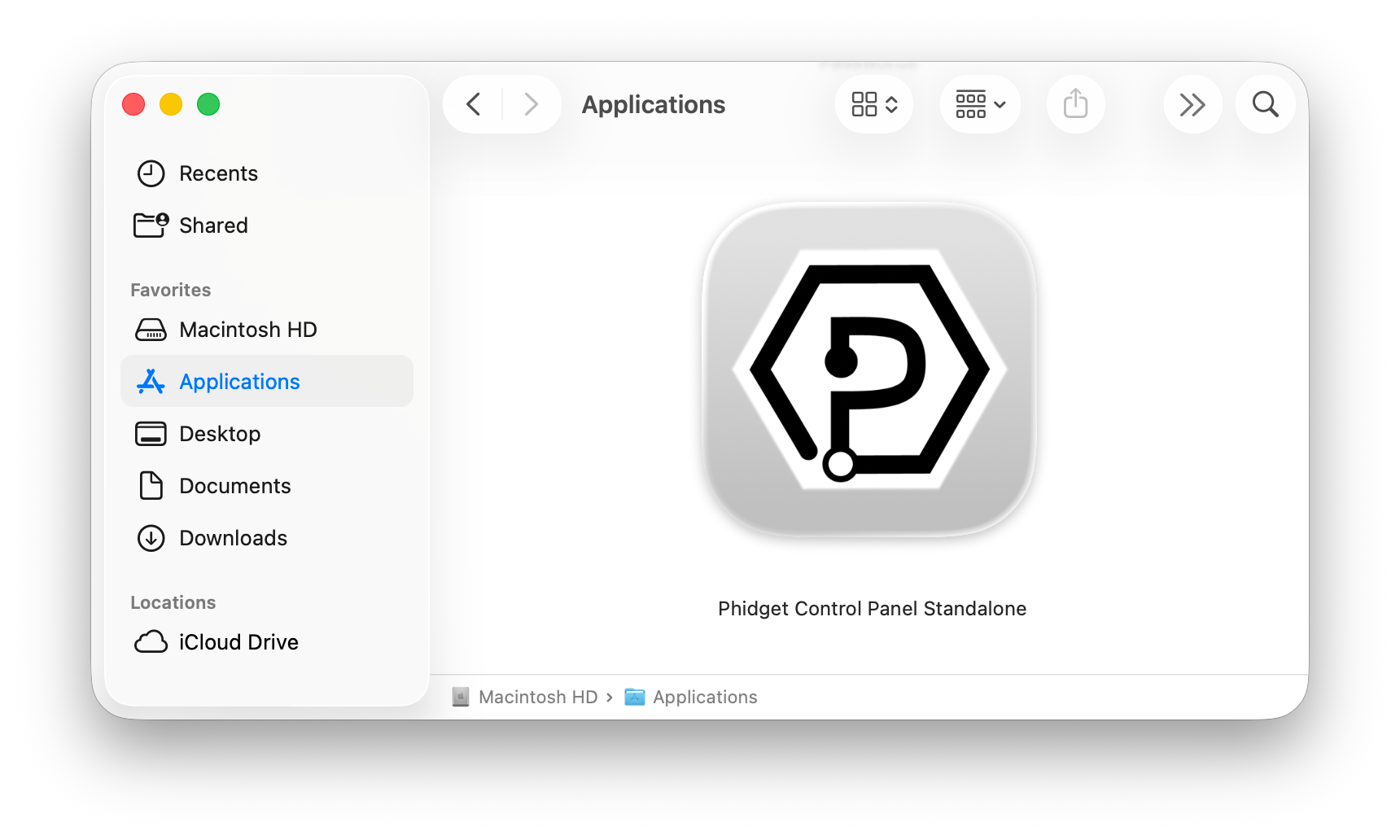
You can then find the application in the Applications folder by searching for Phidget Control Panel.
When you open the application for the first time, you will see the following notice:
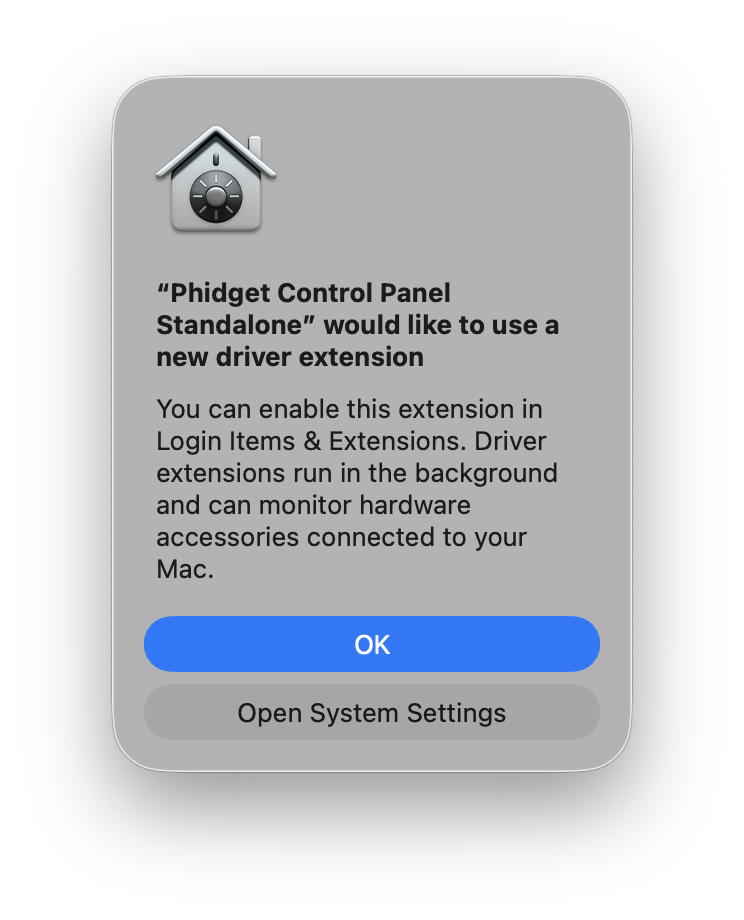
Follow the link in the pop-up, or navigate to System Settings > General > Login Items & Extensions > Extensions, and give permissions:
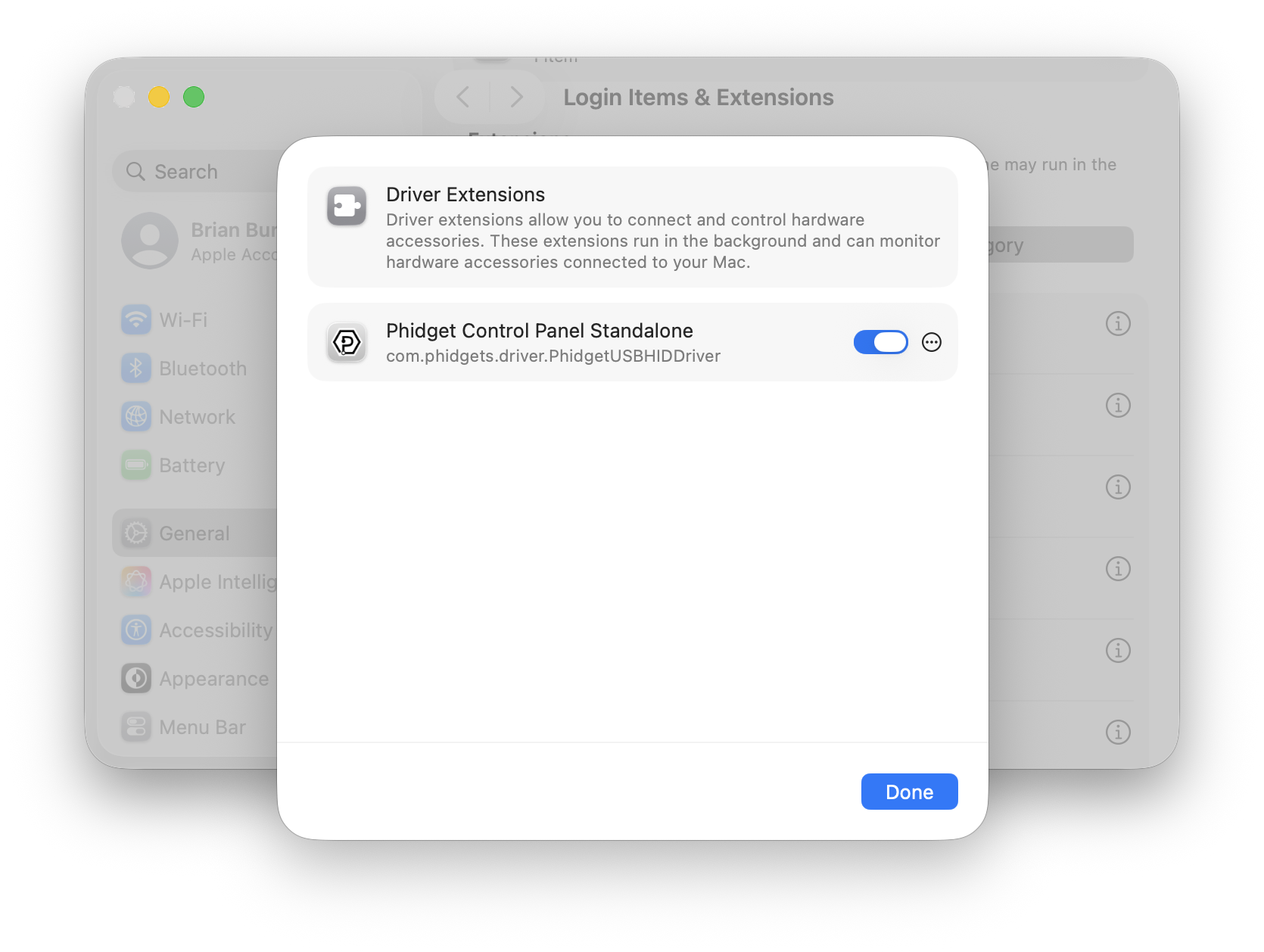
After running the application, you will see all the Phidgets that are plugged into your machine, as well as any Phidgets that are on your network.
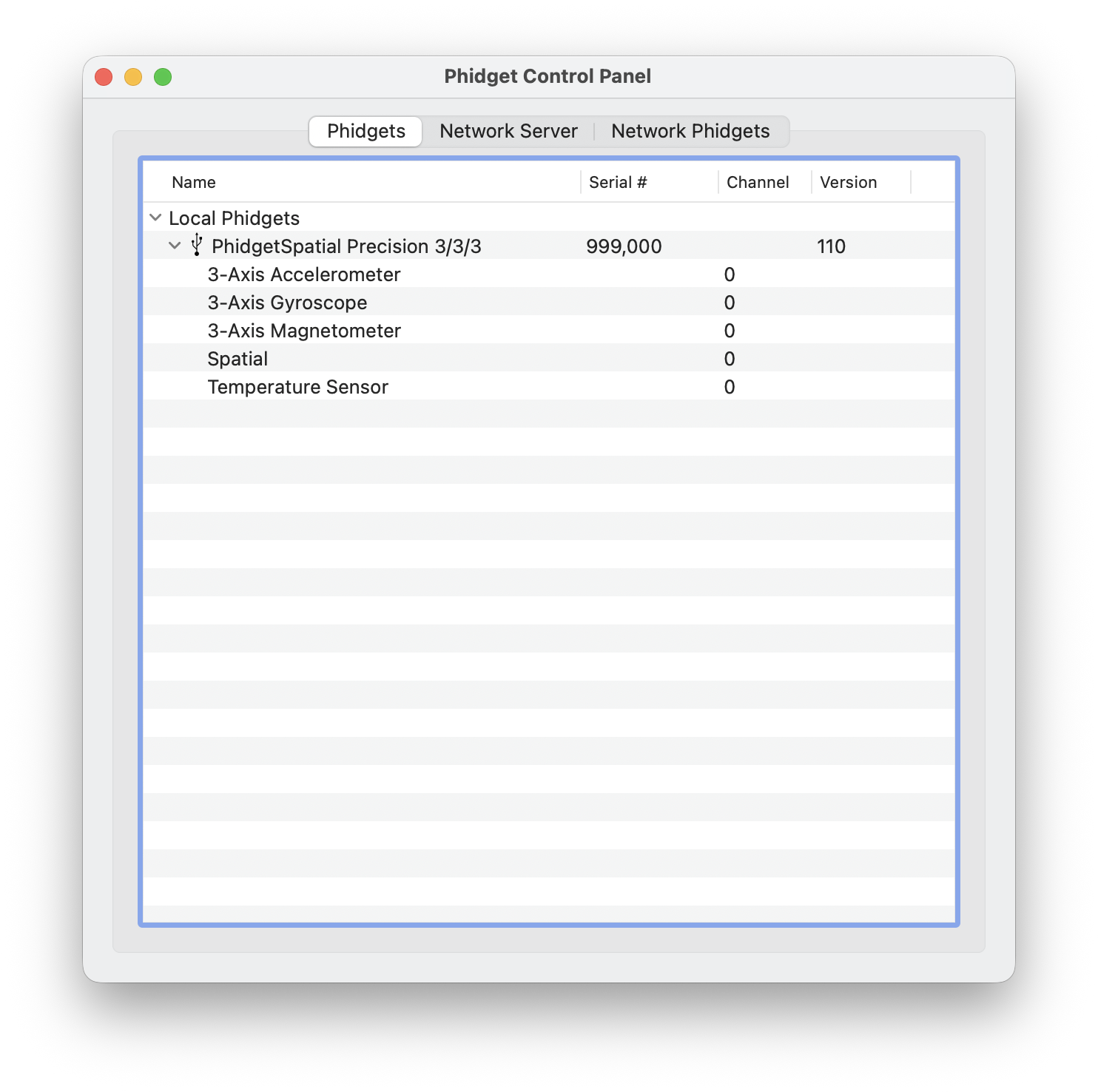
Click on the arrow beside a device to expand it so that you can see all available channels. Double-click on one of these channels to open up a window that lets you interact with it.
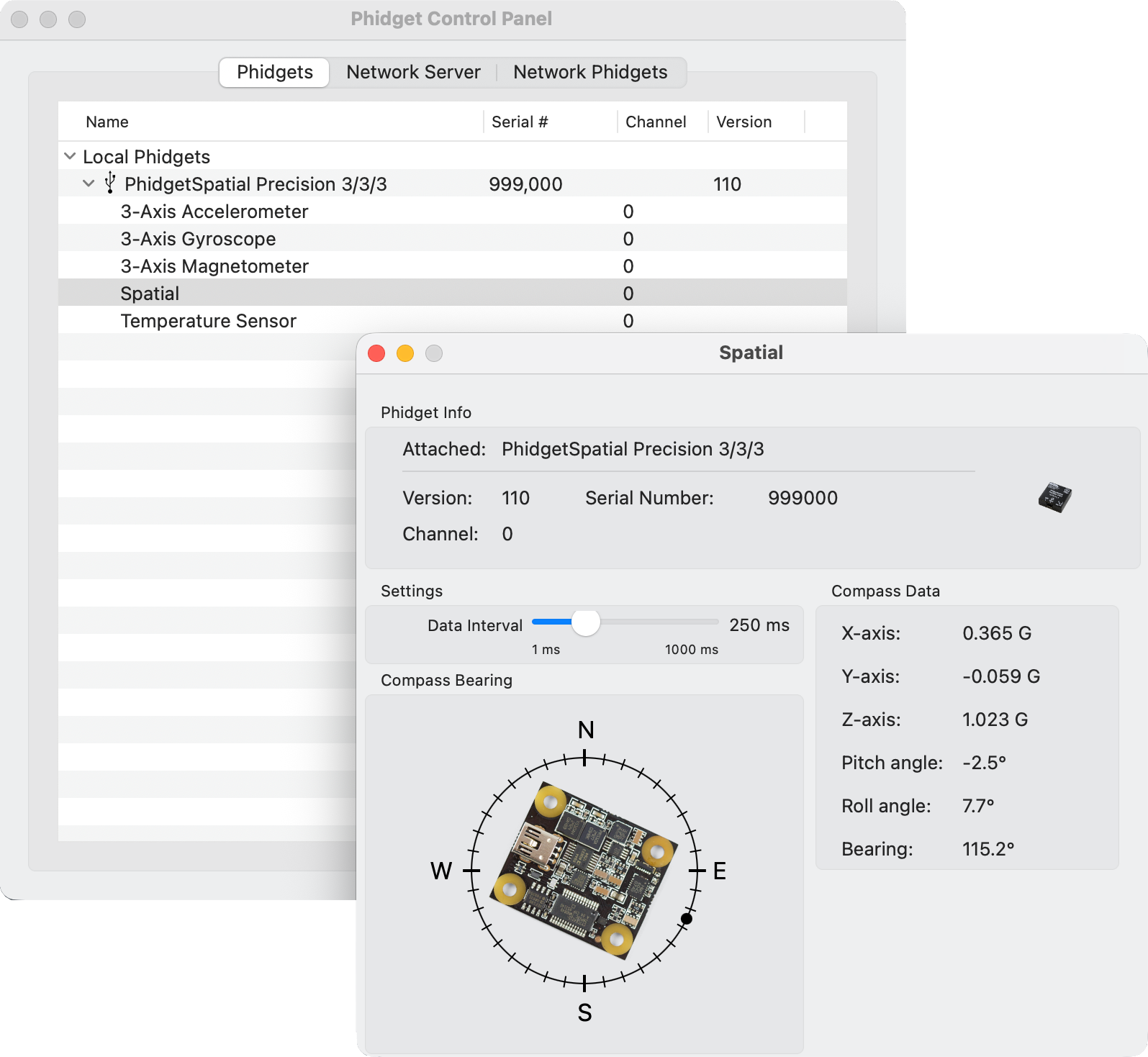
The Phidget Control Panel can be used for testing devices, updating firmware, enabling a Phidget Network Server, and more. Visit the Phidget Control Panel page for more information.
Programming
When you are ready to develop your own applications, visit our programming resources page and select your programming language to get started.
Software License
By downloading the installer and/or development files, you agree to adhere to the terms of the Phidgets End User License Agreement. The Phidget libraries and development files are covered by the The 3-Clause BSD License.