|
|
| (394 intermediate revisions by 11 users not shown) |
| Line 1: |
Line 1: |
| [[File:icon-C++.png|64x64px]] C++ is a general purpose, cross-platform programming language with a vast user base.
| | {{#seo:|description=Learn how to use Phidget USB devices with C and C++.}} |
| | [[Category:Language]] |
|
| |
|
| __TOC__
| | == Get Started == |
| | With the Phidget22 library, it's easy to create C or C++ applications that work with Phidget devices. |
|
| |
|
| ==Support== | | == C Libraries == |
| | If you've installed the Phidget drivers for [[OS - Windows|Windows]], [[OS - macOS|macOS]], or [[OS - Linux|Linux]], then you already have the files you need for your C project. |
|
| |
|
| {{LanguageSupport|C/C++|the complete Phidget API|all Phidget devices.|various Windows compilers (including Borland, Cygwin, and MinGW), Mac OSX, and Linux}}
| | ==== Windows Considerations ==== |
| | When adding directories for your project dependencies, add |
| | <syntaxhighlight> |
| | C:/Program Files/Phidgets/Phidget22 |
| | </syntaxhighlight> |
| | And for the linker, you can add |
| | <syntaxhighlight> |
| | C:/Program Files/Phidgets/Phidget22/phidget22.lib}} #(for 64-bit systems) |
| | C:/Program Files/Phidgets/Phidget22/x86/phidget22.lib}} #(for 32-bit systems) |
| | </syntaxhighlight> |
|
| |
|
| ==Quick Downloads== | | ====macOS Considerations==== |
| | Legacy Phidgets running a HID USB stack require a driver extension (macOS 10.15 and newer) or a kernel extension (macOS 10.14 and earlier). During development, we recommend downloading the appropriate [https://www.phidgets.com/docs/OS_-_macOS#Quick_Downloads package] which will install the extension. When deploying applications, review the README in the [https://cdn.phidgets.com/downloads/phidget22/libraries/macos/Phidget22_macosdevel.zip macOS Development Files] for information about bundling the extension with your application. |
|
| |
|
| Just need the C/C++ drivers, libraries, and examples? Here they are:
| | =====Determining USB Stack===== |
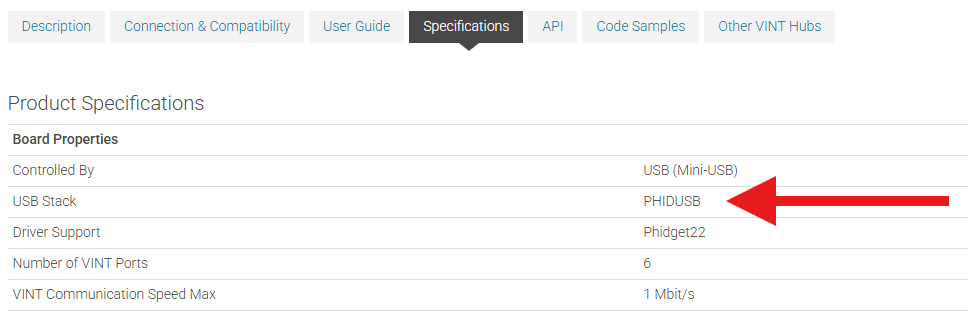
| | To determine which USB stack your device is running, navigate to the product page and then to the specification tab, and look for the ''USB Stack'' specification. If you are using a VINT device, navigate to the product page for the VINT Hub you are using. |
|
| |
|
| C/C++ API Documentation:
| | [[Image:Javascript_networkserver_webusb_spec.png|center|600px|link=https://cdn.phidgets.com/docs/images/8/80/Javascript_networkserver_webusb_spec.png]] |
| *[http://www.phidgets.com/documentation/Phidget21_C_Doc.zip C/C++ API Manual Download] or [http://www.phidgets.com/documentation/web/cdoc/index.html (HTML online version)]
| |
| *[[General API]] (more help on functions common to all Phidgets)
| |
| *[[Device List | Device Specific APIs]] (more help on functions specific to your Phidget)
| |
|
| |
|
| C/C++ Example Code:
| | ====Linux Considerations==== |
| *[http://www.phidgets.com/downloads/examples/VCpp_2.1.8.20110615.zip Visual Studio for C/C++ Example Code]
| | Linux restricts access to USB devices to the root user. |
| *[http://www.phidgets.com/downloads/examples/phidget21-c-examples_2.1.8.20110615.tar.gz Generic C/C++ Example Code]
| |
|
| |
|
| Libraries and Drivers:
| | To run your C application as a regular user, you'll need to [{{SERVER}}/docs/OS_-_Linux#Setting_udev_Rules set up udev rules] on your system. |
| *[http://www.phidgets.com/downloads/libraries/phidget21-x86_2.1.8.20110615.zip 32 bit Windows (drivers, with libraries)]
| |
| *[http://www.phidgets.com/downloads/libraries/phidget21-x64_2.1.8.20110615.zip 64 bit Windows (drivers, with libraries)]
| |
| *[http://www.phidgets.com/downloads/libraries/phidget21bcc_2.1.8.20110615.zip Borland C++ Libraries] (You also need one of the two Windows drivers above)
| |
| *[http://www.phidgets.com/downloads/libraries/libphidget_2.1.8.20111028.tar.gz General Linux Libraries] ([[OS - Linux | Linux Library Setup Instructions]])
| |
| *[http://www.phidgets.com/downloads/libraries/Phidget_2.1.8.20111103.dmg General Mac OSX Libraries] ([[OS - Mac OSX | Mac OSX Library Setup Instructions]])
| |
|
| |
|
| ==Getting started with C/C++== | | === Library Files === |
| | If you would like to manually manage the Phidget22 library files, you can download them [https://cdn.phidgets.com/downloads/phidget22/libraries/windows/Phidget22-windevel.zip here]. |
|
| |
|
| If you are new to writing code for Phidgets, we recommend starting by running, then modifying existing examples. This will allow you to:
| | == Development Environment Configuration == |
| {{ExampleCodeReasons}}
| |
|
| |
|
| Instructions are divided up by operating system. Choose:
| | === GCC === |
| *[[#Windows|Windows 2000 / XP / Vista / 7]]
| | {| style="margin:auto;" class="table-no-border mw-collapsible mw-collapsed" |
| *[[#Mac OSX |Mac OSX]]
| | |+ '''Instructions''' |
| *[[#Linux | Linux]] (including PhidgetSBC)
| | | |
| | The most common tool for C development is GCC, whether used in the command line or through an IDE. GCC is packaged with many other IDEs and packages, so you may already have it installed. |
|
| |
|
| ==Windows==
| | {{hiddenh4|Windows}} |
| | We recommend installing [https://www.cygwin.com/ Cygwin] or [https://sourceforge.net/projects/mingw/ MinGW], ensuring you select all gcc packages when prompted by the installer. |
|
| |
|
| *[http://www.phidgets.com/downloads/libraries/phidget21-x86_2.1.8.20110615.zip 32 bit Windows Installer (drivers, with libraries)]
| | To compile your code, go to the folder where your code is and open the command prompt by typing 'cmd' in the address bar. |
| *[http://www.phidgets.com/downloads/libraries/phidget21-x64_2.1.8.20110615.zip 64 bit Windows Installer (drivers, with libraries)]
| |
|
| |
|
| C/C++ programs on Windows depend on three files, which the installers above put onto your system:
| | The specific command you will use depends on your compiler of choice: |
| * Phidget21.dll contains the actual Phidgets library, which is used at run-time. If you used our installer, it's already correctly placed in C:\Windows\System32. It can be manually installed - check our [[Manual Installation instructions]].
| | <syntaxhighlight lang=bash> |
| * Phidget21.lib is used by your compiler to link to the dll. Your compiler has to know where this file is. Our installer puts Phidget21.lib into C:\Program Files\Phidgets. Phidget21.lib is written to be compatible with most compilers - but your specific compiler may need a different format. Check our documentation for your specific compiler below for details.
| | #Cygwin x86: |
| * Phidget21.h lists all the Phidget API function calls available to your code. Your compiler also has to know where this file is. By default, our installer puts Phidget21.h into C:\Program Files\Phidgets so you can either point your compiler to that location, or copy and link to it in a directory for your project workspace. We offer some instruction below, by compiler.
| | gcc example.c -o example -I"/cygdrive/c/Program Files/Phidgets/Phidget22"-L"/cygdrive/c/Program Files/Phidgets/Phidget22/x86" -lphidget22 |
|
| |
|
| Running the examples and writing your own code can be fairly compiler-specific, so we include instructions for each compiler below.
| | #Cygwin x64: |
| | gcc example.c -o example -I"/cygdrive/c/Program Files/Phidgets/Phidget22" -L"/cygdrive/c/Program Files/Phidgets/Phidget22" -lphidget22 |
|
| |
|
| | #MinGW: |
| | gcc example.c -o example -I"C:/Program Files/Phidgets/Phidget22" -L"C:/Program Files/Phidgets/Phidget22/x86" -lphidget22 |
| | </syntaxhighlight> |
|
| |
|
| ===Visual Studio=== | | After running the commands above for either Cygwin or MinGW, an executable file called example.exe will be created. Enter the following command to run the program: |
| | <syntaxhighlight lang=bash> |
| | ./example.exe |
| | </syntaxhighlight> |
| | {{hiddenh4|MacOS}} |
| | If you don't already have gcc installed, you can get it by installing [https://developer.apple.com/xcode/ Xcode]. |
|
| |
|
| Start by downloading the Visual C/C++ Examples. Our examples were written in Visual Studio 2005, but Visual Studio 2008 / 2010 will easily upgrade them.
| | To compile the program, enter the following command in the terminal, substituting "example" for the name of your C file: |
| *[http://www.phidgets.com/downloads/examples/VCpp_2.1.8.20111028.zip Microsoft Visual C/C++ Examples]
| | <syntaxhighlight lang=bash> |
| | gcc example.c -o example -F /Library/Frameworks -framework Phidget22 -I /Library/Frameworks/Phidget22.framework/Headers |
| | </syntaxhighlight> |
| | Finally, run the program by entering the following command in the terminal: |
| | <syntaxhighlight lang=bash> |
| | ./example |
| | </syntaxhighlight> |
| | Success! The project is now running with Phidgets. |
|
| |
|
| '''Note:''' C++/CLI (used to be called Managed C++) is very different from mainstream C/C++. If you must use C++/CLI, consider calling the .NET library, instead of the C API normally used from C/C++. We have no documentation for using C++/CLI.
| | {{hiddenh4|Linux}} |
| | On Linux, gcc is installed through the package manager: |
| | <syntaxhighlight lang=bash> |
| | apt-get install gcc |
| | </syntaxhighlight> |
| | To compile the program, enter the following command in the terminal, substituting "example" for the name of your C file: |
| | <syntaxhighlight lang=bash> |
| | gcc example.c -o example -lphidget22 |
| | </syntaxhighlight> |
| | After compiling, you can run the program by entering the following command in the terminal: |
| | <syntaxhighlight lang=bash> |
| | ./example |
| | </syntaxhighlight> |
| | Success! The project is now running with Phidgets. |
| | |- |
| | |} |
|
| |
|
| Microsoft makes free versions of Visual Studio available known as Express Editions. The Express editions are somewhat limited in functionality - in practice this does not seem to be a problem for most people.
| | === Visual Studio === |
| | {| style="margin:auto;" class="table-no-border mw-collapsible mw-collapsed" |
| | |+ '''Instructions''' |
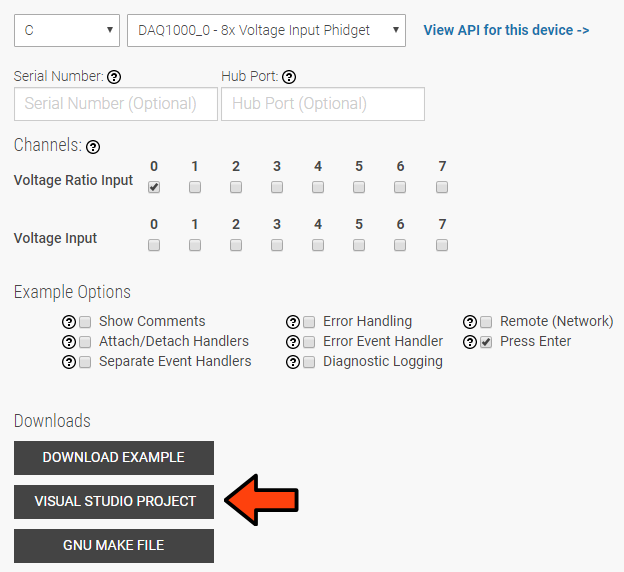
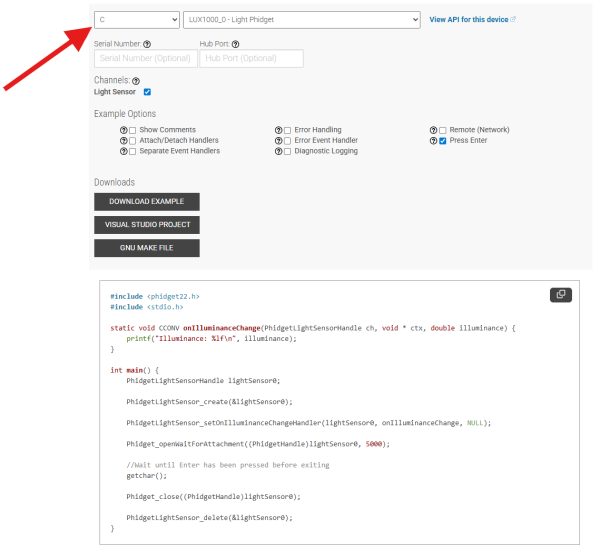
| | | If you want to jump right into a pre-configured project, you can download one on our [https://www.phidgets.com/?view=code_samples&lang=C Code Sample Generator] page. || [[Image:Language_C_VSProject.jpg|center|link=https://cdn.phidgets.com/docs/images/f/f1/Language_C_VSProject.jpg|350px]] |
| | |- |
| | | To configure a new project, follow these steps. || |
| | |- |
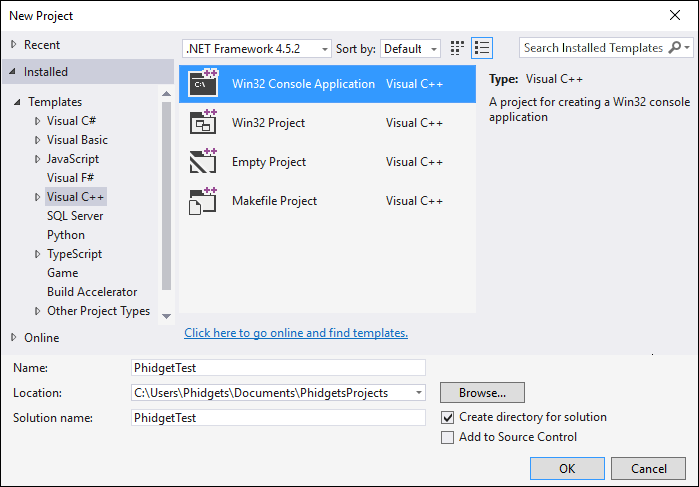
| | | First, create a new Win32 Console Application: || [[Image:Language_C_VS_step1.jpg|center|link=https://cdn.phidgets.com/docs/images/a/a1/Language_C_VS_step1.jpg|350px]] |
| | |- |
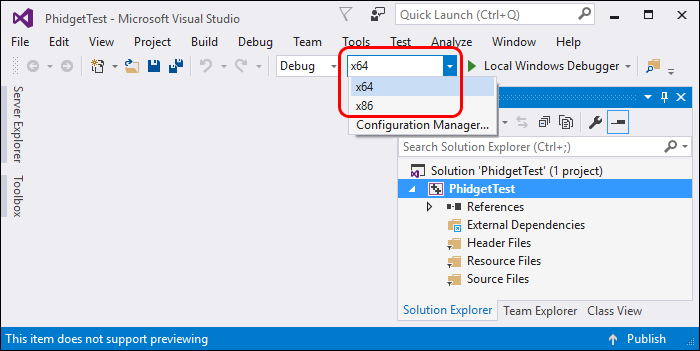
| | | If you are using a 64-bit machine, select x64, otherwise, select x86: || [[Image:Language_C_VS_step2.jpg|center|link=https://cdn.phidgets.com/docs/images/6/6b/Language_C_VS_step2.jpg|350px]] |
| | |- |
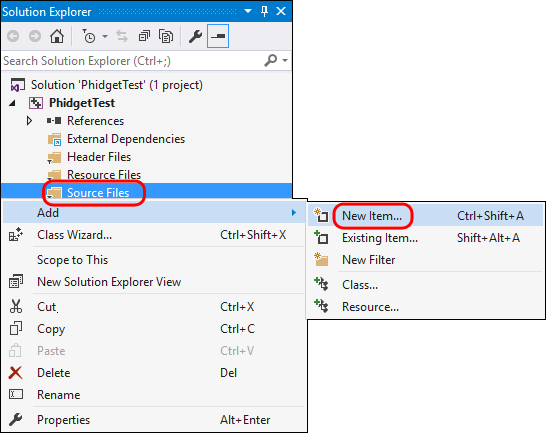
| | | Next, right click on the source folder and click New Item: || [[Image:Language_C_VS_step3.jpg|center|link=https://cdn.phidgets.com/docs/images/e/e1/Language_C_VS_step3.jpg|350px]] |
| | |- |
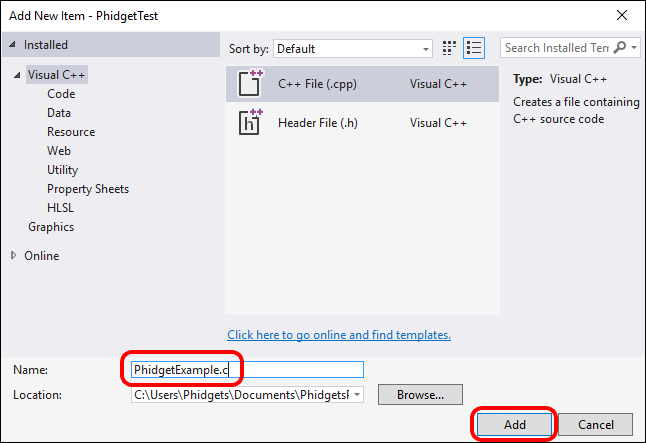
| | | Give the source file a name and click Add: || [[Image:Language_C_VS_step4.jpg|center|link=https://cdn.phidgets.com/docs/images/e/e5/Language_C_VS_step4.jpg|350px]] |
| | |- |
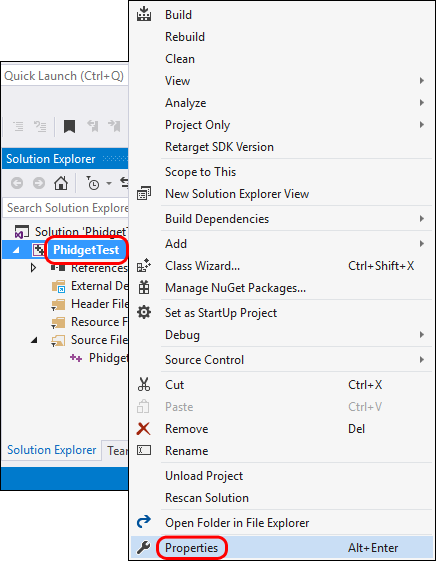
| | | Right click your project and access its properties: || [[Image:Language_C_VS_step5.jpg|center|link=https://cdn.phidgets.com/docs/images/1/1e/Language_C_VS_step5.jpg|350px]] |
| | |- |
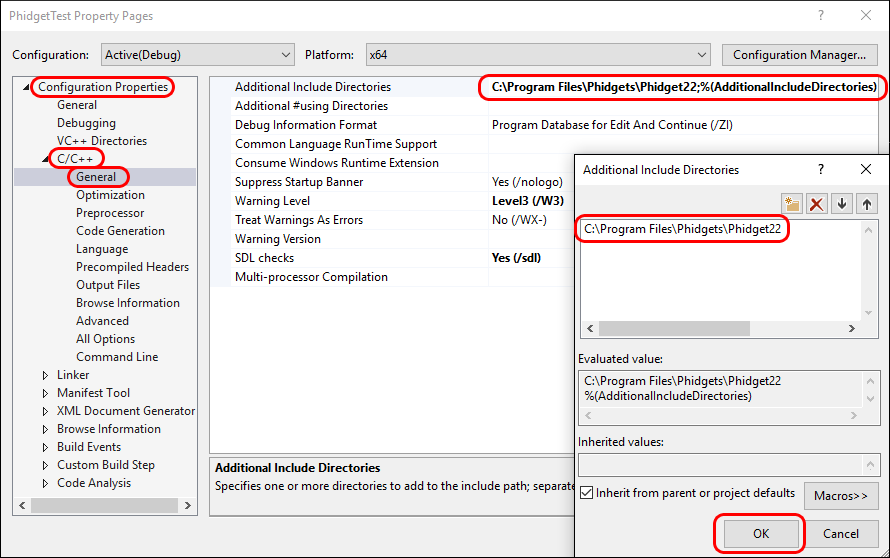
| | | Go to Configuration Properties -> C/C++ -> General and add this to the additional include directories: |
| | <syntaxhighlight> |
| | C:\Program Files\Phidgets\Phidget22 |
| | </syntaxhighlight> |
| | || [[Image:Language_C_VS_step6.jpg|center|link=https://cdn.phidgets.com/docs/images/d/d3/Language_C_VS_step6.jpg|350px]] |
| | |- |
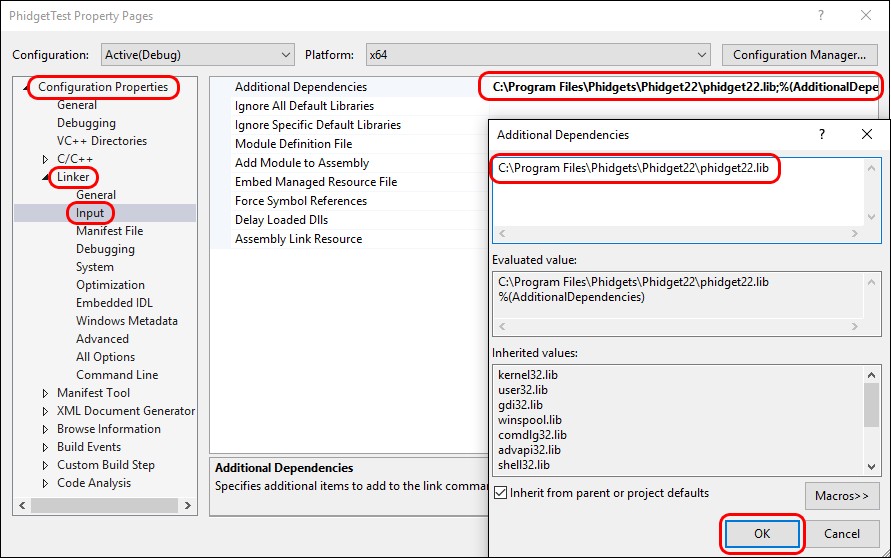
| | | Go to Configuration Properties -> Linker -> Input and add the appropriate line to additional dependencies: |
| | <syntaxhighlight> |
| | C:\Program Files\Phidgets\Phidget22\phidget22.lib #(for 64-bit systems) |
| | C:\Program Files\Phidgets\Phidget22\x86\phidget22.lib #(for 32-bit systems) |
| | </syntaxhighlight> |
| | || [[Image:Language_C_VS_step7.jpg|center|link=https://cdn.phidgets.com/docs/images/0/09/Language_C_VS_step7.jpg|350px]] |
| | |- |
| | | Lastly, include the Phidget library at the beginning of your program: |
| | <syntaxhighlight lang=bash> |
| | #include < phidget22.h > |
| | </syntaxhighlight> |
| | || |
| | |- |
| | |} |
|
| |
|
| | === PhidgetSBC Web Interface === |
| | {| style="margin:auto;" class="table-no-border mw-collapsible mw-collapsed" |
| | |+'''Instructions''' |
| | |<center>{{#ev:youtube|2hTlVexctqY|rel=0}}</center> |
| | |} |
|
| |
|
| ====Visual Studio 2005/2008/2010==== | | == Example Code == |
| | Navigate to our [https://www.phidgets.com/?view=code_samples&lang=C Code Sample Generator] to view and download code samples that are tailored to your specific device. |
|
| |
|
| '''Use Our Examples'''
| | [[Image:Language_c_codesample2.png|center|600px|link=]] |
|
| |
|
| If you are opening the Phidget examples in Visual Studio 2008/2010, you will need to go through the Visual Studio Conversion Wizard to convert the 2005 project.
| | ===Phidget Programming Basics=== |
| <br/><br/>[[File:Wizard.PNG]]<br/>
| | {{PhidgetProgrammingBasicsLink}} |
|
| |
|
| To run the examples, you first download them [[#Visual Studio|from above]] and unpack them into a folder. Then from Visual Studio, to load all projects, go to File > Open > Project / Solution, and open "Visual Studio Phidgets Examples.sln" in the VCpp folder of the examples.
| | ==API== |
| | | [{{SERVER}}/?view=api&lang=C Phidget22 API] |
| This will load all of the examples available for C/C++, and then you can set your main project to be the one that matches your device. If you aren't sure what the software example for your device is called, check the software object listed in the [[Device List | Getting Started guide for your device]].
| |
| | |
| The only thing left to do is to run the examples! Click on Debug -> Start Debugging.
| |
| <br/><br/>
| |
| [[File:Run.PNG]]
| |
| <br/><br/>
| |
| Once you have the C/C++ examples running, we have a [[#Follow The Examples|teaching section]] below to help you follow them.
| |
| | |
| '''Write Your Own Code'''
| |
| | |
| When you are building a project from scratch, or adding Phidget function calls to an existing project, you'll need to configure your compiler / development environment to properly link the Phidget C/C++ libraries. To begin:
| |
| | |
| * Generate a new Visual C++: Win32 Console Application project with a descriptive name such as PhidgetTest.
| |
| [[File:New Project.PNG]]
| |
| <br/><br/>Next, select Console Application<br/><br/>
| |
| [[File:New Project-2.PNG]]
| |
| <br/>
| |
| | |
| * Open the project properties window.
| |
| * Navigate to Configuration Properties | C/C++
| |
| * Add "C:\Program Files\Phidgets" to the additional directories field.
| |
| <br/>[[File:Header.PNG]]
| |
| <br/>
| |
| * Navigate to Configuration Properties | Linker | Input.
| |
| * Edit the additional dependencies and add "C:\Program Files\Phidgets\phidget21.lib".
| |
| <br/>[[File:Library.PNG]]
| |
| <br/><br/>
| |
| The project now has access to the Phidget21 function calls and you are ready to begin coding.
| |
| | |
| Then, in your code, you will need to include the Phidget library:
| |
| | |
| <div style="background-color: #f3f3f3; border-color: #1c9edb; border-width:1px; border-style: dashed;">
| |
| <font size="3">
| |
| <source lang=cpp>
| |
| | |
| #include <phidget21.h>
| |
| | |
| </source>
| |
| </font>
| |
| </div>
| |
| | |
| The same [[#Follow The Examples|teaching section]] which describes the examples also has further resources for programming your Phidget.
| |
| | |
| ====Visual Studio 2003====
| |
| | |
| '''Use Our Examples'''
| |
| | |
| * How would customer load our examples? Wizard does not work backwards, I assume.
| |
| | |
| '''Write Your Own Code'''
| |
| | |
| <span style="color:red;">To be completed, see the Visual Studio 2005 for suggested content (i.e. how to create and link a blank project)</span>
| |
| | |
| | |
| ====Visual Studio 6====
| |
| | |
| '''Use Our Examples'''
| |
| | |
| * How would customer load our examples? Wizard does not work backwards, I assume.
| |
| | |
| '''Write Your Own Code'''
| |
| | |
| <span style="color:red;">To be completed, see the Visual Studio 2005 for suggested content (i.e. how to create and link a blank project)</span>
| |
| | |
| ===Borland===
| |
| | |
| In addition to running one of the two [[#Windows | Windows Installers]] above (which you probably already have if you worked through the ''Getting Started'' page [[Device List | for your device]]), you will need these specific libraries for Borland:
| |
| | |
| *[http://www.phidgets.com/downloads/libraries/phidget21bcc_2.1.8.20110615.zip Borland C++ Libraries]
| |
| | |
| '''Use Our Examples'''
| |
| | |
| <span style="color:red;">Needs some content on how to unpack and run the examples in Borland</span>
| |
| | |
| '''Write Your Own Code'''
| |
| | |
| <span style="color:red;">Needs some additional content on how to create a blank project and link in Borland</span>
| |
| | |
| To link libraries in Borland C/C++:
| |
| | |
| Make sure to download the additional Borland-specific libraries in addition to the drivers you already have through the ''Getting Started'' page [[Device List | for your device]]:
| |
| *[http://www.phidgets.com/downloads/libraries/phidget21bcc_2.1.8.20110615.zip Borland C++ Libraries]
| |
| | |
| To compile and link your program:
| |
| bcc32 -I"C:\Program Files\Phidgets" -L"C:\Program Files\Phidgets" phidget21bcc.lib example.c
| |
| | |
| | |
| | |
| ===GCC on Windows===
| |
| | |
| When you use gcc on Windows, you will use the general C/C++ examples like you would on Mac or Linux:
| |
| | |
| *[http://www.phidgets.com/downloads/examples/phidget21-c-examples_2.1.8.20111028.tar.gz Generic C/C++ Examples]
| |
| | |
| | |
| ====Cygwin====
| |
| | |
| '''Use Our Examples'''
| |
| | |
| <span style="color:red;">Needs some content on how to unpack and run the examples using Cygwin</span>
| |
| | |
| '''Write Your Own Code'''
| |
| | |
| To compile and link your program:
| |
| gcc example.c -I"/cygdrive/c/Program Files/Phidgets" -L"/cygdrive/c/Program Files/Phidgets" -lphidget21
| |
| | |
| | |
| ====MinGW====
| |
| | |
| '''Use Our Examples'''
| |
| | |
| <span style="color:red;">Needs some content on how to unpack and run the examples using MinGW</span>
| |
| | |
| '''Write Your Own Code'''
| |
| | |
| To compile and link your program:
| |
| gcc example.c -I"C:\Program Files\Phidgets" -L"C:\Program Files\Phidgets" -lphidget21
| |
| | |
| | |
| | |
| ===Dev C++===
| |
| | |
| When you use Dev C++, you will use the general C/C++ examples:
| |
| | |
| *[http://www.phidgets.com/downloads/examples/phidget21-c-examples_2.1.8.20111028.tar.gz Generic C/C++ Examples]
| |
| | |
| '''Use Our Examples'''
| |
| | |
| In order to control Phidgets with Dev-C++, the library file will need to be in a format that Dev-C++ accepts, as described in the following steps. The following steps works with Dev-C++ 4.9.9.2.
| |
| Download the reimp tool(Please download it here), and type the following command to create libphidget21.a.
| |
| <br/>
| |
| <div style="background-color: #f3f3f3; border-color: #1c9edb; border-width:1px; border-style: dashed;">
| |
| <font size="3">
| |
| <source lang=bash>
| |
| reimp.exe "C:\Program Files\Phidgets\phidget21.lib"
| |
| </source>
| |
| </font>
| |
| </div>
| |
| | |
| Place libphidget21.a in <Dev-Cpp Install Directory>/lib
| |
| <br/>
| |
| Open up your project in Dev-C++, and traverse to Project Options->Parameters->Linker, and enter the following to link to the library: <div style="background-color: #f3f3f3; border-color: #1c9edb; border-width:1px; border-style: dashed;">
| |
| <font size="3">
| |
| <source lang=bash>
| |
| -lphidget21
| |
| </source>
| |
| </font>
| |
| </div>
| |
| | |
| Next, the path to phidget21.h will need to be specified.
| |
| Traverse to Project Options->Directories->Include Directories, and add the path to the Phidget installation directory:
| |
| <div style="background-color: #f3f3f3; border-color: #1c9edb; border-width:1px; border-style: dashed;">
| |
| <font size="3">
| |
| <source lang=bash>
| |
| C:\Program Files\Phidgets
| |
| </source>
| |
| </font>
| |
| </div>
| |
| | |
| The 64 bit version of phidget21.lib is not supported on Dev C/C++. Please use the 32 bit version of phidget21.lib.
| |
| | |
| '''Write Your Own Code'''
| |
| | |
| <span style="color:red;">Need some content on creating a blank project and linking to Phidgets, or reference the information above</span>
| |
| | |
| ==Mac OSX==
| |
| | |
| C/C++ has excellent support on Mac OSX through the gcc compiler.
| |
| | |
| The first step in using C/C++ on Mac is to install the Phidget libraries. Compile and install them as explained on the [[Device List|getting started guide for your device]]. Then, the [[OS - Mac OSX]] page also describes the different Phidget files, their installed locations, and their roles.
| |
| | |
| {{ContentNeeded|The information we say that we say on the OS - Mac OSX page (i.e. the different files, locations, and roles) should actually be added there}} | |
| | |
| ===Use Our Examples===
| |
| | |
| After installing the Phidget libraries for Linux as above, you're ready to run the examples:
| |
| *[http://www.phidgets.com/downloads/examples/phidget21-c-examples_2.1.8.20111028.tar.gz Generic C/C++ Examples]
| |
| | |
| To run the example code, you'll need to find the source code ''for your specific device''. Then, compile the code under your platform and run it.
| |
| | |
| The examples assume that the compiled libraries have been set up properly. To set them up on Mac OSX, follow the ''Getting Started'' page for [[Device List | your specific device]]
| |
| | |
| To compile, link the Phidget libraries, and build an executable binary on MacOS, do (for example, depending on the Headers location):
| |
| | |
| <div style="background-color: #f3f3f3; border-color: #1c9edb; border-width:1px; border-style: dashed;">
| |
| <font size="3">
| |
| <source lang=bash>
| |
| gcc example.c -o example -framework Phidget21 -I/Library/Frameworks/Phidget21.framework/Headers
| |
| </source>
| |
| </font>
| |
| </div>
| |
| | |
| After using gcc, you will have an executable named <code>example</code> that you can run.
| |
| | |
| ===Write Your Own Code===
| |
| | |
| When writing your code from scratch, you must include a reference to the library header:
| |
| | |
| <div style="background-color: #f3f3f3; border-color: #1c9edb; border-width:1px; border-style: dashed;">
| |
| <font size="3">
| |
| <source lang=cpp>
| |
| | |
| #include <phidget21.h>
| |
| | |
| </source>
| |
| </font>
| |
| </div>
| |
| | |
| Then, you would compile your completed C/C++ code the same way as the examples above.
| |
| | |
| To learn how to write your own code for your Phidget, and to learn more about our API, we have a [[#Follow The Examples|teaching section]] to help you follow the provided C/C++ examples. Even more help and references are provided from there.
| |
| | |
| ==Linux==
| |
| | |
| C/C++ has excellent support on Linux through the gcc compiler.
| |
| | |
| The first step in using C/C++ on Linux is to install the Phidget libraries. Compile and install them as explained on the main [[OS - Linux | Linux page]]. That Linux page also describes the different Phidget files, their installed locations, and their roles.
| |
| | |
| ===Use Our Examples===
| |
| | |
| After installing the Phidget libraries for Linux as above, you're ready to download and run the examples:
| |
| *[http://www.phidgets.com/downloads/examples/phidget21-c-examples_2.1.8.20111028.tar.gz Generic C/C++ Examples]
| |
| | |
| To run the example code, you'll need to download and unpack the examples, and then find the source code ''for your specific device''. The source file is usually named similarly to your device. Then, compile the code under your platform and run it. When compiling, you need to link to the phidget21 library.
| |
| | |
| To compile, link the Phidget libraries and build a binary executable on Linux, do the following in a terminal in the directory with <code>example.c</code>:
| |
| | |
| <div style="background-color: #f3f3f3; border-color: #1c9edb; border-width:1px; border-style: dashed;">
| |
| <font size="3">
| |
| <source lang=bash>
| |
| gcc example.c -o example -lphidget21
| |
| </source>
| |
| </font>
| |
| </div>
| |
| | |
| In this case, <code>example.c</code> would be the '''.c''' file specific to your device. After using gcc, you will have an executable named <code>example</code> that you can run.
| |
| | |
| On Linux, if you have not set up [[OS - Linux | your udev rules for USB access]], you will need to run the program '''as root''':
| |
| | |
| <div style="background-color: #f3f3f3; border-color: #1c9edb; border-width:1px; border-style: dashed;">
| |
| <font size="3">
| |
| <source lang=bash>
| |
| | |
| sudo ./example
| |
| | |
| </source>
| |
| </font>
| |
| </div>
| |
| | |
| ===Write Your Own Code===
| |
| | |
| When writing your code from scratch, you start it as you would any C/C++ code on Linux, such as within a text editor like Emacs, Vi, Gedit, or Kate. In your '''<code>.c</code>''' source code file, you must include a reference to the library header:
| |
| | |
| <div style="background-color: #f3f3f3; border-color: #1c9edb; border-width:1px; border-style: dashed;">
| |
| <font size="3">
| |
| <source lang=cpp>
| |
| | |
| #include <phidget21.h>
| |
| | |
| </source>
| |
| </font>
| |
| </div>
| |
| | |
| Then, you would compile your completed C/C++ code the same way as the examples above.
| |
| | |
| To learn how to write your own code for your Phidget, and to learn more about our API, we have a [[#Follow The Examples|teaching section]] to help you follow the provided C/C++ examples and which has resources such as the API reference.
| |
| | |
| ==Follow The Examples==
| |
| | |
| By following the instructions for your operating system and compiler above, you probably now have a working example and want to understand it better so you can change it to do what you want. This teaching section has resources for you to learn from the examples and write your own.
| |
| | |
| First comes our API information. These resources outline the C/C++ Phidget functions:
| |
| | |
| {{UsingAPhidgetInCodeGeneral|both of which are available in C/C++|[http://www.phidgets.com/documentation/Phidget21_C_Doc.zip C/C++ API]}}
| |
| | |
| ===Example Flow===
| |
| | |
| {{ExamplePseudocode|In C/C++, you can name these '''event''' functions whatever you like. You will then pass them as function pointers to the Phidget library below in the Main Code section. This hooks them into the actual events when they occur. <br>
| |
| In the example code, the event functions common to all Phidgets are called things like '''AttachHandler()''' and '''DetachHandler()''', etc.<br><br>
| |
| Some event functions will be specific to each device, like when a tag is read on an RFID board, or when a sensor value changes on an Interface Kit.
| |
| Other functions are given in the examples to show you more detail on using your Phidget. For example, '''DeviceInitialize()''' will show what needs to be set up for your Phidget before using it.
| |
| |Creating a Phidget software object in C is specific to the Phidget. For a Phidget Spatial, for example, this would involve creating an object with the <code>CPhidgetSpatialHandle</code> type, and then initializing it using the <code>CPhidgetSpatial_create</code> function. The examples show how to do this and other API functions.<br><br>
| |
| Other C calls follow a similar syntax - <code>CPhidgetXXX_function</code>, where XXX is the name of your device, and function is an action available from the API for your specific Phidget.|
| |
| [http://www.phidgets.com/documentation/Phidget21_C_Doc.zip C/C++ API]}}
| |
| | |
| ==Common Problems and Solutions/Workarounds==
| |
| | |
| Here you can put various frequent problems and our recommended solutions.
| |