Language - LabVIEW: Difference between revisions
No edit summary |
|||
| (74 intermediate revisions by 8 users not shown) | |||
| Line 1: | Line 1: | ||
{{#seo:|description=Learn how to use Phidget USB devices with LabVIEW.}} | |||
[[Category:Language]] | [[Category:Language]] | ||
==Get Started== | |||
With the Phidgets LabVIEW library, it's easy to create LabVIEW VIs that work with Phidget devices. | |||
== | Please note that the Phidget LabVIEW library doesn't support the [[Phidget Network Server]], so it won't be able to access Phidgets over the local network or make use of Phidgets connected to a [https://www.phidgets.com/?prodid=969 PhidgetSBC] or [https://www.phidgets.com/?prodid=1143 Wireless VINT Phidget]. | ||
==LabVIEW Libraries== | |||
To develop on LabVIEW with Phidgets, you'll need the [https://www.phidgets.com/downloads/phidget22/libraries/any/Phidget22Labview.zip Phidgets LabVIEW Library]. | |||
Unpack the zip file into a folder and name the folder '''Phidgets'''. Then, move the folder into your LabVIEW directory: | |||
* For 32-bit LabVIEW, '''C:/Program Files (x86)/National Instruments/LabVIEW 20xx/instr.lib''' | |||
* For 64-bit LabVIEW, '''C:/Program Files/National Instruments/LabVIEW 20xx/instr.lib''' | |||
If you have multiple versions of LabVIEW installed, take care to ensure the library makes it into the correct version's instr.lib folder. | |||
[[Image:labview_directory2.png|link=|center]] | |||
== | ==Development Environment Configuration== | ||
===Using Our Examples=== | |||
{| style="margin:auto;" class="table-no-border mw-collapsible mw-collapsed" | |||
|+ '''Instructions''' | |||
| Open LabVIEW and create a new VI. || [[File:Labview_newvi.png|center|350px|link=https://cdn.phidgets.com/docs/images/d/dd/Labview_newvi.png]] | |||
|- | |||
| In the new block diagram window, open the functions palette <br/>'''(View -> Functions Palette)'''. || [[File:Labview_functionspalette.PNG|center|350px|link=https://cdn.phidgets.com/docs/images/a/a3/Labview_functionspalette.PNG]] | |||
|- | |||
|colspan="2"| Next, go to the Phidgets palette '''(Instrument I/O -> Instrument Drivers -> Phidgets)''' | |||
|- | |||
| Next, select a palette that will work for your Phidget and drag '''VI Tree.vi''' onto your block diagram || [[File:Labview_vitree.png|center|350px|link=https://cdn.phidgets.com/docs/images/7/75/Labview_vitree.png]] | |||
|- | |||
| Right-click on '''VI Tree.vi''' and select '''Open Front Panel''' || [[File:Labview_openfrontpanel.png|center|350px|link=https://cdn.phidgets.com/docs/images/9/9c/Labview_openfrontpanel.png]] | |||
|- | |||
| From the front panel, navigate to the block diagram <br/>'''(Window -> Show Block Diagram)''' || [[File:Labview_showblock.png|center|350px|link=https://cdn.phidgets.com/docs/images/6/6b/Labview_showblock.png]] | |||
|- | |||
| The VI Tree Block Diagram lists all VIs available for its Phidget Class, and which subpalette to find them under. The examples are located near the bottom of the block diagram.<br/><br/>Right-click the example you would like to use and select '''Open Front Panel''' || [[File:Labview_runexample.png|center|350px|link=https://cdn.phidgets.com/docs/images/3/3d/Labview_runexample.png]] | |||
|- | |||
| When you are ready, press '''Run''' and the application will demonstrate the Phidget's functionality.<br/><br/> Here is an example of an Accelerometer channel on a Spatial Phidget. || [[File:Labview_run.PNG|center|350px|link=https://cdn.phidgets.com/docs/images/6/62/Labview_run.PNG]] | |||
|- | |||
|colspan="2"| You should now have the example up and running for your device. Play around with the device and experiment with some of the functionality. When you are ready, the next step is configuring your environment and writing your own code. | |||
|- | |||
|} | |||
=== | ===Configure Your Environment=== | ||
LabVIEW | {| style="margin:auto;" class="table-no-border mw-collapsible mw-collapsed" | ||
|+ '''Instructions''' | |||
|colspan="2"|You should now have the example up and running for your device. Play around with the device and experiment with some of the functionality. When you are ready, the next step is configuring your environment and writing your own code. | |||
|- | |||
| First, we recommend enabling the '''Show constant labels''' setting in LabVIEW. This setting will reduce complexity when developing, and is especially recommended for beginners.<br/><br/>To enable the setting, first navigate to Tools -> Options on your block diagram. || [[File:Labview_options.png|center|350px|link=https://cdn.phidgets.com/docs/images/0/0c/Labview_options.png]] | |||
|- | |||
| Select the '''Environment''' category and enable '''Show created constant labels''' at the bottom. || [[File:Labview_showconstantlabels.png|center|350px|link=https://cdn.phidgets.com/docs/images/5/5e/Labview_showconstantlabels.png]] | |||
|- | |||
| To begin working with Phidgets, you will need both a '''StartPhidget''' VI and a '''ClosePhidget''' VI ||[[File:Labview_startclose.png|center|350px|link=https://cdn.phidgets.com/docs/images/7/7c/Labview_startclose.png]] | |||
|- | |||
| Select a class that will work with your Phidget from the drop-down menu for each VI || [[File:Labview_selectclass.png|center|350px|link=https://cdn.phidgets.com/docs/images/4/4e/Labview_selectclass.png]] | |||
|- | |||
| You can now add device information or any initialization parameters to the StartPhidget VI. Using your mouse, hover over each of the connection nodes to see information about it || [[File:Labview_hover.png|center|350px|link=https://cdn.phidgets.com/docs/images/6/67/Labview_hover.png]] | |||
|- | |||
| If you would like to add device information or initialization parameters, right-click the connection node and navigate to '''Create -> Constant''' or '''Create -> Control''' || [[File:Labview_createcontrol.png|center|350px|link=https://cdn.phidgets.com/docs/images/8/8e/Labview_createcontrol.png]] | |||
|- | |||
| Creating a constant will allow you to modify device information from the block diagram || [[File:Labview_constant.PNG|center|350px|link=https://cdn.phidgets.com/docs/images/d/dc/Labview_constant.PNG]] | |||
|- | |||
| Creating a control will allow you to modify device information from the front panel. || [[File:Labview_control.png|center|350px|link=https://cdn.phidgets.com/docs/images/9/9b/Labview_control.png]] | |||
|- | |||
|colspan="2"|The environment now has access to Phidgets. Next, we'll walk through writing your own code. | |||
|- | |||
|} | |||
If you | ===Write Code=== | ||
{| style="margin:auto;" class="table-no-border mw-collapsible mw-collapsed" | |||
|+ '''Instructions''' | |||
|colspan="2"| Along with this guide, you can use the [https://www.phidgets.com/?view=api Phidget22 API] and the VI help files as resources. Examples of more complex general topics such as using multiple Phidgets and connecting to a Phidget over the Network Server can be found under the VI Tree for the '''Phidget Common''' palette. | |||
|- | |||
| Most LabVIEW examples follow the same basic flow: starting a Phidget, reading some data, and closing the Phidget. || [[File:Digital_Input_Example.png|center|350px|link=https://cdn.phidgets.com/docs/images/1/18/Digital_Input_Example.png]] | |||
|- | |||
|colspan="2"| {{hiddenh4|Step One: Initialize, Open And Wait For Attachment Of The Phidget}} | |||
|- | |||
|The entire process of opening and initializing a Phidget can be done by using the version of '''StartPhidget.vi''' that corresponds to your device. In most cases, '''StartPhidget.vi''' will also attempt to wait for the first data to become available from the device for 5 seconds after initialization.||[[File:StartPhidget_VI.png|center|150px|link=https://cdn.phidgets.com/docs/images/2/2c/StartPhidget_VI.png]] | |||
|- | |||
| If you'd prefer to initialize the device manually, you can use '''OpenPhidget.vi''' for your device and call the individual functions to set up the device. || [[File:OpenPhidgetVI.png|center|150px|link=]] | |||
|- | |||
|colspan="2"| {{hiddenh4|Step Two: Do Things With The Phidget}} | |||
|- | |||
|You can read data and interact with your Phidget both by polling it for its current state (or to set a state), or by catching events that trigger when the data changes.<br/>To poll devices, simply place the corresponding blocks as pictured. || [[File:LabVIEW_polling.png|center|350px|link=https://cdn.phidgets.com/docs/images/5/50/OpenPhidgetVI.png]] | |||
|- | |||
| To use events, there are three main blocks for each type, to create, execute, and close the event handler. When creating the event, all devices using an event of the same type must be grouped into an array to ensure the events get processed correctly. || [[File:Event_Array_grouping.png|center|150px|link=]] | |||
|- | |||
| Once created, the events will be processed by '''[Name]EventExe.vi'''. When an event occurs, the pertinent information will be output, as well as information to reference which device caused it. ||[[File:Event_Exe.png|center|150px|link=https://cdn.phidgets.com/docs/images/7/74/Event_Array_grouping.png]] | |||
|- | |||
|After a program has run its course, the event handler must be closed. ||[[File:Event_Close.png|center|150px|link=https://cdn.phidgets.com/docs/images/3/31/Event_Close.png]] | |||
|- | |||
|colspan="2"| {{hiddenh4|Step Three: Close And Delete}} | |||
|- | |||
|Closing a Phidget is done by using the appropriate version of '''ClosePhidget.vi'''<br/>That's all the basic building blocks you need to create a LabVIEW program using Phidgets. ||[[File:Close_Phidget_VI.png|center|150px|link=https://cdn.phidgets.com/docs/images/3/31/Event_Close.png]] | |||
|- | |||
|colspan="2"| {{hiddenh4|Help and Documentation}} | |||
|- | |||
|For more information on the use of any VI and its parameters, right-click the VI and select Help || [[File:Labview_help.png|center|350px|link=https://cdn.phidgets.com/docs/images/6/61/Labview_help.png]] | |||
|- | |||
| This will take you to an HTML page outlining the function of the VI. This includes a list of all its parameters, which devices support them, their range of acceptable values, and their default values, where applicable. || [[File:Labview_help_page.png|center|350px|link=https://cdn.phidgets.com/docs/images/2/2d/Labview_help_page.png]] | |||
|- | |||
|} | |||
==Example Code== | |||
===Phidget Programming Basics=== | |||
{{PhidgetProgrammingBasicsLink}} | |||
=== LabVIEW Troubleshooting === | |||
{{LabVIEW_Troubleshooting}} | |||
{{ | |||
Latest revision as of 22:50, 13 March 2026
Get Started
With the Phidgets LabVIEW library, it's easy to create LabVIEW VIs that work with Phidget devices.
Please note that the Phidget LabVIEW library doesn't support the Phidget Network Server, so it won't be able to access Phidgets over the local network or make use of Phidgets connected to a PhidgetSBC or Wireless VINT Phidget.
LabVIEW Libraries
To develop on LabVIEW with Phidgets, you'll need the Phidgets LabVIEW Library.
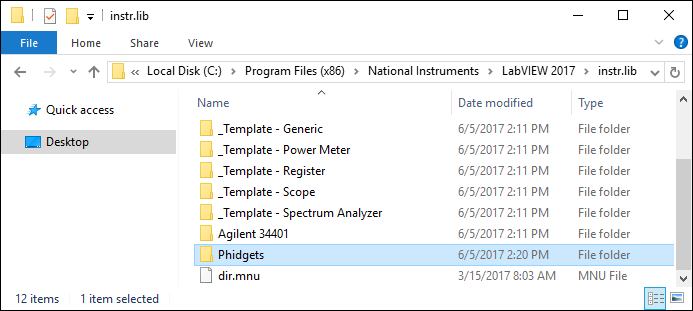
Unpack the zip file into a folder and name the folder Phidgets. Then, move the folder into your LabVIEW directory:
- For 32-bit LabVIEW, C:/Program Files (x86)/National Instruments/LabVIEW 20xx/instr.lib
- For 64-bit LabVIEW, C:/Program Files/National Instruments/LabVIEW 20xx/instr.lib
If you have multiple versions of LabVIEW installed, take care to ensure the library makes it into the correct version's instr.lib folder.
Development Environment Configuration
Using Our Examples
| Open LabVIEW and create a new VI. | 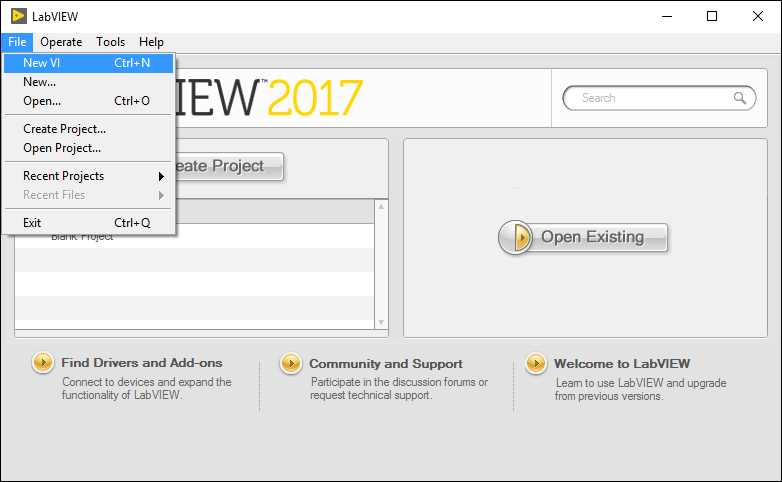 |
| In the new block diagram window, open the functions palette (View -> Functions Palette). |
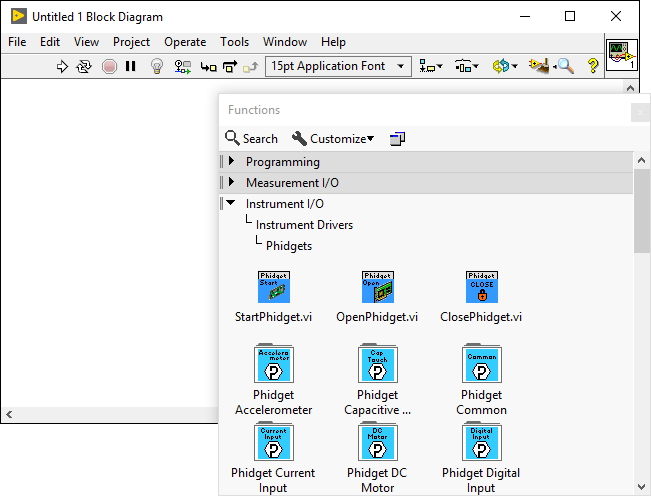 |
| Next, go to the Phidgets palette (Instrument I/O -> Instrument Drivers -> Phidgets) | |
| Next, select a palette that will work for your Phidget and drag VI Tree.vi onto your block diagram | 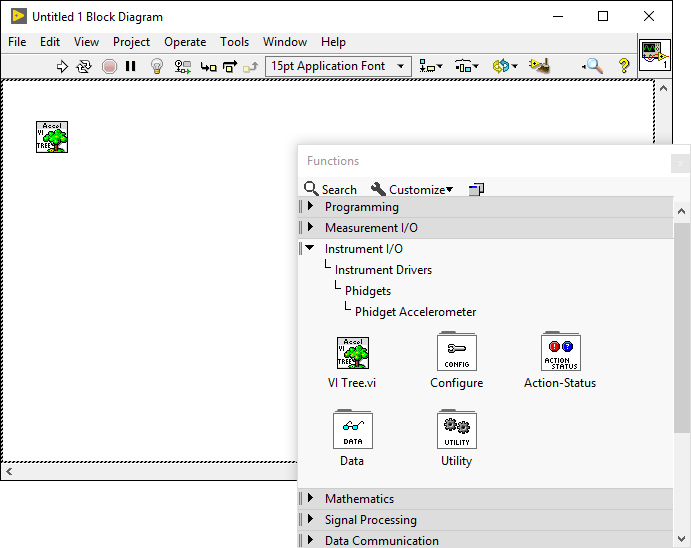 |
| Right-click on VI Tree.vi and select Open Front Panel | 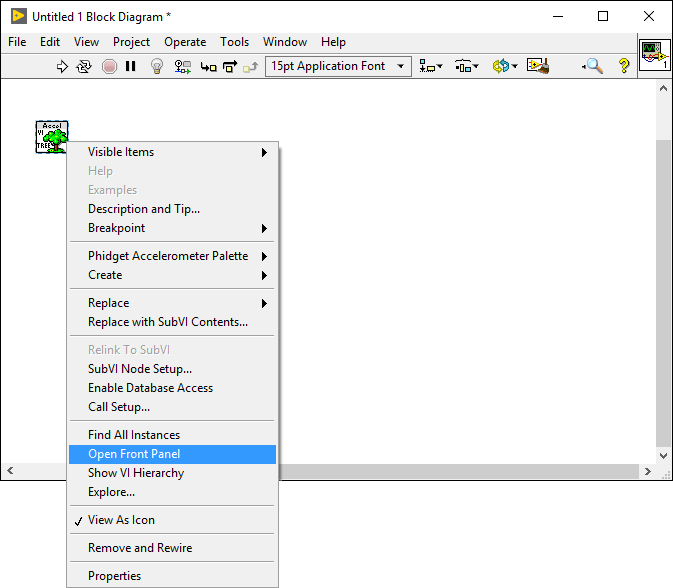 |
| From the front panel, navigate to the block diagram (Window -> Show Block Diagram) |
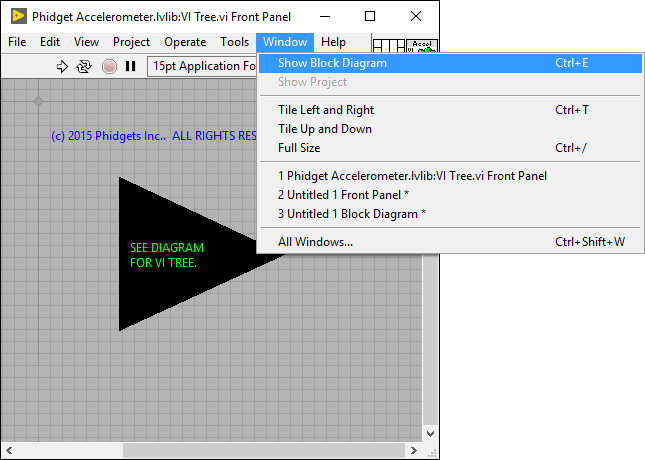 |
| The VI Tree Block Diagram lists all VIs available for its Phidget Class, and which subpalette to find them under. The examples are located near the bottom of the block diagram. Right-click the example you would like to use and select Open Front Panel |
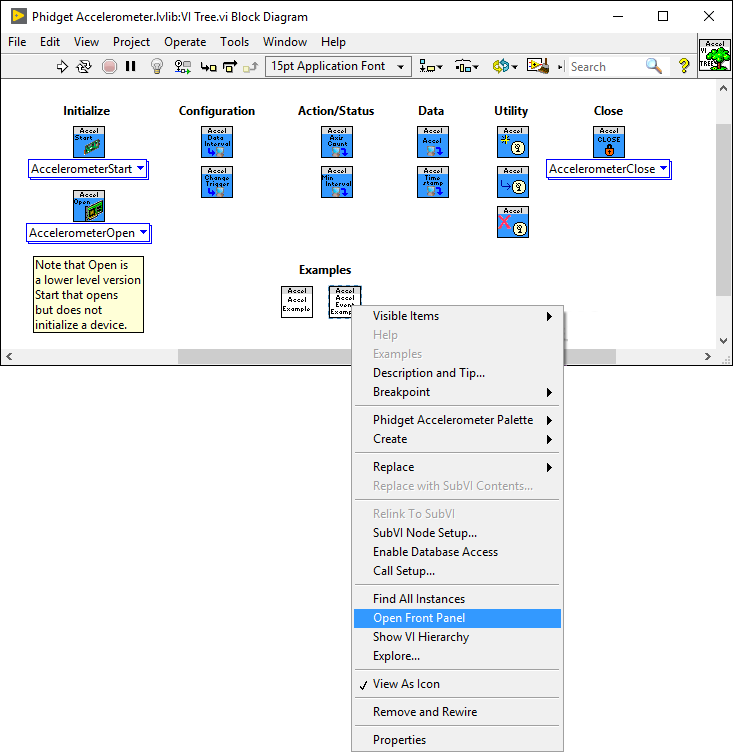 |
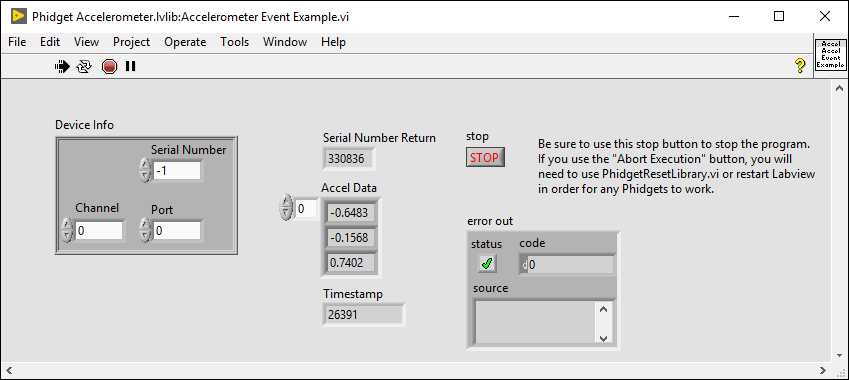
| When you are ready, press Run and the application will demonstrate the Phidget's functionality. Here is an example of an Accelerometer channel on a Spatial Phidget. |
 |
| You should now have the example up and running for your device. Play around with the device and experiment with some of the functionality. When you are ready, the next step is configuring your environment and writing your own code. | |
Configure Your Environment
| You should now have the example up and running for your device. Play around with the device and experiment with some of the functionality. When you are ready, the next step is configuring your environment and writing your own code. | |
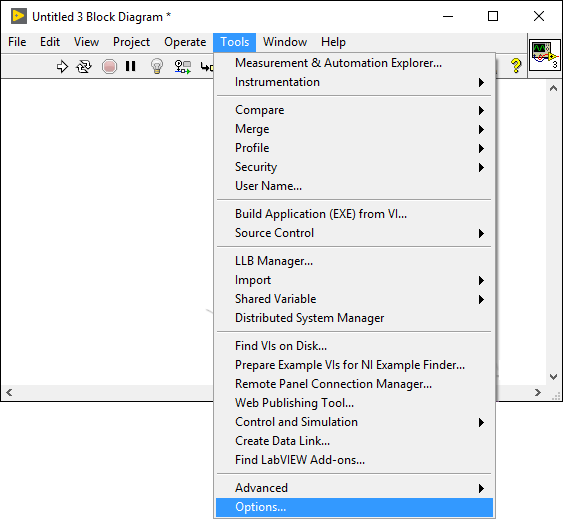
| First, we recommend enabling the Show constant labels setting in LabVIEW. This setting will reduce complexity when developing, and is especially recommended for beginners. To enable the setting, first navigate to Tools -> Options on your block diagram. |
 |
| Select the Environment category and enable Show created constant labels at the bottom. | 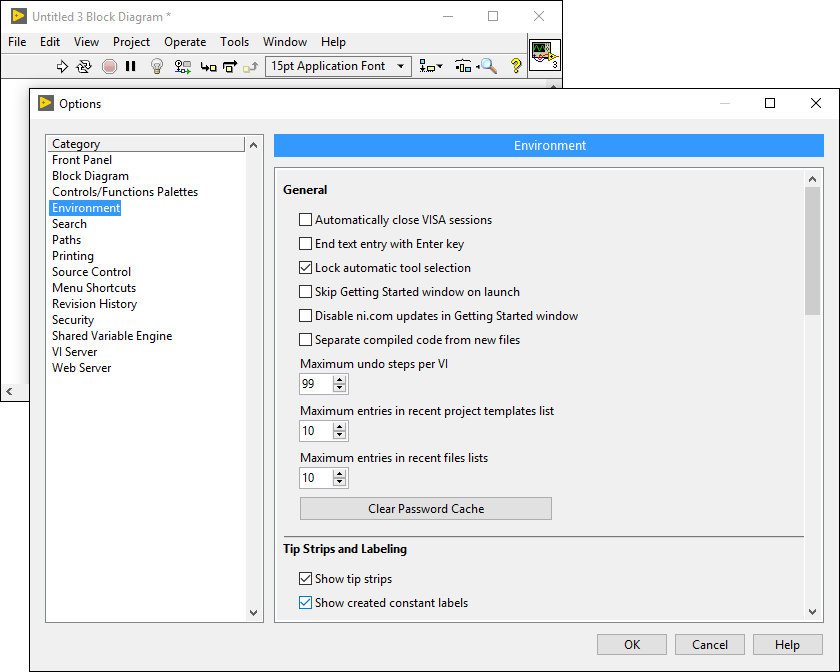 |
| To begin working with Phidgets, you will need both a StartPhidget VI and a ClosePhidget VI | 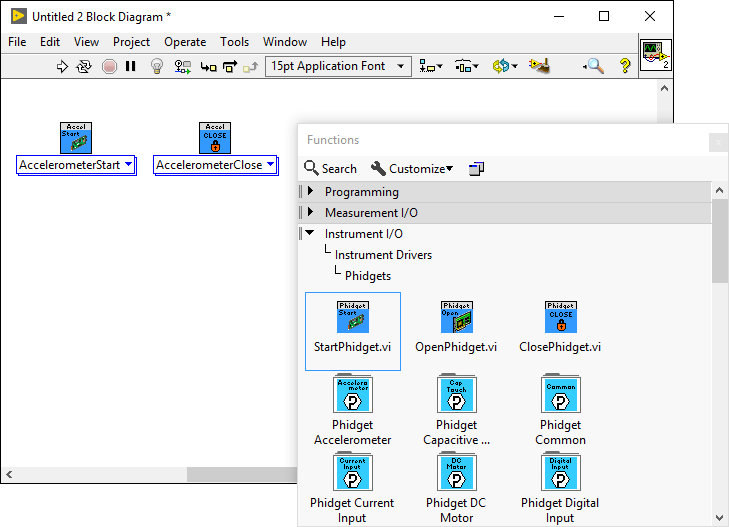 |
| Select a class that will work with your Phidget from the drop-down menu for each VI | 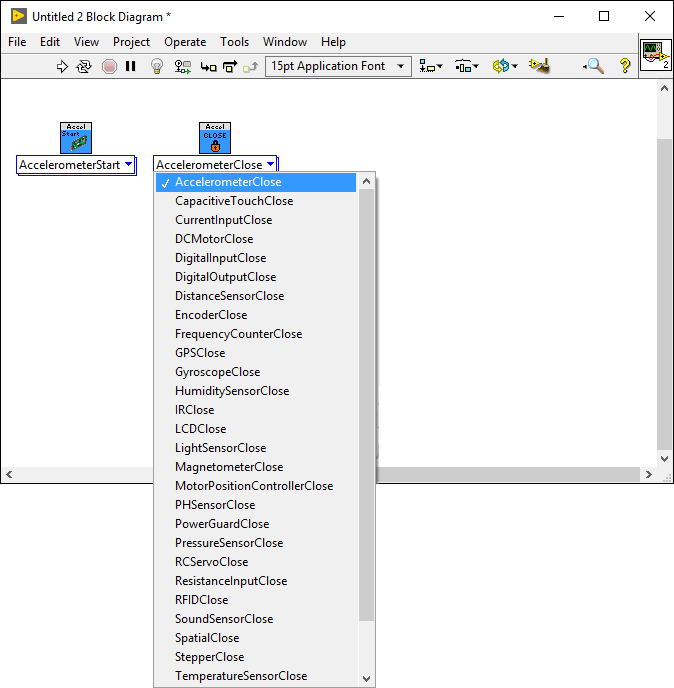 |
| You can now add device information or any initialization parameters to the StartPhidget VI. Using your mouse, hover over each of the connection nodes to see information about it | 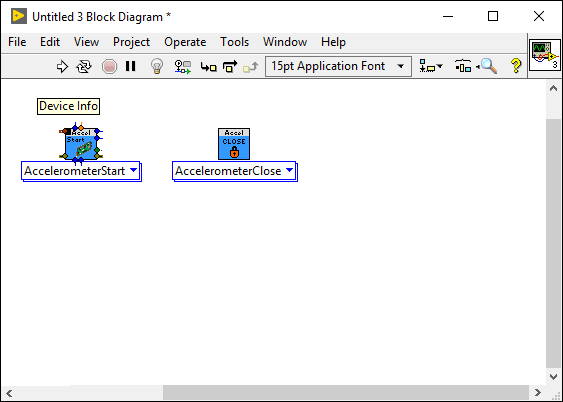 |
| If you would like to add device information or initialization parameters, right-click the connection node and navigate to Create -> Constant or Create -> Control | 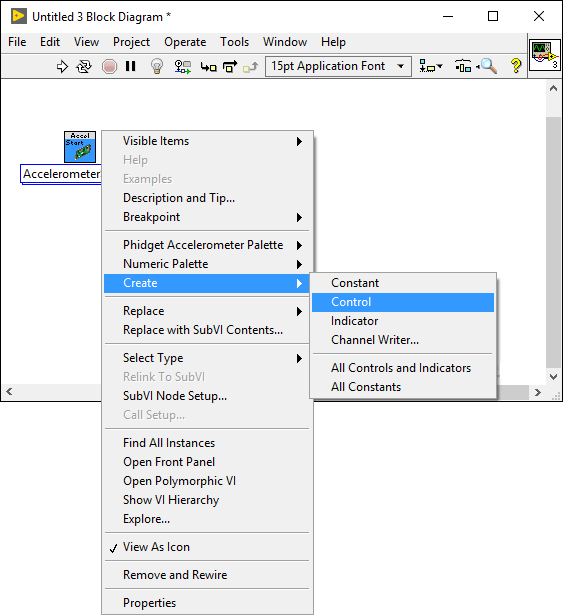 |
| Creating a constant will allow you to modify device information from the block diagram | 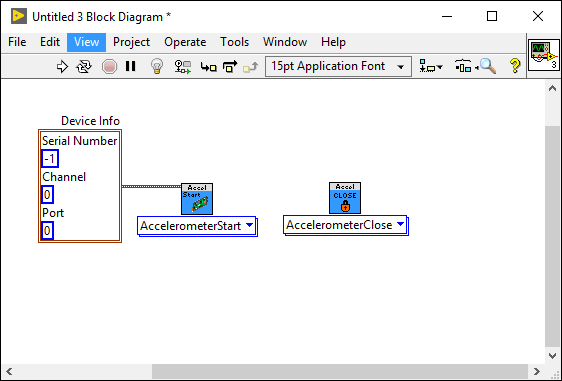 |
| Creating a control will allow you to modify device information from the front panel. | 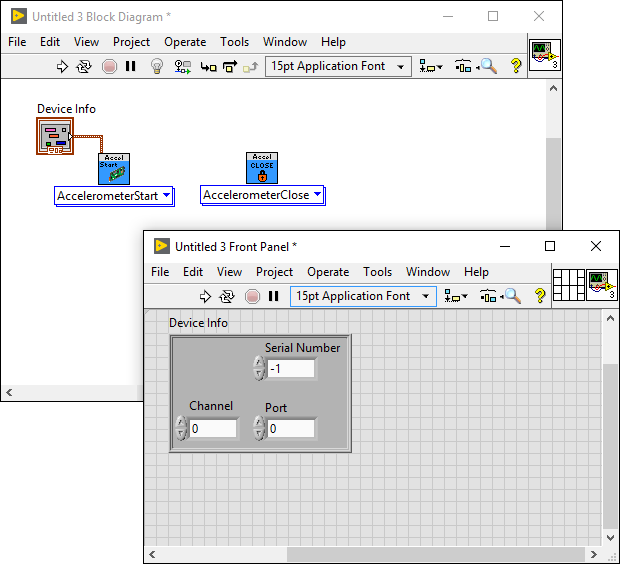 |
| The environment now has access to Phidgets. Next, we'll walk through writing your own code. | |
Write Code
| Along with this guide, you can use the Phidget22 API and the VI help files as resources. Examples of more complex general topics such as using multiple Phidgets and connecting to a Phidget over the Network Server can be found under the VI Tree for the Phidget Common palette. | |
| Most LabVIEW examples follow the same basic flow: starting a Phidget, reading some data, and closing the Phidget. | 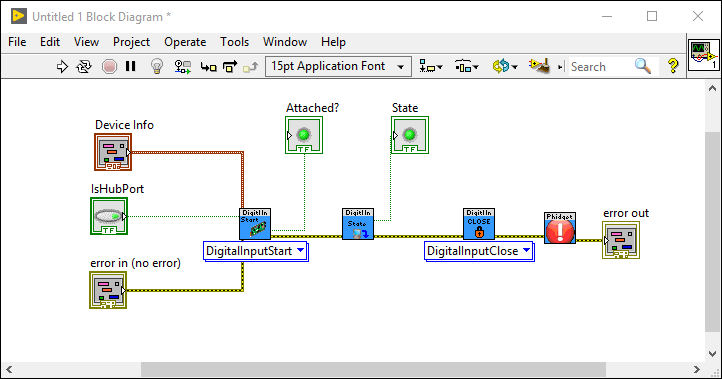 |
Step One: Initialize, Open And Wait For Attachment Of The Phidget
| |
| The entire process of opening and initializing a Phidget can be done by using the version of StartPhidget.vi that corresponds to your device. In most cases, StartPhidget.vi will also attempt to wait for the first data to become available from the device for 5 seconds after initialization. | 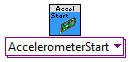 |
| If you'd prefer to initialize the device manually, you can use OpenPhidget.vi for your device and call the individual functions to set up the device. | 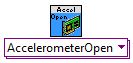 |
Step Two: Do Things With The Phidget
| |
| You can read data and interact with your Phidget both by polling it for its current state (or to set a state), or by catching events that trigger when the data changes. To poll devices, simply place the corresponding blocks as pictured. |
|
| To use events, there are three main blocks for each type, to create, execute, and close the event handler. When creating the event, all devices using an event of the same type must be grouped into an array to ensure the events get processed correctly. | 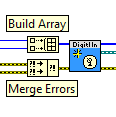 |
| Once created, the events will be processed by [Name]EventExe.vi. When an event occurs, the pertinent information will be output, as well as information to reference which device caused it. | |
| After a program has run its course, the event handler must be closed. |  |
Step Three: Close And Delete
| |
| Closing a Phidget is done by using the appropriate version of ClosePhidget.vi That's all the basic building blocks you need to create a LabVIEW program using Phidgets. |
|
Help and Documentation
| |
| For more information on the use of any VI and its parameters, right-click the VI and select Help | 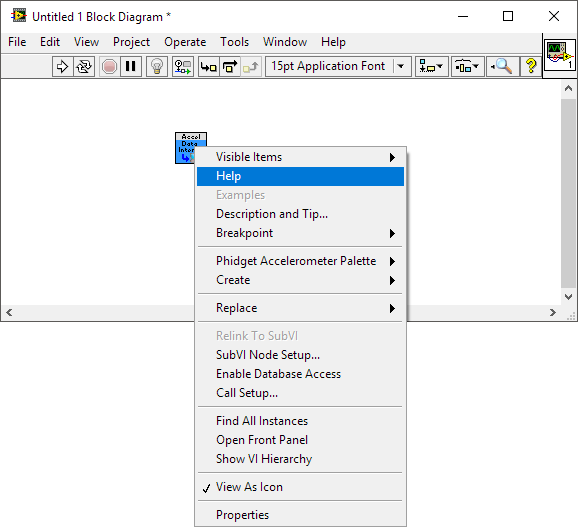 |
| This will take you to an HTML page outlining the function of the VI. This includes a list of all its parameters, which devices support them, their range of acceptable values, and their default values, where applicable. | 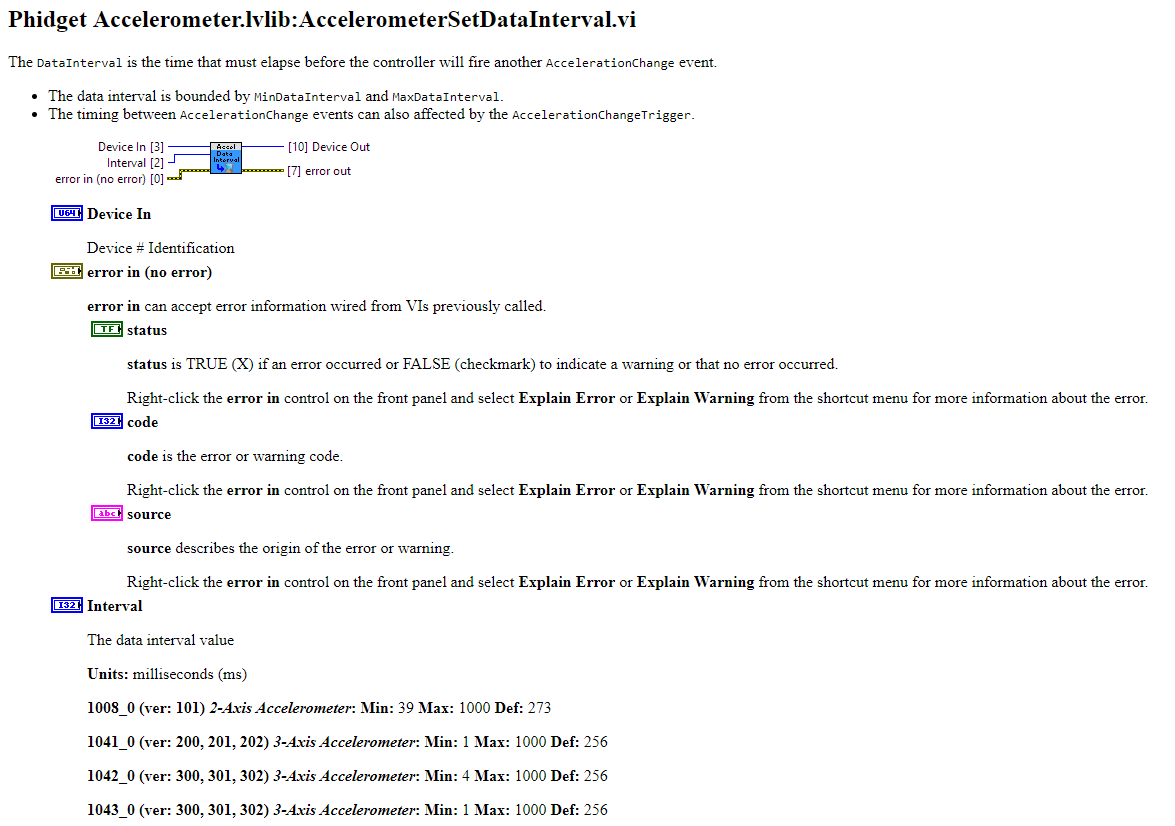 |
Example Code
Phidget Programming Basics
To learn more about the structure of the example code, visit our Phidget Programming Basics guide.
LabVIEW Troubleshooting
What this means is you probably aborted the VI which stopped the program before the Phidget could be closed. Aborting execution will not release the Phidget device properly and will consequently make it unusable until the Phidgets library (or LabVIEW) has been restarted.
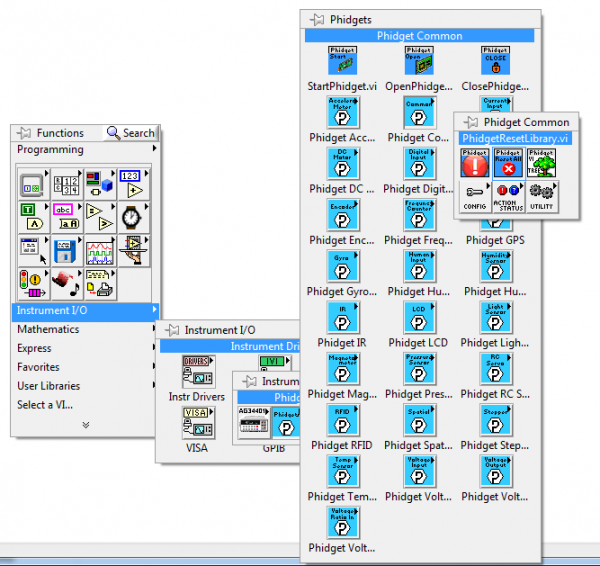
To resolve this, you may open a new VI, place PhidgetResetLibrary.vi, and run it. This will completely reset the current Phidget library, making it possible again to connect to all Phidgets.
Note that this action will close all Phidgets that are currently open in LabVIEW, and should not be used while other Phidgets-related LabVIEW VIs are running.
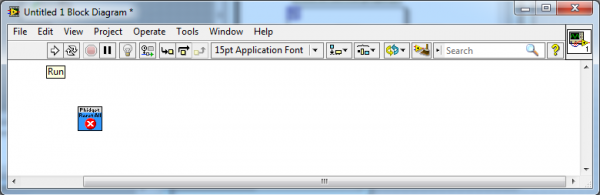
In order to prevent this from happening you should use a software stop button when possible instead of halting operation. That way the Close subVI gets called and the Phidget will be released.
All Phidgets-based error codes in LabVIEW are offset by 7000 to avoid conflicting with LabVIEW's own error codes. To get the equivalent Phidget return code from the LabVIEW error code, simply subtract 7000. For instance, error code 7003 in LabVIEW translates to Phidget Return Code 3.
To find the meaning of all Phidget Return Codes, you can go to the Phidget22 API page, and open the PhidgetReturnCode section under Enumerations.
In other words, if you open 2 of the same device and have a sensor change event for each one your system can behave unpredictably. This problem is a quirk in the way that LabVIEW handles passing events to and from C. There are a few solutions to this issue, either:
- Stop using events and simply poll the device. Events work similarly to polling in LabVIEW anyway and should not cause substantial performance changes to your application.
- Implement a simple fix to the events which are causing the problem. The pointer is identical in the case where two events of the same type are passed from a single function. This causes the events in C to output to the same event in LabVIEW. To get around this you need to copy the offending subVI, then change the name of the cluster object in it from "Event" to something else (your choice), change the name of the .vi to something else and then use those two different subVIs in your program. You would need to repeat this for each subsequent event of the same type you wish to have.
- Make an array of all the devices you intend to use with the event, and feed the array into a single EventCreate vi, and use a single EventExe handler for all the events. When using this method, it might be tempting to add multiple event handlers, but keep in mind that events only occur once, in whichever handler sees them first. When running multiple Phidgets through the single event handler, you can determine which one caused the event by comparing the phid terminal from the EventExe VI to the Phidget IDs (Device In/Device Out) of your Phidgets.
We recommend using either of the the first two solutions where possible. The first is a bit cleaner, but the second will work just as well. We only recommend using the third method in cases where it is not practical to manually create individual event handlers.