Language - Visual Basic: Difference between revisions

From Phidgets Support
No edit summary
No edit summary
 
(114 intermediate revisions by 9 users not shown)
Line 1: Line 1:
{{#seo:|description=Learn how to use Phidget USB devices with Visual Basic.}}
[[Category:Language]]
[[Category:Language]]
[[File:icon-Visual Basic Net.png|64x64px]] Preamble about the language's origin and its main characteristics.


__TOC__
==Get Started==
With the Phidget22.NET library, it's easy to create VB applications that work with Phidget devices.


==Introduction==
==VB Libraries==
===Nuget Package===
The Phidget22.NET library is available as a [https://www.nuget.org/packages/Phidget22.NET/ nuget package]. This is the recommend way to install and manage the Phidget22.NET library.


{{LanguageSupport|Visual Basic .NET|the complete Phidget API, including events|all Phidget devices.|the .NET or Mono framework. Both of the frameworks are supported on Windows. For Linux and Mac OS X, only the Mono framework can be used. We provide instructions on how to set up your environment/compilers for [[#Visual Studio 2005/2008/2010 | Visual Studio 2005/2008/2010]], [[#Visual Studio 2003 | Visual Studio 2003]], [[#MonoDevelop | MonoDevelop]] and the [[#Mono | Mono command line compilers]]|}}
===Library Files===
If you would like to manually manage the Phidget22.NET library files, you can download them [https://cdn.phidgets.com/downloads/phidget22/libraries/windows/Phidget22-windevel.zip here].


==Quick Downloads==
==Development Environment Configuration==
===Visual Studio===
{| style="margin:auto;" class="table-no-border mw-collapsible mw-collapsed"
|+ '''Instructions'''
| {{hiddenh4|Start with the Code Samples}} ||
|-
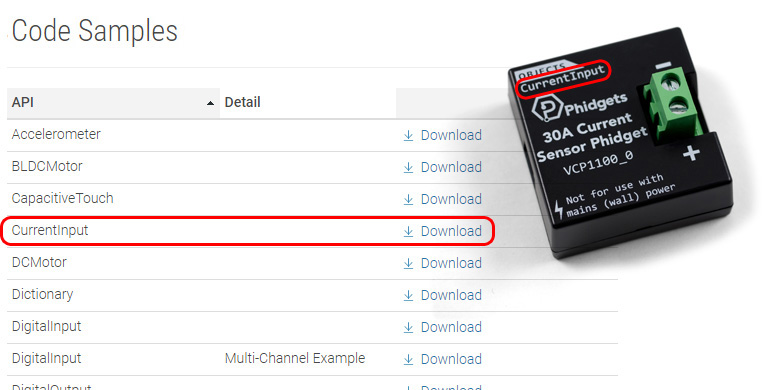
| One of the best ways to start programming with Phidgets is to use our [https://www.phidgets.com/?view=code_samples&lang=VBNET example code] as a guide. Download the example(s) that correspond to your Phidget's channel classes. You can find them listed on the enclosure in most cases, or on the API tab of the product page. || [[Image:Language_vb_sample.jpg|center|350px|link=https://cdn.phidgets.com/docs/images/4/42/Language_vb_sample.jpg]]
|-
| Unpack and open the example project and click the Start button. The application will open the Phidget, list basic information about the Phidget, and demonstrate the Phidget's functionality.  || [[Image:Language_vb_start.png|center|350px|link=https://cdn.phidgets.com/docs/images/b/ba/Language_vb_start.png]]
|-
| {{hiddenh4|Editing the Examples}} ||
|-
| The Visual Basic .Net examples are derived from the Windows [[Phidget Control Panel]], so you'll need to modify a few things to adapt them for your own purposes. To begin with, you can remove the following line: ||
|-
|colspan="2"| <syntaxhighlight lang=vbnet>commandLineData phidgetParameters = open.parseCmdLine(); //get command line parameters</syntaxhighlight> ||
|-
|colspan="2"| Then, you can modify any line that mentions phidgetParameters by setting it to the desired value instead of using PhidgetParameters object. ||
|-
|colspan="2"| For instance:<syntaxhighlight lang=vbnet>Try 'set all the values grabbed from command line.  these values have defaults that are set in ExampleUtils.vb, you can check there to see them
    device.Channel = phidgetParameters.Channel 'selects the channel on the device to open
    device.DeviceSerialNumber = phidgetParameters.SerialNumber 'selects the device or hub to open
    device.HubPort = phidgetParameters.HubPort 'selects th eport on the hub to open
    device.IsHubPortDevice = phidgetParameters.isHubPortDevice 'is the device a port on a vint hub?


Just need the Visual Basic .NET documentation, drivers, libraries, and examples?  Here they are:
    If phidgetParameters.isRemote Then 'are we trying to open a remote device?
        device.IsRemote = True
        Net.EnableServerDiscovery(ServerType.Device) 'turn on network scan
        If phidgetParameters.Password <> vbNullString And
          phidgetParameters.ServerName <> vbNullString Then
         
            Net.SetServerPassword(phidgetParameters.ServerName, phidgetParameters.Password)
        End If
    Else
        device.IsLocal = True
    End If


===API Documentation===
    device.Open() 'open the device specified by the above parameters
*[http://www.phidgets.com/documentation/Phidget21.NET.zip API Manual]
Catch ex As PhidgetException
    errorBox.addMessage("Error opening the device: " + ex.Message)
End Try</syntaxhighlight>
|-
|colspan="2"|  Might become: <syntaxhighlight lang=vbnet> Try
    device.Channel = 0
    device.DeviceSerialNumber = 370097
    device.HubPort = 0
    device.IsHubPortDevice = True
    device.IsLocal = True


===Example Code===
    device.Open()
 
Catch ex As PhidgetException
*[http://www.phidgets.com/downloads/examples/CSharp_2.1.8.20110615.zip Example Code]
    errorBox.addMessage("Error opening the device: " + ex.Message)
 
End Try</syntaxhighlight> You can then manipulate the rest of the code as your application requires.
===Libraries and Drivers===
|-
*[http://www.phidgets.com/downloads/libraries/phidget21-x86_2.1.8.20110615.zip .NET Framework Files]
| {{hiddenh4|Setting up a New Project}} ||  
*[http://www.phidgets.com/downloads/libraries/phidget21-x86_2.1.8.20110615.zip 32 bit Windows Drivers and Libraries]
|-
*[http://www.phidgets.com/downloads/libraries/phidget21-x64_2.1.8.20110615.zip 64 bit Windows Drivers and Libraries]
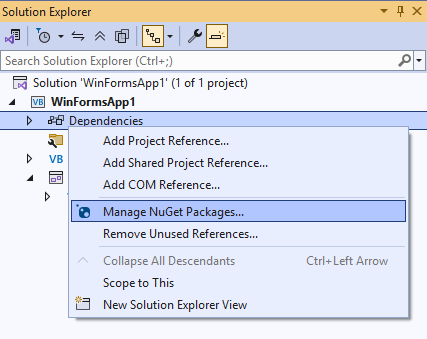
| When you are building a project from scratch, or adding Phidget functionality to an existing project, you'll need to configure your development environment to properly link the Phidget .NET library. Create a new VB Forms Application, open the NuGet package manager. || [[Image:Language_vb_nuget.png|center|350px|link=https://cdn.phidgets.com/docs/images/4/4e/Language_vb_nuget.png]]
*[http://www.phidgets.com/downloads/libraries/Phidget-x86_2.1.8.20111220.exe 32-bit Windows Drivers Installer]
|-
*[http://www.phidgets.com/downloads/libraries/Phidget-x64_2.1.8.20111220.exe 64-bit Windows Drivers Installer]
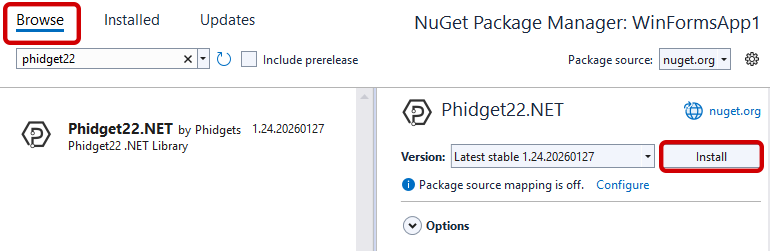
| On the following screen, click '''Browse''', search for Phidget22, and install the Phidget22.NET package. || [[Image:Language_vb_nuget_install.png|center|350px|link=https://cdn.phidgets.com/docs/images/7/74/Language_vb_nuget_install.png]]
*[http://www.phidgets.com/downloads/libraries/libphidget_2.1.8.20111028.tar.gz Linux Source]
|-
*[http://www.phidgets.com/downloads/libraries/Phidget_2.1.8.20111103.dmg Mac OS X Drivers Installer]
|colspan="2"| Then, you just need to add the following lines: <syntaxhighlight lang=vbnet>Imports Phidget22
 
Imports Phidget22.Events</syntaxhighlight> The project now has access to Phidgets.
==Getting started with Visual Basic .NET==
|}
 
If you are new to writing code for Phidgets, we recommend starting by running, then modifying existing examples. This will allow you to:
{{ExampleCodeReasons}}
 
Instructions are divided up by operating system. Choose:
*[[#Windows(2000/XP/Vista/7)|Windows 2000 / XP / Vista / 7]]
*[[#Mac OS X |Mac OS X]]
*[[#Linux | Linux]] (including PhidgetSBC)
 
==Windows(2000/XP/Vista/7)==
 
===Description of Library Files===
Visual Basic .NET programs on Windows depend on the following files, which the installers above put onto your system:
* <b>{{Code|phidget21.dll}}</b> contains the actual Phidgets library, which is used at run-time.  By default, it is placed in {{Code|C:\Windows\System32}}.
You will also need one of the following two files, depending on the .NET framework version you are targeting:
* <b>{{Code|Phidget21.NET.dll}}</b> is the Phidgets library for .NET framework <i><b>2.0</b></i> or higher. Your compiler has to know where this file is. By default, it is placed into {{Code|C:\Program Files\Phidgets}}. You can either point your compiler to that location, or copy and link to it in a directory for your project workspace.
* <b>{{Code|Phidget21.NET1.1.dll}}</b> is the Phidgets library for .NET framework <i><b>1.1</b></i>. Your compiler has to know where this file is. By default, is is placed into {{Code|C:\Program Files\Phidgets}}. You can either point your compiler to that location, or copy and link to it in a directory for your project workspace.  
You can optionally install the following files:
* <b>{{Code|Phidget21.NET.XML}}</b> provides the IntelliSense in-line documentation for the .NET library in Visual Studio/MonoDevelop. This documentation is also visible in the Object Browser in Visual Studio. By default, it is placed into {{Code|C:\Program Files\Phidgets}}.
* <b>{{Code|Policy.2.1.Phidget21.NET.dll}}</b> is the policy assembly for {{Code|Phidget21.NET.dll}}. Our installer places this file in the Global Assembly Cache(GAC) directory. It directs any programs compiled against version 2.1.0 or higher of {{Code|Phidget21.NET.dll}} to use the most recent installed version.
 
If you do not want to use our installer, you can download the five [http://www.phidgets.com/downloads/libraries/Phidget21-windevel_2.1.8.20111220.zip files].
 
 
Running the examples and writing your own code can be fairly compiler-specific, so we include instructions for each compiler below.
 
===Visual Studio 2005/2008/2010===
 
Microsoft makes free versions of Visual Studio available known as Express Editions.  The Express editions are suitable for most applications, but are limited in features for more complex applications. Please see [http://www.microsoft.com/visualstudio Microsoft Visual Studio] for more information.
 
=====Use Our Examples=====
 
Please start by downloading the [http://www.phidgets.com/downloads/examples/CSharp_2.1.8.20110615.zip examples] and unpack them into a foler.  While these examples were written in Visual Studio 2005 and 2008, Visual Studio 2010 will easily open and upgrade them. To load all projects in Visual Studio, go to File &rarr; Open &rarr; Project, and open {{Code|AllExamples/AllExamples.sln}} or {{Code|AllExamples/AllExamples_vs2008.sln}} for Visual Studio 2005 and 2008, respectively.
 
If you are opening the Phidget examples in Visual Studio 2010, you will need to go through the Visual Studio Conversion Wizard to convert the 2005 or 2008 project.
[[File:VS2005 Conversion Wizard.PNG|link=|alt=Conversion Wizard]]
 
This will load all of the examples available for Visual Basic .NET, and then you can set your main project to be the one that matches your device.  If you aren't sure what the software example for your device is called, check the software object listed in the [[Device List | Getting Started guide for your device]].
 
The only thing left to do is to run the examples! Click on Debug &rarr; Start Debugging. Please note that the projects, by default try to find the {{Code|Phidget21.NET.dll}} in the {{Code|C:\Program Files\Phidgets}}. If you have it installed in another location, please change the path to the file's location accordingly. If you are receiving an error message regarding that the namespace Phidgets cannot be found, please re-add the reference to {{Code|Phidget21.NET.dll}}. Please see the [[#Write Your Own Code | Write Your Own Code ]] section for details.
 
[[File:CSharp VS2005 Run.PNG|link=|alt=Run?]]
 
Once you have the Visual Basic .NET examples running, we have a [[#Follow the Examples|teaching]] section below to help you follow them.
 
=====Write Your Own Code=====
 
When you are building a project from scratch, or adding Phidget function calls to an existing project, you'll need to configure your environment to properly link the Phidget Visual Basic .NET libraries. To begin:
 
1. Generate a new Visual Basic .NET Windows Applications project with a descriptive name such as PhidgetTest.
 
[[File:CSharp VS2005 New Project.PNG|link=|alt=New Project]]
 
2. Add a reference to the .NET Phidgets library.
 
[[File:CSharp VS2005 Add Reference.PNG|link=|alt=Add Reference]]
 
3. Under the .NET tab, select {{Code|Phidget21.NET.dll}}.
If you used our installer, these files are installed in {{Code|C:\Program Files\Phidgets}}, by default. If it does not appear in this list, then you can browse to the Phidget Framework installation directory and add the file.
 
[[File:CSharp VS2005 Add Reference 2.PNG|link=|alt=Add Reference]]
 
4. Then, in your code, you will need to include the Phidget library:
 
<div class="source">
<syntaxhighlight lang=csharp>
  using Phidgets;
  using Phidgets.Events;
</syntaxhighlight>
</div>
 
 
The project now has access to the Phidget21 function calls and you are ready to begin coding.
 
The same [[#Follow the Examples|teaching ]] section which describes the examples also has further resources for programming your Phidget.
 
===Visual Studio 2003===
 
=====Use Our Examples=====
 
1. Download the [http://www.phidgets.com/downloads/examples/CSharp_2.1.8.20110615.zip examples] and unpack them into a folder. Here, you can find example programs for all the devices. If you are not sure what the software example for your device is called, check the software object listed in the [[Device List | Getting Started guide for your device]]. As the examples were written in newer versions of Visual Studio, Visual Studio 2003 is not able to open the examples. Fortunately, you can import the simple examples to a Visual Studio 2003 project. It will be difficult to import the full examples as you will need to recreate the GUI components. In the [[#Use Our Examples 2 | Use Our Examples]] section, it will be assumed that the simple examples are used. You will need this example source code to be copied into your Visual Basic .NET project later on.
 
2. Next, a new project will need to be created. Generate a new Visual Basic .NET console application project with a descriptive name such as PhidgetTest.
 
[[File:CSharp_VS2003 New Project.PNG|link=|alt=New Project]]
 
3. Add a reference to the .NET Phidgets library.
 
[[File:CSharp_VS2003 Add Reference 1.PNG|link=|alt=Add Reference]]
 
4. Under the .NET tab, select {{Code|Phidget21.NET1.1.dll}}. If you used our installer, by default, this file is placed in {{Code|C:\Program Files\Phidgets}}. If it is in another location, please change the path to the file's location accordingly.
 
[[File:CSharp_VS2003 Add Reference 2.PNG|link=|alt=Add Reference]]
 
5. To import the simple example program into your project, please: open up {{Code|Class1.cs}}.
 
6. Traverse to the example in Windows Explorer and locate the {{Code|Program.cs}} file.
 
[[File:CSharp VS2003 Source Code.PNG|link=|alt=Source Code]]
 
7. Copy and paste the contents from that file into {{Code|Class1.cs}}.
 
8. Comment out the following line as it is not supported in .NET 1.1:
<div class="source">
<syntaxhighlight lang=csharp>
  using System.Collections.Generic;
</syntaxhighlight>
</div>
 
[[File:CSharp VS2003 Source Code 2.PNG|link=|alt=Source Code]]
 
9. Now, you can run the example. Click on Debug &rarr; Start.
 
[[File:CSharp VS2003 Run.PNG|link=|alt=Run]]
 
Once you have the Visual Basic .NET examples running, we have a [[#Follow the Examples|teaching ]] section below to help you follow them.
 
=====Write Your Own Code=====
 
When you are building a project from scratch, or adding Phidget function calls to an existing project, you'll need to configure your development environment to properly link the Phidget Visual Basic .NET libraries. Please see the [[#Use Our Examples 2 | Use Our Examples ]] section for instructions.
 
Then, in your code, you will need to include the Phidget library:
<div class="source">
<syntaxhighlight lang=csharp>
  using Phidgets;
  using Phidgets.Events;
</syntaxhighlight>
</div>
 
The project now has access to the Phidget21 function calls and you are ready to begin coding.
 
The same [[#Follow the Examples|teaching]] section which describes the examples also has further resources for programming your Phidget.


===Mono===
===Mono===
{| style="margin:auto;" class="table-no-border mw-collapsible mw-collapsed"
|+ '''Instructions'''
| {{hiddenh4|HelloWorld Example}} ||
|-
|colspan="2"|First, download and unpack the [https://www.phidgets.com/downloads/phidget22/examples/dotnet/csharp/Manager/Phidget22_HelloWorld_CSharp_Windows_Ex.zip HelloWorld example] for VB. This example uses the [[Phidget Manager]] to list all Phidget channels that can be accessed by your computer. All other VB examples use Windows Forms, so they are not compatible with Mono.
|-
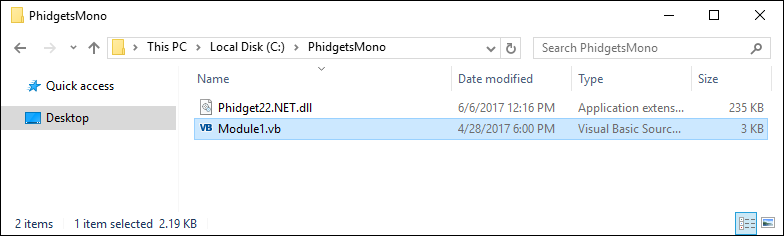
|Next, copy Phidget22.NET.dll from type the following location:<syntaxhighlight>C:\Program Files\Phidgets\Phidget22\Phidget22.NET.dll</syntaxhighlight>Place both the HelloWorld example and the Phidget22.NET.dll file in the same location. || [[Image:Language_vb_dll_folder.png|center|350px|link=https://cdn.phidgets.com/docs/images/8/89/Language_vb_dll_folder.png]]
|-
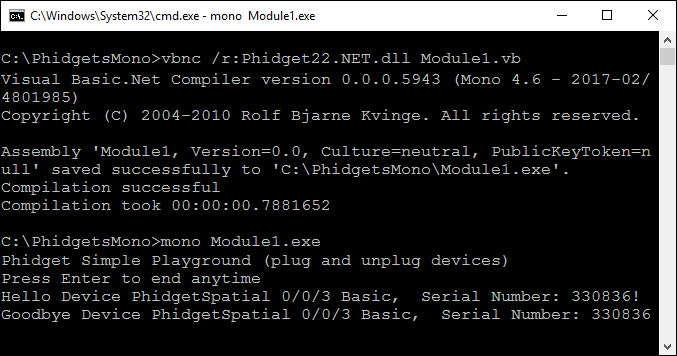
|colspan="2"|Open the command prompt at the folder location and enter the following command:<syntaxhighlight>vbnc /r:Phidget22.NET.dll Module1.vb</syntaxhighlight>This will create an executable file called Module1.exe. Type in the following command to run the example:<syntaxhighlight>mono Module1.exe</syntaxhighlight>
|-
|You should be able to see the channels of your Phidget listed when the program starts or whenever the Phidget is plugged in while the program is running.<br/><br/>Now that you've confirmed that your devices are properly connected, the next step is to download and edit sample code for your specific device.  || [[Image:Language_vb_console.png|center|350px|link=https://cdn.phidgets.com/docs/images/5/5e/Language_vb_console.png]]
|-
| {{hiddenh4|Other Examples}} ||
|-
| To download the code samples, visit [https://www.phidgets.com/?view=code_samples&lang=VBNET this page].  Download the example(s) that correspond to your Phidget's channel classes. You can find them listed on the enclosure in most cases, or on the API tab of the product page. || [[Image:Language_vb_sample.jpg|center|350px|link=https://cdn.phidgets.com/docs/images/4/42/Language_vb_sample.jpg]]
|-
|colspan="2"|The Visual Basic examples are derived from the Windows Phidget Control Panel, so you'll need to modify a few things to adapt them for your own purposes. To begin with, you can remove the following line:
<syntaxhighlight lang=vbnet>commandLineData phidgetParameters = open.parseCmdLine(); //get command line parameters</syntaxhighlight>Then, you can modify any line that mentions '''phidgetParameters''' by setting it to the desired value instead of using PhidgetParameters object.
|-
|colspan="2"| For instance:<syntaxhighlight lang=vbnet>Try 'set all the values grabbed from command line.  these values have defaults that are set in ExampleUtils.vb, you can check there to see them
    device.Channel = phidgetParameters.Channel 'selects the channel on the device to open
    device.DeviceSerialNumber = phidgetParameters.SerialNumber 'selects the device or hub to open
    device.HubPort = phidgetParameters.HubPort 'selects th eport on the hub to open
    device.IsHubPortDevice = phidgetParameters.isHubPortDevice 'is the device a port on a vint hub?


This section will provide instructions on how to compile using the {{Code|mcs}} compiler. Other compilers such as {{Code|gmcs}}, {{Code|smcs}}, and {{Code|dmcs}} all work in the same way. Start by downloading the Visual Basic .NET Examples.
    If phidgetParameters.isRemote Then 'are we trying to open a remote device?
 
        device.IsRemote = True
=====Use Our Examples=====
        Net.EnableServerDiscovery(ServerType.Device) 'turn on network scan
 
        If phidgetParameters.Password <> vbNullString And
Download the [http://www.phidgets.com/downloads/examples/CSharp_2.1.8.20110615.zip examples] and unpack them into a folder. Here, you can find example programs for all the devices. If you aren't sure what the software example for your device is called, check the software object listed in the [[Device List | Getting Started guide for your device]]. Please only use the simple examples. The full examples uses Windows Forms, which Mono and the Gtk# toolkit are not completely compatible with. Locate the {{Code|Program.cs}} file as this contains the example source code. Copy the file into your working directory, and rename it to {{Code|example.cs}}.
          phidgetParameters.ServerName <> vbNullString Then
<br/>
         
 
            Net.SetServerPassword(phidgetParameters.ServerName, phidgetParameters.Password)
To compile and build an executable, run:
        End If
<div class="source">
    Else
<syntaxhighlight lang=bash>
        device.IsLocal = True
mcs /out:example.exe /lib:"C:\Program Files\Phidgets" /r:phidget21.NET.dll example.cs
    End If
</syntaxhighlight>
</div>
 
If you have the {{Code|Phidget21.NET.dll}} installed in another location, please change the path to the file's location accordingly.
 
Afterwards, you will have an executable named {{Code|example.exe}} that you can run. Place the {{Code|Phidget21.NET.dll}} in the same directory as the executable and type the following to run the program:
<div class="source">
<syntaxhighlight lang=bash>
mono example.exe
</syntaxhighlight>
</div>
 
Once you have the Visual Basic .NET examples running, we have a [[#Follow the Examples|teaching]] section below to help you follow them.
 
=====Write Your Own Code=====
 
When you are building a project from scratch, or adding Phidget function calls to an existing project, you'll need to configure your development environment to properly link the Phidget Visual Basic .NET libraries. Please see the [[#Use Our Examples 3 | Use Our Example ]] section for instructions.
 
In your code, you will need to include the Phidget library:
 
<div class="source">
<syntaxhighlight lang=csharp>
  using Phidgets;
  using Phidgets.Events;
</syntaxhighlight>
</div>
 
 
The project now has access to the Phidget21 function calls and you are ready to begin coding.
 
The same [[#Follow the Examples|teaching]] section which describes the examples also has further resources for programming your Phidget.
 
===MonoDevelop===
 
=====Use Our Examples=====
 
Download the [http://www.phidgets.com/downloads/examples/CSharp_2.1.8.20110615.zip examples] and unpack them into a folder. Here, you can find example programs for all the devices. These examples were written in Visual Studio 2005 and 2008, but are also compatible with MonoDevelop.
 
To load all projects in MonoDevelop, go to File &rarr; Open, and open {{Code|AllExamples/AllExamples.sln}}
 
This will load all of the examples available for Visual Basic .NET, and then you can set your main project to be the one that matches your device.  If you aren't sure what the software example for your device is called, check the software object listed in the [[Device List | Getting Started guide for your device]]. If you are running under the .NET framework, you can use either the full or simple examples. Otherwise, if you are running under the Mono framework, please only use the simple examples. The full examples uses Windows Forms, which is not completely compatible with Mono's Gtk#.
 
[[File:CSharp MonoDevelop Win Start Up.PNG|link=|alt=Start Up Project]]
 
The only thing left to do is to run the examples! Right click the project, and click on {{Code|Run With}} and select the target framework. Please note that the projects, by default try to find the {{Code|Phidget21.NET.dll}} in the {{Code|C\Program Files\Phidgets}}. If you have it installed in another location, please change the path to the file's location accordingly. If you are receiving an error message regarding that the namespace Phidgets cannot be found, please re-add the reference to {{Code|Phidget21.NET.dll}}. Please see the [[#Write Your Own Code 4 | Write Your Own Code]] section for details.
 
[[File:CSharp MonoDevelop Win Run As.PNG|link=|alt=Run As]]
 
Once you have the Visual Basic .NET examples running, we have a [[#Follow the Examples|teaching]] section below to help you follow them.
 
=====Write Your Own Code=====
 
When you are building a project from scratch, or adding Phidget function calls to an existing project, you'll need to configure your  development environment to properly link the Phidget Visual Basic .NET libraries. To begin:
 
1. Create a new Visual Basic .NET empty project with a descriptive name such as PhidgetTest.
 
[[File:CSharp MonoDevelop Win New Project.PNG|link=|alt=New Project]]
 
2. Add a reference to the .NET library.
 
[[File:CSharp MonoDevelop Win Reference.PNG|link=|alt=Add Reference]]
 
3. Select {{Code|Phidget21.NET.dll}}. If you used our installer, by default, this file is placed in {{Code|C:\Program Files\Phidgets}}. If it is in another location, please change the path to the file's location accordingly.
 
[[File:CSharp MonoDevelop Win Reference 2.PNG|link=|alt=Add Reference]]
 
4. Then, in your code, you will need to include the Phidget library:
 
<div class="source">
<syntaxhighlight lang=csharp>
  using Phidgets;
  using Phidgets.Events;
</syntaxhighlight>
</div>
 
The project now has access to the Phidget21 function calls and you are ready to begin coding.
 
The same [[#Follow the Examples|teaching]] section which describes the examples also has further resources for programming your Phidget.
 
==Mac OS X==
 
Visual Basic .NET has excellent support on Mac OS X through the Mono framework.
 
The first step in using Visual Basic .NET on Mac is to install the Phidget libraries.  Compile and install them as explained on the [[Device List|getting started guide for your device]].  Then, the [[OS - Mac OS X]] page also describes the different Phidget files, their installed locations, and their roles....
 
==Linux==
 
Visual Basic .NET has support on Linux through the Mono framework. 
 
The first step in using Visual Basic .NET on Linux is to install the Phidget libraries.  Compile and install them as explained on the main [[OS - Linux | Linux page]].  That Linux page also describes the different Phidget files, their installed locations, and their roles.
 
==Follow the Examples==
 
By following the instructions for your operating system and compiler above, you probably now have a working example and want to understand it better so you can change it to do what you want.  This teaching section has resources for you to learn from the examples and write your own.
 
Next, comes our API information.  These resources outline the Visual Basic .NET Phidget functions:
 
{{UsingAPhidgetInCodeGeneral|both of which are available in Visual Basic .NET|[http://www.phidgets.com/documentation/Phidget21.NET.zip Visual Basic .NET API]}}


===Example Flow===
    device.Open() 'open the device specified by the above parameters
Catch ex As PhidgetException
    errorBox.addMessage("Error opening the device: " + ex.Message)
End Try</syntaxhighlight>
|-
|colspan="2"|  Might become: <syntaxhighlight lang=vbnet> Try
    device.Channel = 0
    device.DeviceSerialNumber = 370097
    device.HubPort = 0
    device.IsHubPortDevice = True
    device.IsLocal = True


{{ExamplePseudocode|In Visual Basic .NET, you can name these '''event''' functions whatever you like. You will then pass them as function pointers to the Phidget library below in the Main Code section.  This hooks them into the actual events when they occur. <br>  
    device.Open()
In the example code, the event functions common to all Phidgets are called things like '''AttachHandler()''' and '''DetachHandler()''', etc.<br><br>
Catch ex As PhidgetException
Some event functions will be specific to each device, like when a tag is read on an RFID board, or when a sensor value changes on an Interface Kit.
    errorBox.addMessage("Error opening the device: " + ex.Message)
Other functions are given in the examples to show you more detail on using your Phidget. For example, '''DeviceInitialize()''' will show what needs to be set up for your Phidget before using it.
End Try</syntaxhighlight> You can then manipulate the rest of the code as your application requires.
|Creating a Phidget software object in Visual Basic .NET is specific to the Phidget. For a Phidget Spatial, for example, this would involve creating a {{Code|Spatial}} object.  The examples show how to do this and other API functions.<br><br>
|-
The object provides device specific methods and properties which are available from the API for your specific Phidget.|
| {{hiddenh4|Setting up a New Project}} ||
[http://www.phidgets.com/documentation/Phidget21.NET.zip Visual Basic .NET API]}}
|-
|colspan="2"| To start a project from scratch, or add Phidget functionality to an existing project, you'll need to include the Phidget .NET library by adding the following lines to your code:<syntaxhighlight lang=vbnet>Imports Phidget22
Imports Phidget22.Events</syntaxhighlight>
|-
| Next, copy Phidget22.NET.dll from the following location:<syntaxhighlight>C:\Program Files\Phidgets\Phidget22\Phidget22.NET.dll</syntaxhighlight> Place your program and the Phidget22.NET.dll file in the same location. || [[Image:Language_vb_dll_folder.png|center|350px|link=https://cdn.phidgets.com/docs/images/8/89/Language_vb_dll_folder.png]]
|-
| Open the command prompt at the folder location and enter the following command:<syntaxhighlight>vbnc /r:Phidget22.NET.dll Module1.vb</syntaxhighlight>This will create an executable file called '''Module1.exe'''. Type in the following command to run the example:<syntaxhighlight>mono Module1.exe</syntaxhighlight>The project now has access to Phidgets.
|}


==Code Snippets==
==Example Code==
Navigate to our [https://www.phidgets.com/?view=code_samples&lang=VBNET Code Samples Page] to view and download code samples that are tailored to your specific device. These code samples all use Windows Forms, except for the "Hello World" manager example.


==Common Problems and Solutions/Workarounds==
===Phidget Programming Basics===
{{PhidgetProgrammingBasicsLink}}


Here you can put various frequent problems and our recommended solutions.
==API==
[{{SERVER}}/?view=api&lang=CSharp Phidget22 API]

Latest revision as of 21:25, 13 March 2026


Get Started

With the Phidget22.NET library, it's easy to create VB applications that work with Phidget devices.

VB Libraries

Nuget Package

The Phidget22.NET library is available as a nuget package. This is the recommend way to install and manage the Phidget22.NET library.

Library Files

If you would like to manually manage the Phidget22.NET library files, you can download them here.

Development Environment Configuration

Visual Studio

Instructions
Start with the Code Samples
One of the best ways to start programming with Phidgets is to use our example code as a guide. Download the example(s) that correspond to your Phidget's channel classes. You can find them listed on the enclosure in most cases, or on the API tab of the product page.
Language vb sample.jpg
Unpack and open the example project and click the Start button. The application will open the Phidget, list basic information about the Phidget, and demonstrate the Phidget's functionality.
Language vb start.png
Editing the Examples
The Visual Basic .Net examples are derived from the Windows Phidget Control Panel, so you'll need to modify a few things to adapt them for your own purposes. To begin with, you can remove the following line:
commandLineData phidgetParameters = open.parseCmdLine(); //get command line parameters
Then, you can modify any line that mentions phidgetParameters by setting it to the desired value instead of using PhidgetParameters object.
For instance:
Try 'set all the values grabbed from command line.  these values have defaults that are set in ExampleUtils.vb, you can check there to see them
    device.Channel = phidgetParameters.Channel 'selects the channel on the device to open
    device.DeviceSerialNumber = phidgetParameters.SerialNumber 'selects the device or hub to open
    device.HubPort = phidgetParameters.HubPort 'selects th eport on the hub to open
    device.IsHubPortDevice = phidgetParameters.isHubPortDevice 'is the device a port on a vint hub?

    If phidgetParameters.isRemote Then 'are we trying to open a remote device?
        device.IsRemote = True
        Net.EnableServerDiscovery(ServerType.Device) 'turn on network scan
        If phidgetParameters.Password <> vbNullString And 
           phidgetParameters.ServerName <> vbNullString Then
           
            Net.SetServerPassword(phidgetParameters.ServerName, phidgetParameters.Password)
        End If
    Else
        device.IsLocal = True
    End If

    device.Open() 'open the device specified by the above parameters
Catch ex As PhidgetException
    errorBox.addMessage("Error opening the device: " + ex.Message)
End Try
Might become:
 Try
    device.Channel = 0
    device.DeviceSerialNumber = 370097
    device.HubPort = 0
    device.IsHubPortDevice = True
    device.IsLocal = True

    device.Open()
Catch ex As PhidgetException
    errorBox.addMessage("Error opening the device: " + ex.Message)
End Try
You can then manipulate the rest of the code as your application requires.
Setting up a New Project
When you are building a project from scratch, or adding Phidget functionality to an existing project, you'll need to configure your development environment to properly link the Phidget .NET library. Create a new VB Forms Application, open the NuGet package manager.
Language vb nuget.png
On the following screen, click Browse, search for Phidget22, and install the Phidget22.NET package.
Language vb nuget install.png
Then, you just need to add the following lines:
Imports Phidget22
Imports Phidget22.Events
The project now has access to Phidgets.

Mono

Instructions
HelloWorld Example
First, download and unpack the HelloWorld example for VB. This example uses the Phidget Manager to list all Phidget channels that can be accessed by your computer. All other VB examples use Windows Forms, so they are not compatible with Mono.
Next, copy Phidget22.NET.dll from type the following location:
C:\Program Files\Phidgets\Phidget22\Phidget22.NET.dll
Place both the HelloWorld example and the Phidget22.NET.dll file in the same location.
Language vb dll folder.png
Open the command prompt at the folder location and enter the following command:
vbnc /r:Phidget22.NET.dll Module1.vb
This will create an executable file called Module1.exe. Type in the following command to run the example:
mono Module1.exe
You should be able to see the channels of your Phidget listed when the program starts or whenever the Phidget is plugged in while the program is running.

Now that you've confirmed that your devices are properly connected, the next step is to download and edit sample code for your specific device.
Language vb console.png
Other Examples
To download the code samples, visit this page. Download the example(s) that correspond to your Phidget's channel classes. You can find them listed on the enclosure in most cases, or on the API tab of the product page.
Language vb sample.jpg
The Visual Basic examples are derived from the Windows Phidget Control Panel, so you'll need to modify a few things to adapt them for your own purposes. To begin with, you can remove the following line:
commandLineData phidgetParameters = open.parseCmdLine(); //get command line parameters
Then, you can modify any line that mentions phidgetParameters by setting it to the desired value instead of using PhidgetParameters object.
For instance:
Try 'set all the values grabbed from command line.  these values have defaults that are set in ExampleUtils.vb, you can check there to see them
    device.Channel = phidgetParameters.Channel 'selects the channel on the device to open
    device.DeviceSerialNumber = phidgetParameters.SerialNumber 'selects the device or hub to open
    device.HubPort = phidgetParameters.HubPort 'selects th eport on the hub to open
    device.IsHubPortDevice = phidgetParameters.isHubPortDevice 'is the device a port on a vint hub?

    If phidgetParameters.isRemote Then 'are we trying to open a remote device?
        device.IsRemote = True
        Net.EnableServerDiscovery(ServerType.Device) 'turn on network scan
        If phidgetParameters.Password <> vbNullString And 
           phidgetParameters.ServerName <> vbNullString Then
           
            Net.SetServerPassword(phidgetParameters.ServerName, phidgetParameters.Password)
        End If
    Else
        device.IsLocal = True
    End If

    device.Open() 'open the device specified by the above parameters
Catch ex As PhidgetException
    errorBox.addMessage("Error opening the device: " + ex.Message)
End Try
Might become:
 Try
    device.Channel = 0
    device.DeviceSerialNumber = 370097
    device.HubPort = 0
    device.IsHubPortDevice = True
    device.IsLocal = True

    device.Open()
Catch ex As PhidgetException
    errorBox.addMessage("Error opening the device: " + ex.Message)
End Try
You can then manipulate the rest of the code as your application requires.
Setting up a New Project
To start a project from scratch, or add Phidget functionality to an existing project, you'll need to include the Phidget .NET library by adding the following lines to your code:
Imports Phidget22
Imports Phidget22.Events
Next, copy Phidget22.NET.dll from the following location:
C:\Program Files\Phidgets\Phidget22\Phidget22.NET.dll
Place your program and the Phidget22.NET.dll file in the same location.
Language vb dll folder.png
Open the command prompt at the folder location and enter the following command:
vbnc /r:Phidget22.NET.dll Module1.vb
This will create an executable file called Module1.exe. Type in the following command to run the example:
mono Module1.exe
The project now has access to Phidgets.

Example Code

Navigate to our Code Samples Page to view and download code samples that are tailored to your specific device. These code samples all use Windows Forms, except for the "Hello World" manager example.

Phidget Programming Basics

To learn more about the structure of the example code, visit our Phidget Programming Basics guide.
API

Phidget22 API