|
|
| (248 intermediate revisions by 10 users not shown) |
| Line 1: |
Line 1: |
| [[File:icon-Java.png|64x64px|link=Language - C Sharp]]Java is a modern, object-oriented programming language developed by Oracle. | | {{#seo:|description=Learn how to use Phidget USB devices with Java.}} |
| | [[Category:Language]] |
|
| |
|
| __TOC__
| | ==Get Started== |
| | With the Phidget22 library, it's easy to create Java applications that work with Phidget devices. |
|
| |
|
| ==Introduction== | | ==Java Libraries== |
|
| |
|
| {{LanguageSupport|Java|the complete Phidget API, including events|all Phidget devices.|various environments such as <code>javac</code>, NetBeans, and Eclipse}}
| | ===Source Files=== |
| | The Phidget22 Java library source files are available [https://cdn.phidgets.com/downloads/phidget22/libraries/windows/Phidget22-windevel.zip here]. |
|
| |
|
| ==Quick Downloads== | | ==Development Environment Configuration== |
|
| |
|
| Just need the Java drivers, libraries, and examples? Here they are:
| | Before choosing a development environment, make sure you have the [http://www.oracle.com/technetwork/java/index.html Java Development Kit] installed. |
|
| |
|
| Java API Documentation:
| | ===Javac=== |
| *[http://www.phidgets.com/documentation/JavaDoc.zip C# API Manual Download] or [http://www.phidgets.com/documentation/web/javadoc/index.html (HTML online version)]
| | {| style="margin:auto;" class="table-no-border mw-collapsible mw-collapsed" |
| *[[General API]] (more help on functions common to all Phidgets)
| | |+ '''Instructions''' |
| *[[Device List | Device Specific APIs]] (more help on functions specific to your Phidget)
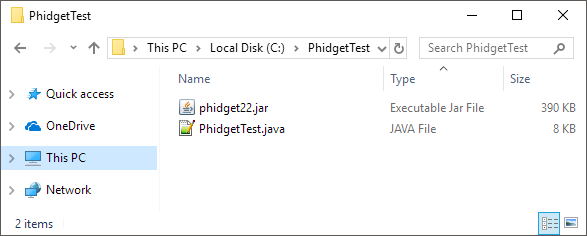
| | |The easiest way to allow Java to access the Phidgets Java library is to place a copy of '''phidget22.jar''' in the same folder as your .java program. ||[[Image:Language_java_javac_folder.png|center|350px|link=https://cdn.phidgets.com/docs/images/8/89/Language_java_javac_folder.png]] |
| | |- |
| | |[https://www.phidgets.com/downloads/phidget22/libraries/any/Phidget22Java.zip You can download phidget22.jar here].|| |
| | |- |
| | |Once you are ready to run your program, enter the following command in the command prompt or terminal: |
| | <syntaxhighlight> |
| | javac -classpath .;phidget22.jar example.java |
| | </syntaxhighlight> |
| | Finally, enter the following command to run the program: |
| | <syntaxhighlight> |
| | java -classpath .;phidget22.jar example |
| | </syntaxhighlight> |
| | || |
| | |- |
| | |} |
|
| |
|
| Java Example Code:
| | ===Netbeans=== |
| | | {| style="margin:auto;" class="table-no-border mw-collapsible mw-collapsed" |
| *[http://www.phidgets.com/downloads/examples/JavaJNI_2.1.8.20111220.zip Java Example Code]
| | |+ '''Instructions''' |
| | | |The easiest way to allow Java to access the Phidgets Java library is to place a copy of '''phidget22.jar''' in the same folder as your .java program. ||[[Image:Language_java_javac_folder.png|center|350px|link=https://cdn.phidgets.com/docs/images/8/89/Language_java_javac_folder.png]] |
| Libraries and Drivers:
| | |- |
| *[http://www.phidgets.com/downloads/libraries/phidget21jar_2.1.8.20111220.zip phidget21.jar]
| | |[https://www.phidgets.com/downloads/phidget22/libraries/any/Phidget22Java.zip You can download phidget22.jar here].|| |
| *[http://www.phidgets.com/downloads/libraries/Phidget-x86_2.1.8.20111220.exe 32 bit Windows (drivers, with libraries)]
| | |- |
| *[http://www.phidgets.com/downloads/libraries/Phidget-x64_2.1.8.20111220.exe 64 bit Windows (drivers, with libraries)]
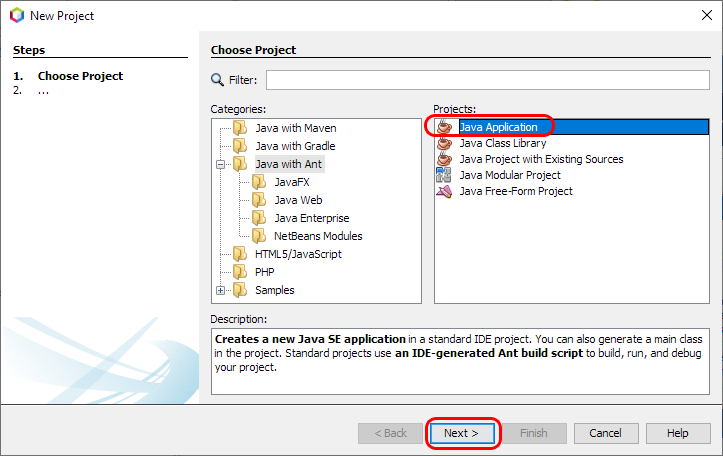
| | | To start, open NetBeans and create a new project. Select Java Application and follow the steps as directed by Netbeans.|| [[Image:Windows_netbeans1.jpg|center|350px|link=https://cdn.phidgets.com/docs/images/c/c9/Windows_netbeans1.jpg]] |
| *[http://www.phidgets.com/downloads/libraries/libphidget_2.1.8.20111028.tar.gz General Linux Libraries] ([[OS - Linux | Linux Library Setup Instructions]])
| | |- |
| *[http://www.phidgets.com/downloads/libraries/Phidget_2.1.8.20111103.dmg General Mac OSX Libraries] ([[OS - Mac OS X | Mac OS X Library Setup Instructions]])
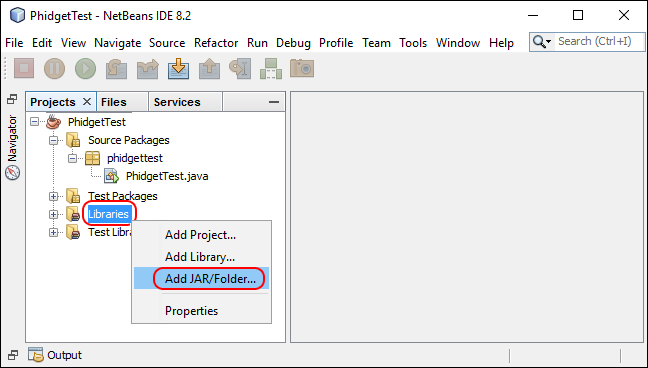
| | | Next, add a reference to phidget22.jar by right-clicking on the libraries folder. || [[Image:Windows_netbeans2.jpg|center|350px|link=https://cdn.phidgets.com/docs/images/2/2b/Windows_netbeans2.jpg]] |
| | | |- |
| ==Getting started with Java==
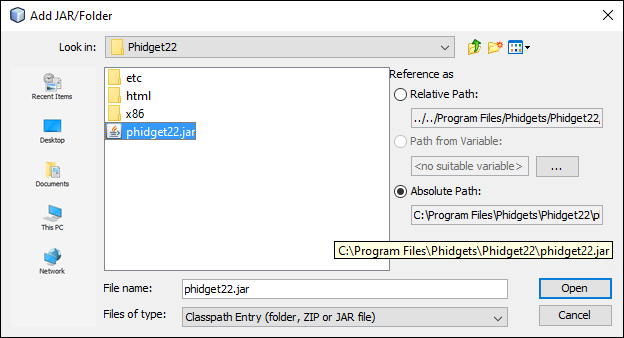
| | | Navigate to the folder where you downloaded phidget22.jar, and select it. || [[Image:Windows_netbeans3.jpg|center|350px|link=https://cdn.phidgets.com/docs/images/7/76/Windows_netbeans3.jpg]] |
| | | |- |
| If you are new to writing code for Phidgets, we recommend starting by running, then modifying existing examples. This will allow you to:
| | | The project now has access to Phidgets. || |
| {{ExampleCodeReasons}}
| | |} |
| | |
| Instructions are divided up by operating system. Choose:
| |
| *[[#Windows(2000/XP/Vista/7)|Windows 2000 / XP / Vista / 7]]
| |
| *[[#Mac OS X |Mac OS X]]
| |
| *[[#Linux | Linux]] (including PhidgetSBC)
| |
| | |
| ==Windows(2000/XP/Vista/7)== | |
| | |
| ===Libraries===
| |
| *[http://www.phidgets.com/downloads/libraries/phidget21jar_2.1.8.20111220.zip phidget21.jar]
| |
| | |
| ===Description===
| |
| Java programs on Windows depend on the following files, which the installers above put onto your system:
| |
| * <b><code>phidget21.dll</code></b> contains the actual Phidgets library, which is used at run-time. If you used our installer, it's already correctly placed in <code>C:\Windows\System32</code>. It can be manually installed - check our [[Manual Installation instructions]].
| |
| You will also need one of the following two files, depending on the .NET framework version you are targeting:
| |
| * <b><code>phidget21.jar</code></b> is the Phidgets library for JDK <i><b>1.4.2</b></i> or higher. Your compiler has to know where this file is. By default, our installer puts this file into <code>C:\Program Files\Phidgets</code>. So, you can either point your compiler to that location, or copy and link to it in a directory for your project workspace. For more information, please see the section for your specific compiler/environment. If you do not want to use our installer, you can get the file [[#Libraries | here]].
| |
| | |
| Running the examples and writing your own code can be fairly compiler-specific, so we include instructions for each compiler below.
| |
| | |
| ===NetBeans===
| |
| | |
| Please start by downloading the Java Examples. The full examples were written in NetBeans. But Eclipse will easily open it.
| |
| *[http://www.phidgets.com/downloads/examples/JavaJNI_2.1.8.20111220.zip Java Examples]
| |
| | |
| =====Use Our Examples=====
| |
| | |
| To run the examples, you first download them [[#Command line|from above]] and unpack them into a folder. To load all projects in Visual Studio, go to File | Open | Project, and open <code>AllExamples/AllExamples.sln</code> or <code>AllExamples/AllExamples_vs2008.sln</code> for Visual Studio 2005 and 2008, respectively.
| |
| | |
| If you are opening the Phidget examples in Visual Studio 2010, you will need to go through the Visual Studio Conversion Wizard to convert the 2005 or 2008 project.
| |
| <br/><br/>[[File:VS2005 Conversion Wizard.PNG]]<br/><br/>
| |
| | |
| This will load all of the examples available for C#, and then you can set your main project to be the one that matches your device. If you aren't sure what the software example for your device is called, check the software object listed in the [[Device List | Getting Started guide for your device]].
| |
| | |
| The only thing left to do is to run the examples! Click on Debug -> Start Debugging. Please note that the projects, by default try to find the <code>Phidget21.NET.dll</code> in the <code>C:\Program Files\Phidgets</code>. If you have it installed in another location, please change the path accordingly. If you are receiving an error message regarding that the namespace Phidgets cannot be found, please re-add the reference to <code>Phidget21.NET.dll</code>. Please see the [[#Write Your Own Code | next section]] for details.
| |
| <br/><br/>
| |
| [[File:CSharp VS2005 Run.PNG ]] | |
| <br/><br/>
| |
| Once you have the C# examples running, we have a [[#Follow The Examples|teaching section]] below to help you follow them.
| |
| | |
| =====Write Your Own Code=====
| |
| | |
| When you are building a project from scratch, or adding Phidget function calls to an existing project, you'll need to configure your compiler / development environment to properly link the Phidget C# libraries. To begin:
| |
| | |
| * Generate a new Visual C# Windows Applications project with a descriptive name such as PhidgetTest.
| |
| <br/>[[File:CSharp VS2005 New Project.PNG ]]
| |
| | |
| <br/>
| |
| | |
| * Add a reference to the .NET Phidgets lilbrary.
| |
| <br/>[[File:CSharp VS2005 Add Reference.PNG ]]<br/>
| |
| * Under the .NET tab, select <code>Phidget21.NET.dll</code>.
| |
| If you used our installer, these files are installed in <code>C:\Program Files\Phidgets</code>, by default. If it does not appear in this list, then you can browse to the Phidget Framework installation directory and add the file.
| |
| <br/>[[File:CSharp VS2005 Add Reference 2.PNG ]]<br/><br/>
| |
| | |
| Then, in your code, you will need to include the Phidget library:
| |
| | |
| <div style="background-color: #f3f3f3; border-color: #1c9edb; border-width:1px; border-style: dashed;">
| |
| <font size="3">
| |
| <source lang=cpp>
| |
| using Phidgets;
| |
| using Phidgets.Events;
| |
| </source>
| |
| </font>
| |
| </div>
| |
| | |
| The project now has access to the Phidget21 function calls and you are ready to begin coding.
| |
| | |
| The same [[#Follow The Examples|teaching section]] which describes the examples also has further resources for programming your Phidget.
| |
| | |
| ===Java=== | |
| | |
| This section will provide instructions on how to compile using the <code>javac</code> compiler. Start by downloading the Java Examples.
| |
| *[http://www.phidgets.com/downloads/examples/JavaJNI_2.1.8.20111220.zip Java Examples]
| |
| | |
| =====Use Our Examples=====
| |
| | |
| Download the examples [[#Java|from above]] and unpack them into a folder. Here, you can find example programs for all the devices. If you aren't sure what the software example for your device is called, check the software object listed in the [[Device List | Getting Started guide for your device]]. Please only use the simple examples.
| |
| <br/>
| |
| Ensure that the <code>phidget21.jar</code> is in the same directory as the source code.
| |
| | |
| To compile:
| |
| <br/>[[File:Java Compile.PNG]]<br/>
| |
| | |
| This will create Java bytecode in the form of <code>.class</code> files. Type the following to run the program:
| |
| <br/>[[File:Java Run.PNG]]<br/>
| |
| | |
| | |
| If you wish, you can compile the project as a <code>.jar</code> so there are fewer files to maintain. The [[http://www.oracle.com/java Java SDK]] provides the <code>jar</code> utility which packages all the <code>.class</code> files into a single <code>.jar</code> file.
| |
| To begin, you will have to provide a Manifest file to indicate the program entry point. With your favourite text editor, create a new file with the following content:
| |
| Manifest-Version: 1.0
| |
| Class-Path: phidget21.jar
| |
| Main-Class: example
| |
|
| |
| Ensure that the file ends in a new line or a carriage return.
| |
| Save the file as <code>example.mf</code> and place it in the same directory as the other <code>.class</code> files.
| |
| Next, create the .<code>jar</code> with:
| |
| | |
| [[File:Java Create Jar.PNG]]<br/>
| |
| | |
| Afterwards, you can run the <code>.jar</code> with:
| |
| | |
| [[File:Java Create Run Jar.PNG]]<br/>
| |
| | |
| Once you have the Java examples running, we have a [[#Follow The Examples|teaching section]] below to help you follow them.
| |
| | |
| =====Write Your Own Code=====
| |
| | |
| When you are building a project from scratch, or adding Phidget function calls to an existing project, you'll need to configure your compiler / development environment to properly link the Phidget Java libraries. Please see the [[#Use Our Examples 3 | previous section]] for instructions.
| |
| | |
| In your code, you will need to include the Phidget library:
| |
| | |
| <div style="background-color: #f3f3f3; border-color: #1c9edb; border-width:1px; border-style: dashed;">
| |
| <font size="3">
| |
| <source lang=java>
| |
| import com.phidgets.*;
| |
| import com.phidgets.event.*;
| |
| </source>
| |
| </font>
| |
| </div>
| |
| | |
| The project now has access to the Phidget21 function calls and you are ready to begin coding. | |
| | |
| The same [[#Follow The Examples|teaching section]] which describes the examples also has further resources for programming your Phidget.
| |
|
| |
|
| ===Eclipse=== | | ===Eclipse=== |
| | {| style="margin:auto;" class="table-no-border mw-collapsible mw-collapsed" |
| | |+ '''Instructions''' |
| | |The easiest way to allow Java to access the Phidgets Java library is to place a copy of '''phidget22.jar''' in the same folder as your .java program. ||[[Image:Language_java_javac_folder.png|center|350px|link=https://cdn.phidgets.com/docs/images/8/89/Language_java_javac_folder.png]] |
| | |- |
| | |[https://www.phidgets.com/downloads/phidget22/libraries/any/Phidget22Java.zip You can download phidget22.jar here].|| |
| | |- |
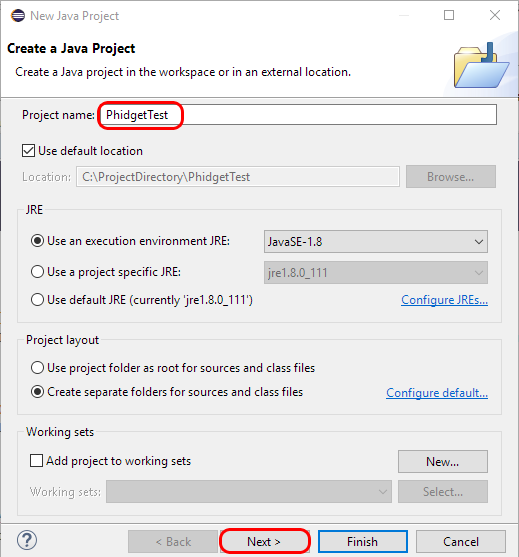
| | | To start, open Eclipse and create a new Java project.|| [[Image:Windows_eclipse1.jpg|center|350px|link=https://cdn.phidgets.com/docs/images/3/3a/Windows_eclipse1.jpg]] |
| | |- |
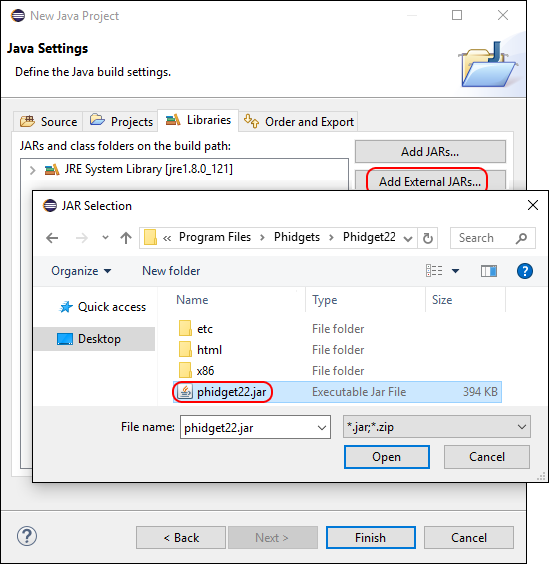
| | | On the Libraries tab, click Add External JARs and add phidget22.jar to your project as an external jar. || [[Image:Windows_eclipse2.jpg|center|350px|link=https://cdn.phidgets.com/docs/images/0/0c/Windows_eclipse2.jpg]] |
| | |- |
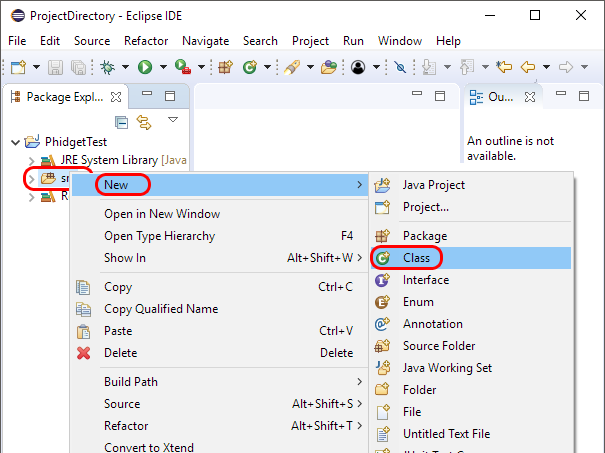
| | | Create a new Class in your project. || [[Image:Windows_eclipse3.jpg|center|350px|link=https://cdn.phidgets.com/docs/images/d/d9/Windows_eclipse3.jpg]] |
| | |- |
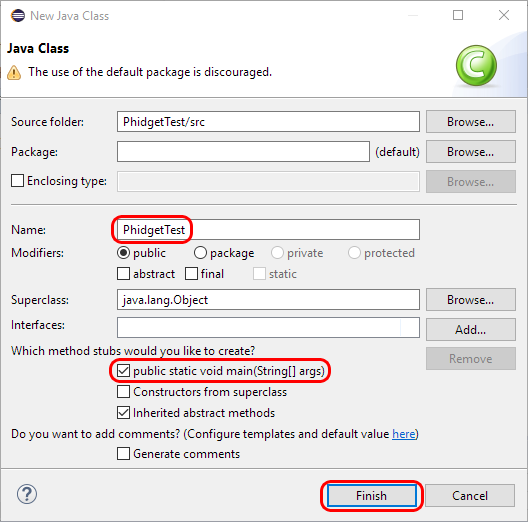
| | | Name the class, and be sure to check the '''public static void main''' box. || [[Image:Windows_eclipse4.jpg|center|350px|link=https://cdn.phidgets.com/docs/images/8/87/Windows_eclipse4.jpg]] |
| | |- |
| | | Your project now has access to Phidgets! || |
| | |- |
| | |} |
|
| |
|
| Start by downloading the C# Examples. These examples were written in Visual Studio 2005 and 2008, but are also compatible with MonoDevelop.
| | === PhidgetSBC Web Interface === |
| *[http://www.phidgets.com/downloads/examples/CSharp_2.1.8.20110615.zip C# Eamples]
| | {| style="margin:auto;" class="table-no-border mw-collapsible mw-collapsed" |
| | | |+'''Instructions''' |
| =====Use Our Examples=====
| | |<center>{{#ev:youtube|gZmWvWXICIA|rel=0}}</center> |
| | | |} |
| Download the examples [[#MonoDevelop|from above]] and unpack them into a folder. Here, you can find example programs for all the devices. If you aren't sure what the software example for your device is called, check the software object listed in the [[Device List | Getting Started guide for your device]]. If you are running under the .NET framework, you can use either the full or simple examples. Otherwise, if you are running under the Mono framework, please only use the simple examples. The full examples uses Windows Forms, which is not completely compatible with Mono's Gtk#.
| |
| <br/>
| |
| | |
| To run the examples, you first download them from above and unpack them into a folder. To load all projects in MonoDevelop, go to File | Open, and open <code>AllExamples/AllExamples.sln</code>
| |
| | |
| This will load all of the examples available for C#, and then you can set your main project to be the one that matches your device. If you aren't sure what the software example for your device is called, check the software object listed in the Getting Started guide for your device.
| |
| | |
| <br/>[[File:CSharp MonoDevelop Win Start Up.PNG]]<br/>
| |
| | |
| The only thing left to do is to run the examples! Right click the project, and click on <code>Run With</code> and select the target framework. Please note that the projects, by default try to find the <code>Phidget21.NET.dll</code> in the <code>C\Program Files\Phidgets</code>. If you have it installed in another location, please change the path accordingly. If you are receiving an error message regarding that the namespace Phidgets cannot be found, please re-add the reference to <code>Phidget21.NET.dll</code>. Please see the next section for details.
| |
| | |
| <br/><br/>[[File:CSharp MonoDevelop Win Run As.PNG]]<br/><br/>
| |
| | |
| Once you have the C# examples running, we have a [[#Follow The Examples|teaching section]] below to help you follow them.
| |
| | |
| =====Write Your Own Code===== | |
| | |
| When you are building a project from scratch, or adding Phidget function calls to an existing project, you'll need to configure your compiler / development environment to properly link the Phidget C# libraries. To begin:
| |
| | |
| * Create a new C# empty project with a descriptive name such as PhidgetTest.
| |
| <br/>[[File:CSharp MonoDevelop Win New Project.PNG]]<br/>
| |
| * Add a reference to the .NET library.
| |
| <br/>[[File:CSharp MonoDevelop Win Reference.PNG ]]<br/>
| |
| * Select <code>Phidget21.NET.dll</code>. If you used our installer, by default, this file is placed in <code>C:\Program Files\Phidgets</code>. If it is in another location, please change the path accordingly.
| |
| <br/>[[File:CSharp MonoDevelop Win Reference 2.PNG ]]<br/>
| |
| | |
| Then, in your code, you will need to include the Phidget library:
| |
| | |
| <div style="background-color: #f3f3f3; border-color: #1c9edb; border-width:1px; border-style: dashed;">
| |
| <font size="3">
| |
| <source lang=cpp> | |
| using Phidgets;
| |
| using Phidgets.Events;
| |
| </source>
| |
| </font>
| |
| </div>
| |
| | |
| The project now has access to the Phidget21 function calls and you are ready to begin coding.
| |
| | |
| The same [[#Follow The Examples|teaching section]] which describes the examples also has further resources for programming your Phidget.
| |
| | |
| ==Mac OS X==
| |
| | |
| C# has excellent support on Mac OS X through the Mono framework.
| |
| | |
| The first step in using C# on Mac is to install the Phidget libraries. Compile and install them as explained on the [[Device List|getting started guide for your device]]. Then, the [[OS - Mac OS X]] page also describes the different Phidget files, their installed locations, and their roles....
| |
| | |
| ==Linux==
| |
| | |
| C# has support on Linux through the Mono framework.
| |
| | |
| The first step in using C# on Linux is to install the Phidget libraries. Compile and install them as explained on the main [[OS - Linux | Linux page]]. That Linux page also describes the different Phidget files, their installed locations, and their roles.
| |
| | |
| ==Follow The Examples==
| |
| | |
| By following the instructions for your operating system and compiler above, you probably now have a working example and want to understand it better so you can change it to do what you want. This teaching section has resources for you to learn from the examples and write your own.
| |
| | |
| Next, comes our API information. These resources outline the C# Phidget functions:
| |
| | |
| {{UsingAPhidgetInCodeGeneral|both of which are available in C#|[http://www.phidgets.com/documentation/Phidget21.NET.zip C# API]}}
| |
|
| |
|
| ===Example Flow=== | | ==Example Code== |
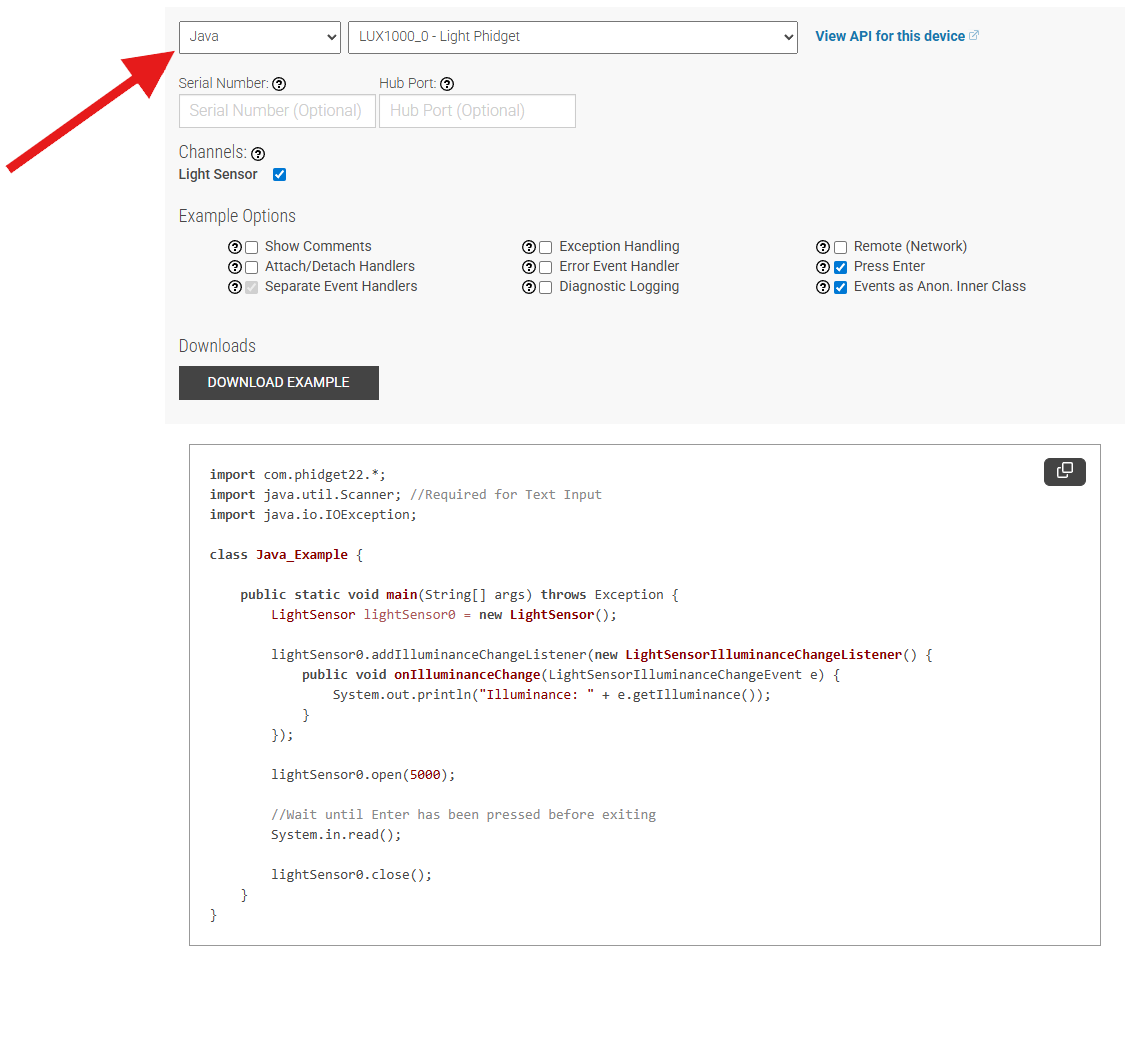
| | Navigate to our [https://www.phidgets.com/?view=code_samples&lang=Java Code Sample Generator] to view and download code samples that are tailored to your specific device. |
|
| |
|
| {{ExamplePseudocode|In C#, you can name these '''event''' functions whatever you like. You will then pass them as function pointers to the Phidget library below in the Main Code section. This hooks them into the actual events when they occur. <br>
| | [[Image:Language_java_codesample.png|center|600px|link=https://cdn.phidgets.com/docs/images/a/af/Language_java_codesample.png]] |
| In the example code, the event functions common to all Phidgets are called things like '''AttachHandler()''' and '''DetachHandler()''', etc.<br><br>
| |
| Some event functions will be specific to each device, like when a tag is read on an RFID board, or when a sensor value changes on an Interface Kit.
| |
| Other functions are given in the examples to show you more detail on using your Phidget. For example, '''DeviceInitialize()''' will show what needs to be set up for your Phidget before using it.
| |
| |Creating a Phidget software object in C# is specific to the Phidget. For a Phidget Spatial, for example, this would involve creating a <code>Spatial</code> object. The examples show how to do this and other API functions.<br><br> | |
| The object provides device specific methods and properties which are available from the API for your specific Phidget.|
| |
| [http://www.phidgets.com/documentation/Phidget21.NET.zip C# API]}}
| |
|
| |
|
| ==Common Problems and Solutions/Workarounds== | | ===Phidget Programming Basics=== |
| | {{PhidgetProgrammingBasicsLink}} |
|
| |
|
| Here you can put various frequent problems and our recommended solutions.
| | ==API== |
| | [{{SERVER}}/?view=api&lang=Python Phidget22 API] |