Language - C: Difference between revisions

From Phidgets Support
No edit summary
 
(597 intermediate revisions by 12 users not shown)
Line 1: Line 1:
Preamble about the language and its general strengths and weaknesses.
{{#seo:|description=Learn how to use Phidget USB devices with C and C++.}}
[[Category:Language]]


==Assessment for use with Phidgets==
== Get Started ==
Our honest opinion on how well this language is suited to controlling Phidgets. If it is a poor choice, suggest and link similar (better) languages.
With the Phidget22 library, it's easy to create C or C++ applications that work with Phidget devices.


==Support==
== C Libraries ==
We provide [[Levels of Support|full support]] to C and C++.
If you've installed the Phidget drivers for [[OS - Windows|Windows]], [[OS - macOS|MacOS]], or [[OS - Linux|Linux]], then you already have the files you need for your C project.  


==Restrictions==
==== Windows Considerations ====
In this section, list any restrictions or limitations that this particular language may impose. For example, incompatibility with certain operating systems.
When adding directories for your project dependencies, add
<syntaxhighlight>
C:/Program Files/Phidgets/Phidget22
</syntaxhighlight>
And for the linker, you can add
<syntaxhighlight>
C:/Program Files/Phidgets/Phidget22/phidget22.lib}}    #(for 64-bit systems)
C:/Program Files/Phidgets/Phidget22/x86/phidget22.lib}} #(for 32-bit systems)
</syntaxhighlight>


==Development Environments and Compilers==
==== MacOS Considerations ====
The Phidget framework will be found in
<syntaxhighlight>
/Library/Frameworks
</syntaxhighlight>
And the headers can be found in
<syntaxhighlight>
/Library/Frameworks/Phidget22.framework/Headers
</syntaxhighlight>


Describe each major compiler and notable differences or important information. (eg. framework versions) If there are known issues/workarounds mention them and link to the corresponding issue at the bottom of the page.  
====Linux Considerations====
Linux restricts access to USB devices to the root user.  


==Drivers, Libraries and Resources==
To run your C application as a regular user, you'll need to [{{SERVER}}/docs/OS_-_Linux#Setting_udev_Rules set up udev rules] on your system.
Before you can run your program, you need to set up the proper environment and get the necessary files off the Phidgets website.
Visit the drivers section at www.phidgets.com and get the latest:
* [http://www.phidgets.com/drivers.php Phidget Framework]
You will need the Phidget Framework to use and to program with Phidgets. We also recommend that you download the following reference materials:
* [http://www.phidgets.com/documentation/Phidget21_C_Doc.zip API Manual]
* [http://www.phidgets.com/documentation/web/cdoc/index.html API Reference]
* Sample Code:
**[http://www.phidgets.com/downloads/examples/VCpp_2.1.8.20110615.zip Windows]
**[http://www.phidgets.com/downloads/examples/phidget21-c-examples_2.1.8.20110615.tar.gz Linux/MacOS]
* Phidget21 Library:
**[http://www.phidgets.com/downloads/libraries/phidget21-x86_2.1.8.20110615.zip x86]
**[http://www.phidgets.com/downloads/libraries/phidget21-x64_2.1.8.20110615.zip x64]
**[http://www.phidgets.com/downloads/libraries/phidget21bcc_2.1.8.20110615.zip Borland C++]
* You can find a high level discussion about programming with Phidgets in general on the [[General API]] page.
* The [[Device Functionality]] page explains the general operational information for your device.  


You may want to have these pages open while working through these instructions.
=== Library Files ===
If you would like to manually manage the Phidget22 library files, you can download them [https://cdn.phidgets.com/downloads/phidget22/libraries/windows/Phidget22-windevel.zip here].


==Getting Started (Windows)==
== Development Environment Configuration ==


The Phidget examples were written using Visual C++ 2005 and this tutorial assumes its use.
=== GCC ===
Other environments such as other versions of Visual Studio work as well and would be set up in a similar manner.
{| style="margin:auto;" class="table-no-border mw-collapsible mw-collapsed"
Borland C also requires the phidget21bcc.lib file provided at the Phidgets website.  
|+ '''Instructions'''
Consult your compiler documentation for specific details on how to link to external libraries.
|
In Visual C++ 2005:
The most common tool for C development is GCC, whether used in the command line or through an IDE. GCC is packaged with many other IDEs and packages, so you may already have it installed.


* Generate a new C/C++ console project with a descriptive name such as PhidgetTest.  
{{hiddenh4|Windows}}
* Copy phidget21.h and phidget21.lib from the VC/VC++/Borland examples and add them to your project directory.
We recommend installing [https://www.cygwin.com/ Cygwin] or [https://sourceforge.net/projects/mingw/ MinGW], ensuring you select all gcc packages when prompted by the installer.
* Open the project properties window.
* Navigate to Configuration Properties | Linker | Input.
* Edit the additional dependencies and add “phidget21.lib”.


The project now has access to the Phidget21 function calls and we are ready to begin coding.
To compile your code, go to the folder where your code is and open the command prompt by typing 'cmd' in the address bar.


===Coding For Your Phidget===
The specific command you will use depends on your compiler of choice:
<syntaxhighlight lang=bash>
#Cygwin x86:
gcc example.c -o example -I"/cygdrive/c/Program Files/Phidgets/Phidget22"-L"/cygdrive/c/Program Files/Phidgets/Phidget22/x86" -lphidget22


Before you can use the Phidget, you must include a reference to the library header.
#Cygwin x64:
gcc example.c -o example -I"/cygdrive/c/Program Files/Phidgets/Phidget22" -L"/cygdrive/c/Program Files/Phidgets/Phidget22" -lphidget22


<div style="background-color: #f3f3f3; border-color: #1c9edb; border-width:1px; border-style: dashed;">
#MinGW:
<font size="3">
gcc example.c -o example -I"C:/Program Files/Phidgets/Phidget22" -L"C:/Program Files/Phidgets/Phidget22/x86" -lphidget22
<source lang=cpp>
</syntaxhighlight>


  #include "phidget21.h"
After running the commands above for either Cygwin or MinGW, an executable file called example.exe will be created. Enter the following command to run the program:
<syntaxhighlight lang=bash>
example.exe
</syntaxhighlight>
{{hiddenh4|MacOS}}
If you don't already have gcc installed, you can get it by installing [https://developer.apple.com/xcode/ Xcode].


</source>
To compile the program, enter the following command in the terminal, substituting "example" for the name of your C file:
</font>
<syntaxhighlight lang=bash>
</div>
gcc example.c -o example -F /Library/Frameworks -framework Phidget22 -I /Library/Frameworks/Phidget22.framework/Headers
</syntaxhighlight>
Finally, run the program by entering the following command in the terminal:
<syntaxhighlight lang=bash>
./example
</syntaxhighlight>
Success! The project is now running with Phidgets.


Afterwards, the Phidget object will need to be declared and then initialized.  
{{hiddenh4|Linux}}
For example, we can declare a PhidgetInterfaceKit inside our main function with:
On Linux, gcc is installed through the package manager:
<syntaxhighlight lang=bash>
apt-get install gcc
</syntaxhighlight>
To compile the program, enter the following command in the terminal, substituting "example" for the name of your C file:
<syntaxhighlight lang=bash>
gcc example.c -o example -lphidget22
</syntaxhighlight>
After compiling, you can run the program by entering the following command in the terminal:
<syntaxhighlight lang=bash>
./example
</syntaxhighlight>
Success! The project is now running with Phidgets.
|-
|}


<div style="background-color: #f3f3f3; border-color: #1c9edb; border-width:1px; border-style: dashed;">
=== Visual Studio ===
<font size="3">
{| style="margin:auto;" class="table-no-border mw-collapsible mw-collapsed"
<source lang=cpp>
|+ '''Instructions'''
| If you want to jump right into a pre-configured project, you can download one on our [https://www.phidgets.com/?view=code_samples&lang=C Code Sample Generator] page. || [[Image:Language_C_VSProject.jpg|center|link=https://cdn.phidgets.com/docs/images/f/f1/Language_C_VSProject.jpg|350px]]
|-
| To configure a new project, follow these steps. ||
|-
| First, create a new Win32 Console Application: || [[Image:Language_C_VS_step1.jpg|center|link=https://cdn.phidgets.com/docs/images/a/a1/Language_C_VS_step1.jpg|350px]]
|-
| If you are using a 64-bit machine, select x64, otherwise, select x86: || [[Image:Language_C_VS_step2.jpg|center|link=https://cdn.phidgets.com/docs/images/6/6b/Language_C_VS_step2.jpg|350px]]
|-
| Next, right click on the source folder and click New Item: || [[Image:Language_C_VS_step3.jpg|center|link=https://cdn.phidgets.com/docs/images/e/e1/Language_C_VS_step3.jpg|350px]]
|-
| Give the source file a name and click Add: || [[Image:Language_C_VS_step4.jpg|center|link=https://cdn.phidgets.com/docs/images/e/e5/Language_C_VS_step4.jpg|350px]]
|-
| Right click your project and access its properties: || [[Image:Language_C_VS_step5.jpg|center|link=https://cdn.phidgets.com/docs/images/1/1e/Language_C_VS_step5.jpg|350px]]
|-
| Go to Configuration Properties -> C/C++ -> General and add this to the additional include directories:
<syntaxhighlight>
C:\Program Files\Phidgets\Phidget22
</syntaxhighlight>
|| [[Image:Language_C_VS_step6.jpg|center|link=https://cdn.phidgets.com/docs/images/d/d3/Language_C_VS_step6.jpg|350px]]
|-
| Go to Configuration Properties -> Linker -> Input and add the appropriate line to additional dependencies:
<syntaxhighlight>
C:\Program Files\Phidgets\Phidget22\phidget22.lib #(for 64-bit systems)
C:\Program Files\Phidgets\Phidget22\x86\phidget22.lib #(for 32-bit systems)
</syntaxhighlight>
|| [[Image:Language_C_VS_step7.jpg|center|link=https://cdn.phidgets.com/docs/images/0/09/Language_C_VS_step7.jpg|350px]]
|-
| Lastly, include the Phidget library at the beginning of your program:
<syntaxhighlight lang=bash>
#include < phidget22.h >
</syntaxhighlight>
||
|-
|}


  int _tmain(int argc, _TCHAR* argv[])
=== PhidgetSBC Web Interface ===
  {
{| style="margin:auto;" class="table-no-border mw-collapsible mw-collapsed"
    CPhidgetInterfaceKitHandle ifKit = 0; //Declare an InterfaceKit handle
|+'''Instructions'''
    CPhidgetInterfaceKit_create(&ifKit);  //Create the InterfaceKit object
|<center>{{#ev:youtube|2hTlVexctqY|rel=0}}</center>
 
|}
    //More code goes here
    return 0;
  }


</source>
== Example Code ==
</font>
Navigate to our [https://www.phidgets.com/?view=code_samples&lang=C Code Sample Generator] to view and download code samples that are tailored to your specific device.
</div>


The object name for any type of Phidget is listed in the API manual.
[[Image:Language_c_codesample2.png|center|600px|link=]]
Every type of Phidget also inherits functionality from the Phidget base class.


===Connecting to the Phidget===
===Phidget Programming Basics===
{{PhidgetProgrammingBasicsLink}}


Next, the program needs to try and connect to the Phidget through an open call.
==API==
The open will tell the program to continuously try to connect to a Phidget, based on the parameters given, even trying to reconnect if it gets disconnected.
[{{SERVER}}/?view=api&lang=C Phidget22 API]
This means that simply calling open does not guarantee you can use the Phidget immediately.
We can handle this by using event driven programming and tracking the AttachEvents and DetachEvents, or by calling waitForAttachment.
WaitForAttachment will block indefinitely until a connection is made to the Phidget, or an optional timeout is exceeded.
 
<div style="background-color: #f3f3f3; border-color: #1c9edb; border-width:1px; border-style: dashed;">
<font size="3">
<source lang=cpp>
 
  CPhidget_open((CPhidgetHandle)ifKit, -1);
  CPhidget_waitForAttachment((CPhidgetHandle)ifKit, 2500);
 
</source>
</font>
</div>
 
The different types of open can be used with parameters to try and get the first device it can find, open based on its serial number, or even open across the network.
The API manual lists all of the available modes that open provides.
One important thing to remember is that when working with Phidgets, a local connection will reserve the device until closed.
This prevents any other instances from retrieving data from the Phidget, including other programs.
The one connection per device limit does not apply when exclusively using the Phidget Webservice.
At the end of your program, don’t forget to call close to free any locks on the Phidget.
 
<div style="background-color: #f3f3f3; border-color: #1c9edb; border-width:1px; border-style: dashed;">
<font size="3">
<source lang=cpp>
 
  CPhidget_close((CPhidgetHandle)ifKit);
  CPhidget_delete((CPhidgetHandle)ifKit);
 
</source>
</font>
</div>
 
===Event Driven Programming===
 
We recommend the use of event driven programming when working with Phidgets.
In C/C++, we hook an event handler with the following code: 
 
<div style="background-color: #f3f3f3; border-color: #1c9edb; border-width:1px; border-style: dashed;">
<font size="3">
<source lang=cpp>
 
  CPhidgetInterfaceKit_set_OnSensorChange_Handler (ifKit, SensorChangeHandler, NULL);
  int __stdcall SensorChangeHandler(CPhidgetInterfaceKitHandle IFK, void *usrptr, int Index, int Value)
  {
      printf("Sensor: %d > Value: %d\n", Index, Value);
      //Insert your code hereGetting_Started_VisualC created: 02/27/09 Page 3
      return 0;
  }
 
</source>
</font>
</div>
 
With this function, the code inside SensorChangedHandler will get executed every time the InterfaceKit reports a change on one of its analog inputs.
Some events such as Attach and Detach belong to the base Phidget object and thus are common to all types of Phidgets.
Please refer to the API manual for a full list of events and their usage.
 
===Working directly with the Phidget===
 
Some values can be read and sent directly to the Phidget.
Simply use the C API functions such as CPhidgetInterfaceKit_getSensorValue() or CPhidgetInterfaceKit_setOutState() for InterfaceKits.
 
<div style="background-color: #f3f3f3; border-color: #1c9edb; border-width:1px; border-style: dashed;">
<font size="3">
<source lang=cpp>
 
  int val;
  for (int i = 0; i < 10; i++) {
    CPhidgetInterfaceKit_getSensorValue(phid, 0, &val);
    printf("Value: %d\n", val);
  }
 
</source>
</font>
</div>
 
The functions can be used inside a polling loop as an alternative to event driven programming.
Above, a sensor attached to the PhidgetInterfaceKit is read and its value is displayed to screen.
 
===Working with multiple Phidgets===
 
Multiple Phidgets of the same type can easily be run inside the same program.
In our case, it  requires another PhidgetInterfaceKit instance to be defined and initialized.
The new instance can then be set up, opened and used in the same process as the previous one.
If the application needs to distinguish between the devices, open can be called with the serial number of a specific Phidget.
 
===Other Phidgets===
 
The design given in this document can also be followed for almost all Phidgets.
For example, if you were using a PhidgetRFID instead of an Interfacekit, you would call CPhidgetRFID_create instead of CPhidgetInterfaceKit_create.
The functions and events available would change but they can be accessed in a similar manner.
 
==Getting Started (MacOS/Linux)==
 
===Coding For Your Phidget===
 
Before you can use the Phidget, you must include a reference to the library header.
 
<div style="background-color: #f3f3f3; border-color: #1c9edb; border-width:1px; border-style: dashed;">
<font size="3">
<source lang=cpp>
 
  #include <phidget21.h>
 
</source>
</font>
</div>
 
Afterwards, the Phidget object will need to be declared and then initialized. For example, we can declare a PhidgetInterfaceKit inside our main function with:
 
<div style="background-color: #f3f3f3; border-color: #1c9edb; border-width:1px; border-style: dashed;">
<font size="3">
<source lang=cpp>
 
  int main(int argc, char* argv[])
  {
    CPhidgetInterfaceKitHandle ifKit = 0;
    CPhidgetInterfaceKit_create(&ifKit);
    //More code goes here
    return 0;
  }
 
</source>
</font>
</div>
 
The object name for any type of Phidget is listed in the API manual. Every type of Phidget also inherits functionality from the Phidget base class.
 
===Connecting to the Phidget===
 
Next, the program needs to try and connect to the Phidget through an open call.
The open will tell the program to continuously try to connect to a Phidget, based on the parameters given, even trying to reconnect if it gets disconnected.
This means that simply calling open does not guarantee you can use the Phidget immediately.
We can handle this by using event driven programming and tracking the AttachEvents and DetachEvents, or by calling waitForAttachment.
WaitForAttachment will block indefinitely until a connection is made to the Phidget, or an optional timeout is exceeded.
 
<div style="background-color: #f3f3f3; border-color: #1c9edb; border-width:1px; border-style: dashed;">
<font size="3">
<source lang=cpp>
 
  CPhidget_open((CPhidgetHandle)ifKit, -1);
  CPhidget_waitForAttachment((CPhidgetHandle)ifKit, 10000);
 
</source>
</font>
</div>
 
The different types of open can be used with parameters to try and get the first device it can find, open based on its serial number, or even open across the network.
The API manual lists all of the available modes that open provides.
One important thing to remember is that when working with Phidgets, a local connection will reserve the device until closed.
This prevents any other instances from retrieving data from the Phidget, including other programs.
The one connection per device limit does not apply when exclusively using the Phidget Webservice.
At the end of your program, don’t forget to call close to free any locks on the Phidget.
 
<div style="background-color: #f3f3f3; border-color: #1c9edb; border-width:1px; border-style: dashed;">
<font size="3">
<source lang=cpp>
 
  CPhidget_close((CPhidgetHandle)ifKit);
  CPhidget_delete((CPhidgetHandle)ifKit);
 
</source>
</font>
</div>
 
===Event Driven Programming===
 
We recommend the use of event driven programming when working with Phidgets. In C/C++, we hook an event handler with the following code: 
 
<div style="background-color: #f3f3f3; border-color: #1c9edb; border-width:1px; border-style: dashed;">
<font size="3">
<source lang=cpp>
 
  CPhidgetInterfaceKit_set_OnSensorChange_Handler (ifKit, SensorChangeHandler, NULL);
  int SensorChangeHandler(CPhidgetInterfaceKitHandle IFK, void *usrptr, int
  Index, int Value)
  {
    printf("Sensor: %d > Value: %d\n", Index, Value);
    return 0;
  }
 
</source>
</font>
</div>
 
With this function, the code inside SensorChangedHandler will get executed every time the InterfaceKit reports a change on one of its analog inputs.
Some events such as Attach and Detach belong to the base Phidget object and thus are common to all types of Phidgets.
Please refer to the API manual for a full list of events and their usage.
 
===Working directly with the Phidget===
 
Some values can be read and sent directly to the Phidget. Simply use the C API functions such as CPhidgetInterfaceKit_getSensorValue() or CPhidgetInterfaceKit_setOutState() for InterfaceKits.
 
<div style="background-color: #f3f3f3; border-color: #1c9edb; border-width:1px; border-style: dashed;">
<font size="3">
<source lang=cpp>
 
  int val;
  for (int i = 0; i < 10; i++) {
    CPhidgetInterfaceKit_getSensorValue(phid, 0, &val);
    printf("Value: %d\n", val);
  }
 
</source>
</font>
</div>
 
The functions can be used inside a polling loop as an alternative to event driven programming.
Above, a sensor attached to the PhidgetInterfaceKit is read and its value is displayed to screen.
 
===Working with multiple Phidgets===
 
Multiple Phidgets of the same type can easily be run inside the same program. In our case, it requires another PhidgetInterfaceKit instance to be defined and initialized.
The new instance can then be set up, opened and used in the same process as the previous one.
If the application needs to distinguish between the devices, open can be called with the serial number of a specific Phidget.
 
===Other Phidgets===
 
The design given in this document can also be followed for almost all Phidgets.
For example, if you were using a PhidgetRFID instead of an Interfacekit, you would call CPhidgetRFID_create instead of CPhidgetInterfaceKit_create.
The functions and events available would change but they can be accessed in a similar manner.
 
===Compiling Your Program===
 
Compiling and linking against the Phidgets Library can be done in the following ways:
 
*To build on Linux:
:gcc example.c -o example -lphidget21
*To build on MacOS:
:gcc example.c -o example -framework Phidget21 -
:I/Library/Frameworks/Phidget21.framework/Headers
 
==Building your Project==
Describe the different ways a project could be built using this language.
 
==Common Problems and Solutions/Workarounds==
Here you can put various frequent problems and our recommended solutions.

Latest revision as of 20:03, 12 March 2026


Get Started

With the Phidget22 library, it's easy to create C or C++ applications that work with Phidget devices.

C Libraries

If you've installed the Phidget drivers for Windows, MacOS, or Linux, then you already have the files you need for your C project.

Windows Considerations

When adding directories for your project dependencies, add

C:/Program Files/Phidgets/Phidget22

And for the linker, you can add

C:/Program Files/Phidgets/Phidget22/phidget22.lib}}     #(for 64-bit systems)
C:/Program Files/Phidgets/Phidget22/x86/phidget22.lib}} #(for 32-bit systems)

MacOS Considerations

The Phidget framework will be found in

/Library/Frameworks

And the headers can be found in

/Library/Frameworks/Phidget22.framework/Headers

Linux Considerations

Linux restricts access to USB devices to the root user.

To run your C application as a regular user, you'll need to set up udev rules on your system.

Library Files

If you would like to manually manage the Phidget22 library files, you can download them here.

Development Environment Configuration

GCC

Instructions

The most common tool for C development is GCC, whether used in the command line or through an IDE. GCC is packaged with many other IDEs and packages, so you may already have it installed.

Windows

We recommend installing Cygwin or MinGW, ensuring you select all gcc packages when prompted by the installer.

To compile your code, go to the folder where your code is and open the command prompt by typing 'cmd' in the address bar.

The specific command you will use depends on your compiler of choice:

#Cygwin x86:
gcc example.c -o example -I"/cygdrive/c/Program Files/Phidgets/Phidget22"-L"/cygdrive/c/Program Files/Phidgets/Phidget22/x86" -lphidget22

#Cygwin x64:
gcc example.c -o example -I"/cygdrive/c/Program Files/Phidgets/Phidget22" -L"/cygdrive/c/Program Files/Phidgets/Phidget22" -lphidget22

#MinGW:
gcc example.c -o example -I"C:/Program Files/Phidgets/Phidget22" -L"C:/Program Files/Phidgets/Phidget22/x86" -lphidget22

After running the commands above for either Cygwin or MinGW, an executable file called example.exe will be created. Enter the following command to run the program:

example.exe
MacOS

If you don't already have gcc installed, you can get it by installing Xcode.

To compile the program, enter the following command in the terminal, substituting "example" for the name of your C file:

gcc example.c -o example -F /Library/Frameworks -framework Phidget22 -I /Library/Frameworks/Phidget22.framework/Headers

Finally, run the program by entering the following command in the terminal:

./example

Success! The project is now running with Phidgets.

Linux

On Linux, gcc is installed through the package manager:

apt-get install gcc

To compile the program, enter the following command in the terminal, substituting "example" for the name of your C file:

gcc example.c -o example -lphidget22

After compiling, you can run the program by entering the following command in the terminal:

./example

Success! The project is now running with Phidgets.

Visual Studio

Instructions
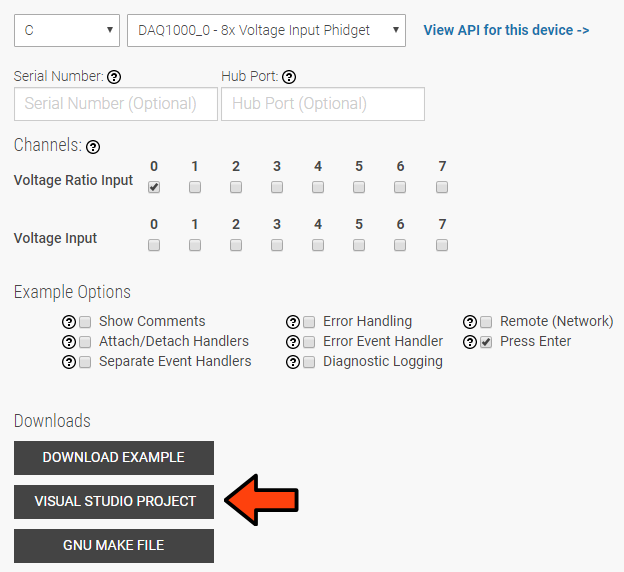
If you want to jump right into a pre-configured project, you can download one on our Code Sample Generator page.
Language C VSProject.jpg
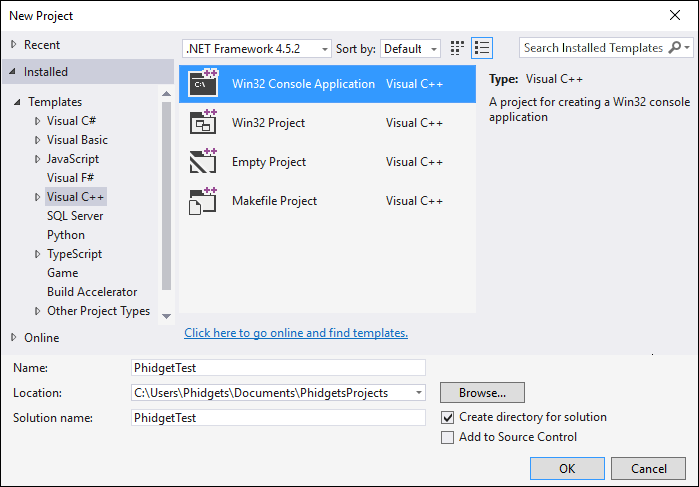
To configure a new project, follow these steps.
First, create a new Win32 Console Application:
Language C VS step1.jpg
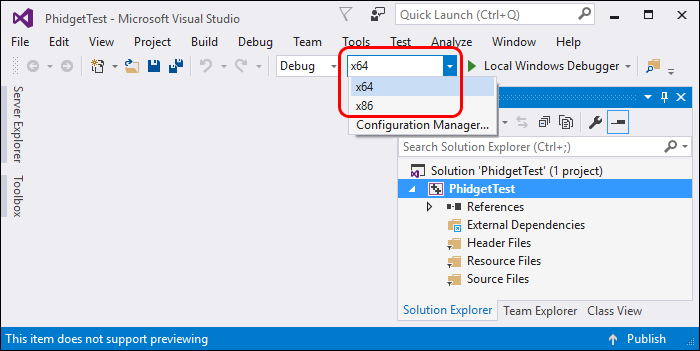
If you are using a 64-bit machine, select x64, otherwise, select x86:
Language C VS step2.jpg
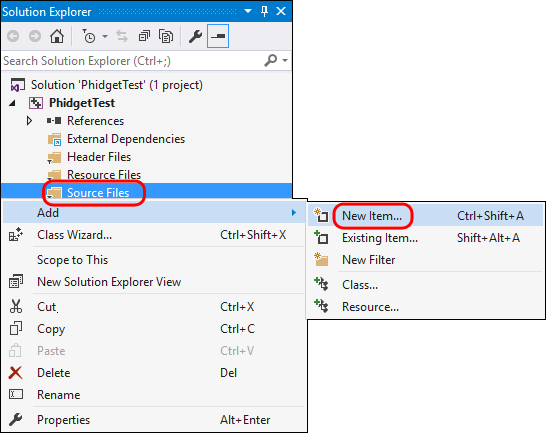
Next, right click on the source folder and click New Item:
Language C VS step3.jpg
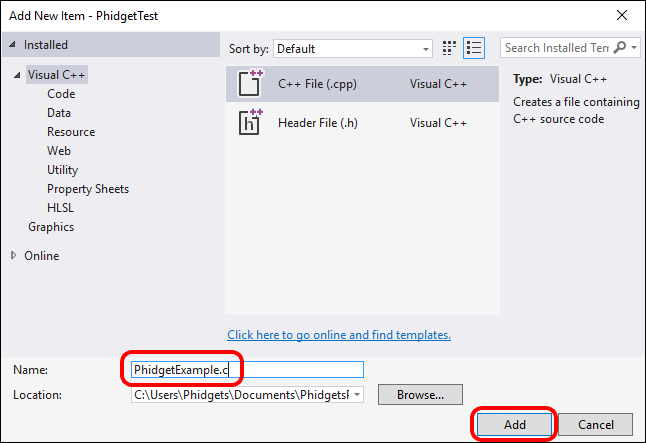
Give the source file a name and click Add:
Language C VS step4.jpg
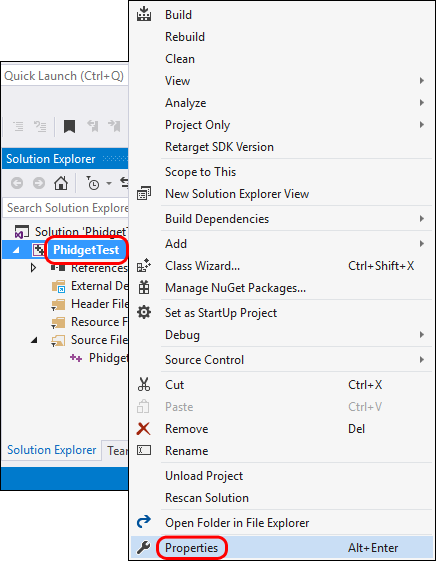
Right click your project and access its properties:
Language C VS step5.jpg
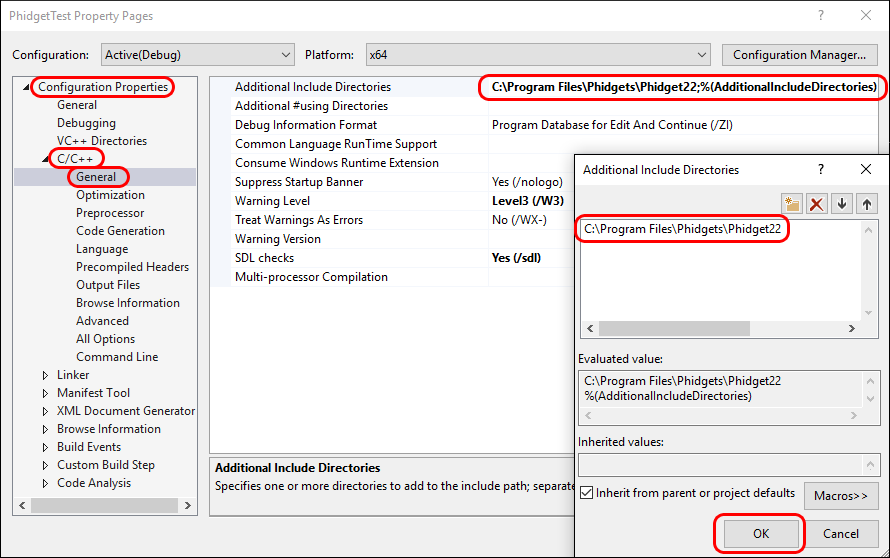
Go to Configuration Properties -> C/C++ -> General and add this to the additional include directories:
C:\Program Files\Phidgets\Phidget22
Language C VS step6.jpg
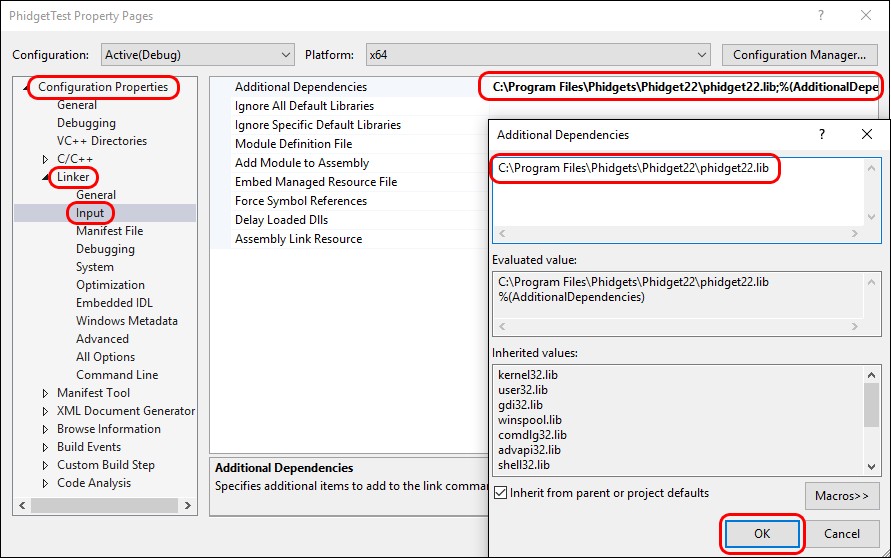
Go to Configuration Properties -> Linker -> Input and add the appropriate line to additional dependencies:
C:\Program Files\Phidgets\Phidget22\phidget22.lib #(for 64-bit systems)
C:\Program Files\Phidgets\Phidget22\x86\phidget22.lib #(for 32-bit systems)
Language C VS step7.jpg
Lastly, include the Phidget library at the beginning of your program:
#include < phidget22.h >

PhidgetSBC Web Interface

Instructions

Example Code

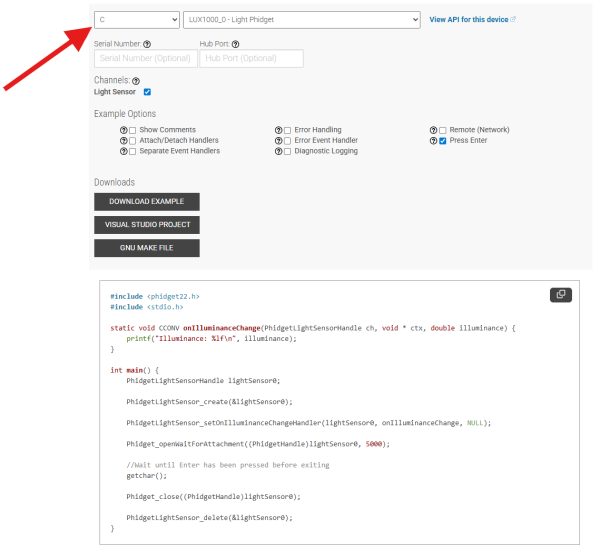
Navigate to our Code Sample Generator to view and download code samples that are tailored to your specific device.
Language c codesample2.png

Phidget Programming Basics

To learn more about the structure of the example code, visit our Phidget Programming Basics guide.
API

Phidget22 API