Language - C: Difference between revisions

From Phidgets Support
mNo edit summary
 
(25 intermediate revisions by 4 users not shown)
Line 1: Line 1:
{{#seo:|description=Learn how to use Phidget USB devices with C and C++.}}
[[Category:Language]]
[[Category:Language]]
__TOC__


== Quick Downloads ==
== Get Started ==
With the Phidget22 library, it's easy to create C or C++ applications that work with Phidget devices.


=== Documentation ===
== C Libraries ==
If you've installed the Phidget drivers for [[OS - Windows|Windows]], [[OS - macOS|MacOS]], or [[OS - Linux|Linux]], then you already have the files you need for your C project.


*{{Phidget22API}} (select C/C++ from the drop-down menu)
==== Windows Considerations ====
 
When adding directories for your project dependencies, add
=== Example Code ===
<syntaxhighlight>
 
C:/Program Files/Phidgets/Phidget22
*{{SampleCode|C|C/C++ Examples}}
 
===Libraries===
 
{{AllQuickDownloads}}
 
== Getting started with C/C++ ==
Welcome to using Phidgets with C/C++! By using C/C++, you will have access to the complete Phidget22 API, including events. We also provide example code in C/C++ for all Phidget devices.
 
If you are developing for Windows, keep reading. Otherwise, select your operating system to jump ahead:
*[[#macOS | macOS]]
*[[#Linux | Linux]]
 
== Windows ==
If you didn't come from the [[OS - Windows| Windows page]], be sure to check it out first before you continue reading!
 
===Visual Studio===
====Use our examples====
One of the best ways to start programming with Phidgets is to use our example code as a guide. In order to run the examples, you will need to download and install [https://www.visualstudio.com/ Microsoft Visual Studio].
 
 
Now that you have Microsoft Visual Studio installed, select an example that will work with your Phidget:
*{{SampleCode|C|C/C++ Examples}}
 
 
Open the example project and start the example by pressing the ''Local Windows Debugger'' button:
 
 
[[Image: c_vs_run.png|link=|center]]
 
 
The application will open the Phidget, list basic information about the Phidget, and demonstrate the Phidget's functionality. Here is an example of an Accelerometer channel on a Spatial Phidget:
 
 
[[Image: c_vs_output.PNG|link=|center]]
 
 
You should now have the example up and running for your device. Play around with the device and experiment with some of the functionality. When you are ready, the next step is configuring your project and writing your own code!
 
====Configure your project====
When you are building a project from scratch, or adding Phidget functionality to an existing project, you'll need to configure your development environment to properly link the Phidget C/C++ library. To begin:
 
 
Create a new Win32 Console application:
 
[[Image:C_vs_newproject.PNG|link=|center]]
 
 
After creating a project with the default settings, access the project's properties:
 
[[Image:C_vs_properties.png|link=|center]]
 
 
Next, navigate to Configuration Properties -> C/C++ -> General and add the following line to the additional include directories:
*C:\Program Files\Phidgets\Phidget22
 
 
[[Image:C_vs_additionalinclude.png|link=|center]]
 
 
Navigate to Configuration Properties -> Linker -> Input and add the following line to the additional dependencies:
*C:\Program Files\Phidgets\Phidget22\phidget22.lib
 
 
[[Image:C_vs_additionadepend.png|link=|center]]
 
Finally, include the Phidget library in your code:
 
<syntaxhighlight lang='C'>
#include <phidget22.h>
</syntaxhighlight>
</syntaxhighlight>
 
And for the linker, you can add
Success! The project now has access to Phidgets. Next, view the [[#Write Code | write your own code]] section located below.
<syntaxhighlight>
 
C:/Program Files/Phidgets/Phidget22/phidget22.lib}}    #(for 64-bit systems)
===GCC===
C:/Program Files/Phidgets/Phidget22/x86/phidget22.lib}} #(for 32-bit systems)
====Cygwin/MinGW====
=====Use our examples=====
One of the best ways to start programming with Phidgets is to use our example code as a guide. In order to run the examples, you will need to download and install either [http://www.mingw.org/ MinGW] or [https://www.cygwin.com/ Cygwin].
 
 
Now that you have either MinGW or Cygwin installed, select an example that will work with your Phidget:
*{{SampleCode|C|C/C++ Examples}}
 
 
If you are using Cygwin, navigate to the folder where the example is and open the command prompt. Enter the following command to compile the example:
<syntaxhighlight lang='bash'>
gcc example.c -o example -I"/cygdrive/c/Program Files/Phidgets/Phidget22" -L"/cygdrive/c/Program Files/Phidgets/Phidget22/x86" -lphidget22
</syntaxhighlight>
 
 
If you are using MinGW, navigate to the folder where the example is and open the command prompt. Enter the following command to compile the example:
<syntaxhighlight lang='bash'>
gcc example.c -o example -I"C:/Program Files/Phidgets/Phidget22" -L"C:/Program Files/Phidgets/Phidget22/x86" -lphidget22
</syntaxhighlight>
</syntaxhighlight>


After running the commands above for either Cygwin or MinGW, an executable file called ''example.exe'' will be created. Enter the following command to run the example:
==== MacOS Considerations ====
<syntaxhighlight lang='bash'>
The Phidget framework will be found in
example.exe
<syntaxhighlight>
/Library/Frameworks
</syntaxhighlight>
</syntaxhighlight>
 
And the headers can be found in
 
<syntaxhighlight>
You should now have the example up and running. When you are ready, the next step is configuring your project and writing your own code!
/Library/Frameworks/Phidget22.framework/Headers
 
=====Configure your project=====
When you are building a project from scratch, or adding Phidget functionality to an exisiting project, you'll need to configure your development environment to properly link the Phidget C/C++ library.
 
To include the Phidget C/C++ library, add the following line to your code:
<syntaxhighlight lang='C'>
#include <phidget22.h>
</syntaxhighlight>
</syntaxhighlight>


You can now compile the file as shown in the previous section.
====Linux Considerations====
Linux restricts access to USB devices to the root user.  


To run your C application as a regular user, you'll need to [{{SERVER}}/docs/OS_-_Linux#Setting_udev_Rules set up udev rules] on your system.


The project now has access to Phidgets. Next, view the [[#Write Code | write your own code]] section located below.
=== Library Files ===
If you would like to manually manage the Phidget22 library files, you can download them [https://cdn.phidgets.com/downloads/phidget22/libraries/windows/Phidget22-windevel.zip here].


===Code::Blocks===
== Development Environment Configuration ==
====Use our examples====
One of the best ways to start programming with Phidgets is to use our example code as a guide. In order to run the examples, you will need to download and install [http://www.codeblocks.org/downloads Code::Blocks].


=== GCC ===
{| style="margin:auto;" class="table-no-border mw-collapsible mw-collapsed"
|+ '''Instructions'''
|
The most common tool for C development is GCC, whether used in the command line or through an IDE. GCC is packaged with many other IDEs and packages, so you may already have it installed.


Now that you have Code::Blocks installed, select an example that will work with your Phidget:
{{hiddenh4|Windows}}
*{{SampleCode|C|C/C++ Examples}}
We recommend installing [https://www.cygwin.com/ Cygwin] or [https://sourceforge.net/projects/mingw/ MinGW], ensuring you select all gcc packages when prompted by the installer. 


To compile your code, go to the folder where your code is and open the command prompt by typing 'cmd' in the address bar.


Open the example in Code::Blocks (you do not need to create a new project) and navigate to Settings -> Compiler... as shown in the image below:
The specific command you will use depends on your compiler of choice:
<syntaxhighlight lang=bash>
#Cygwin x86:
gcc example.c -o example -I"/cygdrive/c/Program Files/Phidgets/Phidget22"-L"/cygdrive/c/Program Files/Phidgets/Phidget22/x86" -lphidget22


[[Image:C_codeblocks_settings.png|link=|center]]
#Cygwin x64:
gcc example.c -o example -I"/cygdrive/c/Program Files/Phidgets/Phidget22" -L"/cygdrive/c/Program Files/Phidgets/Phidget22" -lphidget22


#MinGW:
gcc example.c -o example -I"C:/Program Files/Phidgets/Phidget22" -L"C:/Program Files/Phidgets/Phidget22/x86" -lphidget22
</syntaxhighlight>


From the Global compiler settings screen, navigate to Search directories -> Compiler and add the following directory:
After running the commands above for either Cygwin or MinGW, an executable file called example.exe will be created. Enter the following command to run the program:
*C:\Program Files\Phidgets\Phidget22
<syntaxhighlight lang=bash>
 
example.exe
[[Image:C_codeblocks_compiler.PNG|link=|center]]
 
 
Next, select Search directories -> Linker and add the following directory:
*C:\Program Files\Phidgets\Phidget22\x86
 
[[Image:C_codeblocks_linker.PNG|link=|center]]
 
 
Finally, from the Global compiler settings screen, navigate to Linker settings and add the following line:
*phidget22
 
[[Image:C_codeblocks_libraries.PNG|link=|center]]
 
 
You can now build and run the example:
 
[[Image:C_codeblocks_run.png|link=|center]]
 
 
You should now have the example up and running for your device. Play around with the device and experiment with some of the functionality. When you are ready, the next step is configuring your project and writing your own code!
 
====Configure your project====
When you are building a project from scratch, or adding Phidget functionality to an existing project, you'll need to configure your development environment to properly link the Phidget C/C++ library.
 
 
To include the Phidget C/C++ library, add the following line to your code:
<syntaxhighlight lang='C'>
#include <phidget22.h>
</syntaxhighlight>
</syntaxhighlight>
{{hiddenh4|MacOS}}
If you don't already have gcc installed, you can get it by installing [https://developer.apple.com/xcode/ Xcode].


You can now compile the file as shown in the previous section.
To compile the program, enter the following command in the terminal, substituting "example" for the name of your C file:
 
<syntaxhighlight lang=bash>
 
The project now has access to Phidgets. Next, view the [[#Write Code | write your own code]] section located below.
 
==macOS==
If you didn't come from the [[OS - macOS| macOS page]], be sure to check it out first before you continue reading!
===GCC===
====Use our examples====
One of the best ways to start programming with Phidgets is to use our example code as a guide. You likely have gcc installed on your macOS machine already, but if not, you can easily get it by downloading [https://developer.apple.com/xcode/ Xcode].
 
Next, select an example that will work with your Phidget:
*{{SampleCode|C|C/C++ Examples}}
 
 
To compile the example program, enter the following command in the terminal:
<syntaxhighlight lang='bash'>
gcc example.c -o example -F /Library/Frameworks -framework Phidget22 -I /Library/Frameworks/Phidget22.framework/Headers
</syntaxhighlight>
</syntaxhighlight>
Finally, run the program by entering the following command in the terminal:
<syntaxhighlight lang='bash'>
<syntaxhighlight lang=bash>
./example
./example
</syntaxhighlight>
</syntaxhighlight>
Success! The project is now running with Phidgets.


{{hiddenh4|Linux}}
[[Image:c_mac_gcc.png|link=|center]]
On Linux, gcc is installed through the package manager:
 
<syntaxhighlight lang=bash>
 
You should now have the example up and running for your device. Play around with the device and experiment with some of the functionality. When you are ready, the next step is configuring your project and writing your own code!
 
====Configure your project====
When you are building a project from scratch, or adding Phidget functionality to an exisiting project, you'll need to configure your development environment to properly link the Phidget C/C++ library.
 
To include the Phidget C/C++ library, simply add the following line to your code:
<syntaxhighlight lang='C'>
#include <phidget22.h>
</syntaxhighlight>
 
You can now compile the file as shown in the previous section.
 
 
The project now has access to Phidgets. Next, view the [[#Write Code | write your own code]] section located below.
 
==Linux==
If you didn't come from the [[OS - Linux| Linux page]], be sure to check it out first before you continue reading!
===GCC===
====Use our examples====
One of the best ways to start programming with Phidgets is to use our example code as a guide. You likely have gcc installed on your Linux machine already, but if not, you can easily get it by entering the following command in the terminal:
<syntaxhighlight lang='C'>
apt-get install gcc
apt-get install gcc
</syntaxhighlight>
</syntaxhighlight>
 
To compile the program, enter the following command in the terminal, substituting "example" for the name of your C file:
 
<syntaxhighlight lang=bash>
Next, select an example that will work with your Phidget:
*{{SampleCode|C|C/C++ Examples}}
 
 
To compile the example, enter the following command in the terminal:
 
<syntaxhighlight lang='bash'>
gcc example.c -o example -lphidget22
</syntaxhighlight>
</syntaxhighlight>
After compiling, you can run the program by entering the following command in the terminal:
<syntaxhighlight lang='bash'>
<syntaxhighlight lang=bash>
./example
./example
</syntaxhighlight>
</syntaxhighlight>
Success! The project is now running with Phidgets.
|-
|}


=== Visual Studio ===  
You should now have the example up and running. When you are ready, the next step is configuring your project and writing your own code!
{| style="margin:auto;" class="table-no-border mw-collapsible mw-collapsed"
 
|+ '''Instructions'''
====Configure your project====
| If you want to jump right into a pre-configured project, you can download one on our [https://www.phidgets.com/?view=code_samples&lang=C Code Sample Generator] page. || [[Image:Language_C_VSProject.jpg|center|link=https://cdn.phidgets.com/docs/images/f/f1/Language_C_VSProject.jpg|350px]]
When you are building a project from scratch, or adding Phidget functionality to an exisiting project, you'll need to configure your development environment to properly link the Phidget C/C++ library.
|-
 
| To configure a new project, follow these steps. ||
To include the Phidget C/C++ library, simply add the following line to your code:
|-
<syntaxhighlight lang='C'>
| First, create a new Win32 Console Application: || [[Image:Language_C_VS_step1.jpg|center|link=https://cdn.phidgets.com/docs/images/a/a1/Language_C_VS_step1.jpg|350px]]
#include <phidget22.h>
|-
</syntaxhighlight>
| If you are using a 64-bit machine, select x64, otherwise, select x86: || [[Image:Language_C_VS_step2.jpg|center|link=https://cdn.phidgets.com/docs/images/6/6b/Language_C_VS_step2.jpg|350px]]
 
|-
You can now compile the file as shown in the previous section.
| Next, right click on the source folder and click New Item: || [[Image:Language_C_VS_step3.jpg|center|link=https://cdn.phidgets.com/docs/images/e/e1/Language_C_VS_step3.jpg|350px]]
 
|-
 
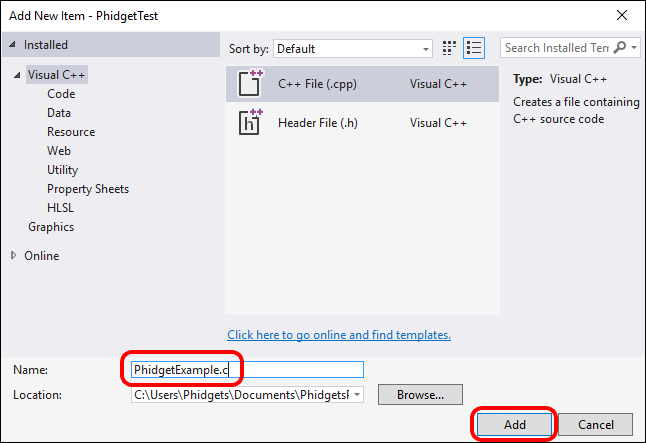
| Give the source file a name and click Add: || [[Image:Language_C_VS_step4.jpg|center|link=https://cdn.phidgets.com/docs/images/e/e5/Language_C_VS_step4.jpg|350px]]
The project now has access to Phidgets. Next, view the [[#Write Code | write your own code]] section located below.
|-
 
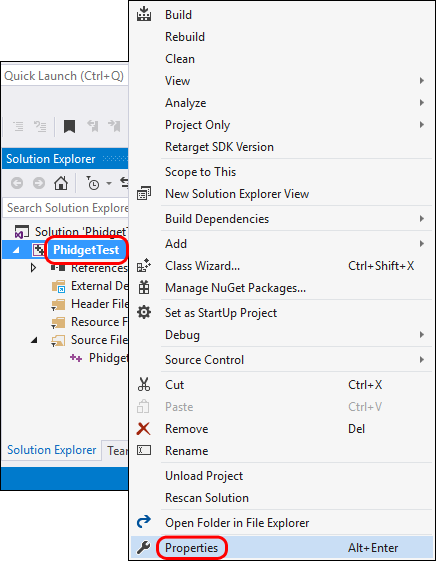
| Right click your project and access its properties: || [[Image:Language_C_VS_step5.jpg|center|link=https://cdn.phidgets.com/docs/images/1/1e/Language_C_VS_step5.jpg|350px]]
==Write Code==
|-
By following the instructions for your operating system and compiler above, you probably now have a working example and want to understand it better so you can change it to do what you want. This [[#Edit the Examples|teaching section]] has resources for you to learn from the examples and write your own.
| Go to Configuration Properties -> C/C++ -> General and add this to the additional include directories:
Your main reference for writing C/C++ code will be the {{Phidget22API}}.
<syntaxhighlight>
 
C:\Program Files\Phidgets\Phidget22
=== Code snippets ===
 
The following code snippets describe how to do various general tasks with Phidgets. You should be able to find places in the examples where these snippets exist, and modify them to suit your requirements.
 
==== Step One: Initialize and open ====
 
Before using a Phidget, it must first be created and opened.
 
<syntaxhighlight lang=C>
//Create
PhidgetDigitalInputHandle device;
PhidgetDigitalInput_create(&device);
//Open
PhidgetReturnCode ret;
ret = Phidget_open((PhidgetHandle)device);
if(ret != EPHIDGET_OK)
{
  Phidget_getErrorDescription ( returnValue, &errorString );
  printf("\n%s", errorString );
}
 
</syntaxhighlight>
 
The variable "device" is now a handle for the Phidget. This example is ''specific to the Digital Input''. For another device, use the correspondingly named calls in the C API.
 
Note that Phidget_open() opens the software object, but not hardware. So, it is not a guarantee you can use the Phidget immediately.  
 
Also note that you can catch error codes returned by the Phidget library as we did above when using the Phidget_open() call. In other words, this should probably be present around most of your Phidget calls, especially when you are learning how to use the Phidget and debugging your code:
 
<syntaxhighlight lang=C>
PhidgetReturnCode ret;
const char* errorString;
ret = /*function call here*/;
if(ret != EPHIDGET_OK)
{
  Phidget_getErrorDescription ( returnValue, &errorString );
  printf("\n%s", errorString );
}
</syntaxhighlight>
 
==== Step Two: Wait for attachment (plugging in) of the Phidget ====
 
To use the Phidget, it must be plugged in (attached). We can handle this simply by calling openWaitForAttachment in place of the basic open. This function works for any Phidget. openWaitForAttachment will block until a connection is made to the Phidget, or the specified timeout is exceeded:
 
<syntaxhighlight lang=C>
Phidget_openWaitForAttachment((PhidgetHandle)device, 5000);
</syntaxhighlight>
 
Sometimes, it makes more sense to handle the attachment via an event. This would be in instances where the Phidget is being plugged and unplugged, and you want to handle these incidents. Or, when you want to use event-driven programming because you have a GUI-driven program. In these cases, an event-driven code snippet to handle the attachment might look something like this:
 
<syntaxhighlight lang=C>
void CCONV OnAttachedEventHandler(PhidgetHandle Device, void *userPtr)
{
  int serial;
  const char* deviceName;
  Phidget_getDeviceSerialNumber(Device, &serial);
  Phidget_getDeviceName(Device, &deviceName);
  printf("\nHello to Device %s, Serial Number: %d", deviceName, serial);
}
</syntaxhighlight>
 
And the code to set up the event handler within the code opening your device might look like:
 
<syntaxhighlight lang=C>
//Code for -creating- device here....
 
Phidget_setOnAttachHandler((PhidgetHandle)device,OnAttachedEventHandler, NULL)
 
//Code for -opening- device here....
</syntaxhighlight>
 
==== Step Three: Do things with the Phidget ====
 
You can read data and interact with your Phidget both by polling it for its current state (or to set a state), or by catching events that trigger when the data changes.
 
For a Phidget Digital Input or Output, the polling method of getting the input state or setting an output state looks something like this:
 
<syntaxhighlight lang=C>
//Get the state from a digital input
int state;
PhidgetDigitalInput_getState(digitalInputDevice, &state);
 
//Set the duty cycle for a digital output
PhidgetDigitalOutput_setDutyCycle(digitalOutputDevice, 0);
</syntaxhighlight>
</syntaxhighlight>
 
|| [[Image:Language_C_VS_step6.jpg|center|link=https://cdn.phidgets.com/docs/images/d/d3/Language_C_VS_step6.jpg|350px]]
To catch data changes via events, you would use something like this:
|-
 
| Go to Configuration Properties -> Linker -> Input and add the appropriate line to additional dependencies:
<syntaxhighlight lang=C>
<syntaxhighlight>
void CCONV OnStateChangeHandler(PhidgetDigitalInputHandle digitalInput, void *userPtr, int state)
C:\Program Files\Phidgets\Phidget22\phidget22.lib #(for 64-bit systems)
{
C:\Program Files\Phidgets\Phidget22\x86\phidget22.lib #(for 32-bit systems)
  printf("State: %d", state);
}
 
//...
 
//Within the function that opens the device
 
// Insert code to create an Digital Input called 'device'
// Hook our function above into the device object
  PhidgetDigitalInput_setOnStateChangeHandler(digitalInput, OnStateChangeHandler, NULL);
// Insert code to open 'device'
</syntaxhighlight>
</syntaxhighlight>
 
|| [[Image:Language_C_VS_step7.jpg|center|link=https://cdn.phidgets.com/docs/images/0/09/Language_C_VS_step7.jpg|350px]]
==== Step Four: Close and delete ====
|-
 
| Lastly, include the Phidget library at the beginning of your program:
At the end of your program, don’t forget to close and delete the device to free any locks on the Phidget that opening the device put in place!
<syntaxhighlight lang=bash>
 
#include < phidget22.h >
<syntaxhighlight lang=C>
Phidget_close((PhidgetHandle)device);
PhidgetDigitalInput_delete(&device);
</syntaxhighlight>
</syntaxhighlight>
||
|-
|}


===C++ events===
=== PhidgetSBC Web Interface ===
 
{| style="margin:auto;" class="table-no-border mw-collapsible mw-collapsed"
If you want to use C++ style, object-oriented events you can do that as well. The following examples show you how to do this:
|+'''Instructions'''
 
|<center>{{#ev:youtube|2hTlVexctqY|rel=0}}</center>
'''<span style="color:#FF0000">Figure out how to properly load these</span>'''
|}
 
[[:File:Simple_22.cpp|Main]]
 
[[:File:Simple_22.h|Header]]
 
== Further Reading ==
 
[[Phidget Programming Basics]] - Here you can find the basic concepts to help you get started with making your own programs that use Phidgets.
 
[[Data Interval/Change Trigger]] - Learn about these two properties that control how much data comes in from your sensors.


[[Using Multiple Phidgets]] - It can be difficult to figure out how to use more than one Phidget in your program. This page will guide you through the steps.
== Example Code ==
Navigate to our [https://www.phidgets.com/?view=code_samples&lang=C Code Sample Generator] to view and download code samples that are tailored to your specific device.


[[Polling vs. Events]] - Your program can gather data in either a polling-driven or event-driven manner. Learn the difference to determine which is best for your application.
[[Image:Language_c_codesample2.png|center|600px|link=]]


[[Logging, Exceptions, and Errors]] - Learn about all the tools you can use to debug your program.
===Phidget Programming Basics===
{{PhidgetProgrammingBasicsLink}}


[[Phidget Network Server]] - Phidgets can be controlled and communicated with over your network- either wirelessly or over ethernet.
==API==
[{{SERVER}}/?view=api&lang=C Phidget22 API]

Latest revision as of 20:03, 12 March 2026


Get Started

With the Phidget22 library, it's easy to create C or C++ applications that work with Phidget devices.

C Libraries

If you've installed the Phidget drivers for Windows, MacOS, or Linux, then you already have the files you need for your C project.

Windows Considerations

When adding directories for your project dependencies, add

C:/Program Files/Phidgets/Phidget22

And for the linker, you can add

C:/Program Files/Phidgets/Phidget22/phidget22.lib}}     #(for 64-bit systems)
C:/Program Files/Phidgets/Phidget22/x86/phidget22.lib}} #(for 32-bit systems)

MacOS Considerations

The Phidget framework will be found in

/Library/Frameworks

And the headers can be found in

/Library/Frameworks/Phidget22.framework/Headers

Linux Considerations

Linux restricts access to USB devices to the root user.

To run your C application as a regular user, you'll need to set up udev rules on your system.

Library Files

If you would like to manually manage the Phidget22 library files, you can download them here.

Development Environment Configuration

GCC

Instructions

The most common tool for C development is GCC, whether used in the command line or through an IDE. GCC is packaged with many other IDEs and packages, so you may already have it installed.

Windows

We recommend installing Cygwin or MinGW, ensuring you select all gcc packages when prompted by the installer.

To compile your code, go to the folder where your code is and open the command prompt by typing 'cmd' in the address bar.

The specific command you will use depends on your compiler of choice:

#Cygwin x86:
gcc example.c -o example -I"/cygdrive/c/Program Files/Phidgets/Phidget22"-L"/cygdrive/c/Program Files/Phidgets/Phidget22/x86" -lphidget22

#Cygwin x64:
gcc example.c -o example -I"/cygdrive/c/Program Files/Phidgets/Phidget22" -L"/cygdrive/c/Program Files/Phidgets/Phidget22" -lphidget22

#MinGW:
gcc example.c -o example -I"C:/Program Files/Phidgets/Phidget22" -L"C:/Program Files/Phidgets/Phidget22/x86" -lphidget22

After running the commands above for either Cygwin or MinGW, an executable file called example.exe will be created. Enter the following command to run the program:

example.exe
MacOS

If you don't already have gcc installed, you can get it by installing Xcode.

To compile the program, enter the following command in the terminal, substituting "example" for the name of your C file:

gcc example.c -o example -F /Library/Frameworks -framework Phidget22 -I /Library/Frameworks/Phidget22.framework/Headers

Finally, run the program by entering the following command in the terminal:

./example

Success! The project is now running with Phidgets.

Linux

On Linux, gcc is installed through the package manager:

apt-get install gcc

To compile the program, enter the following command in the terminal, substituting "example" for the name of your C file:

gcc example.c -o example -lphidget22

After compiling, you can run the program by entering the following command in the terminal:

./example

Success! The project is now running with Phidgets.

Visual Studio

Instructions
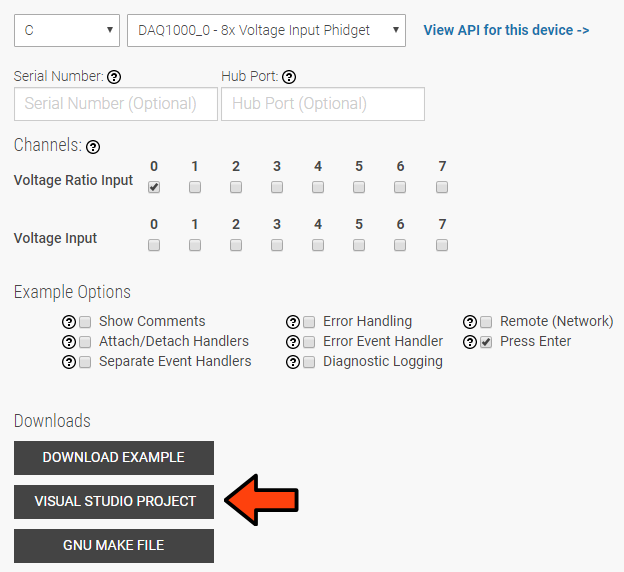
If you want to jump right into a pre-configured project, you can download one on our Code Sample Generator page.
Language C VSProject.jpg
To configure a new project, follow these steps.
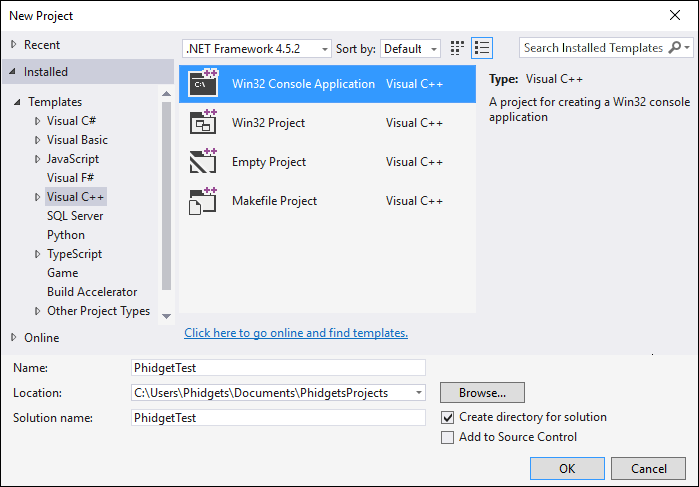
First, create a new Win32 Console Application:
Language C VS step1.jpg
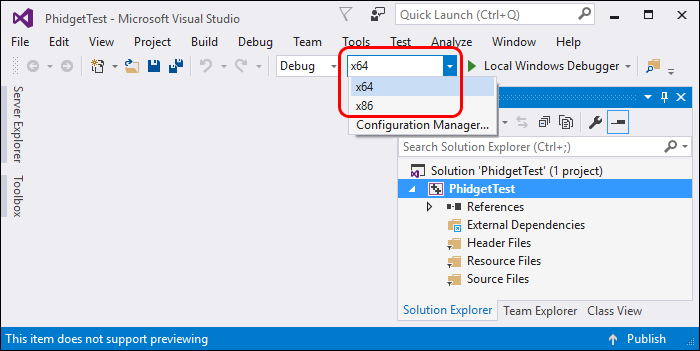
If you are using a 64-bit machine, select x64, otherwise, select x86:
Language C VS step2.jpg
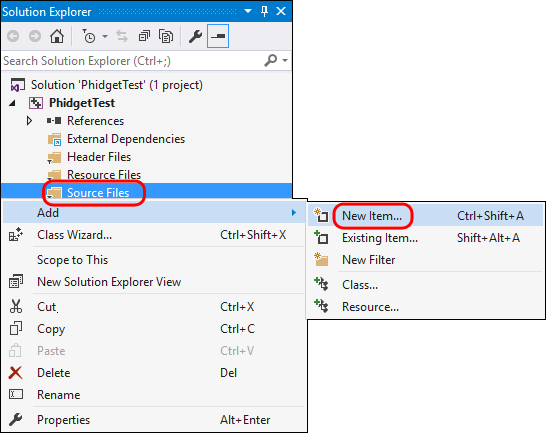
Next, right click on the source folder and click New Item:
Language C VS step3.jpg
Give the source file a name and click Add:
Language C VS step4.jpg
Right click your project and access its properties:
Language C VS step5.jpg
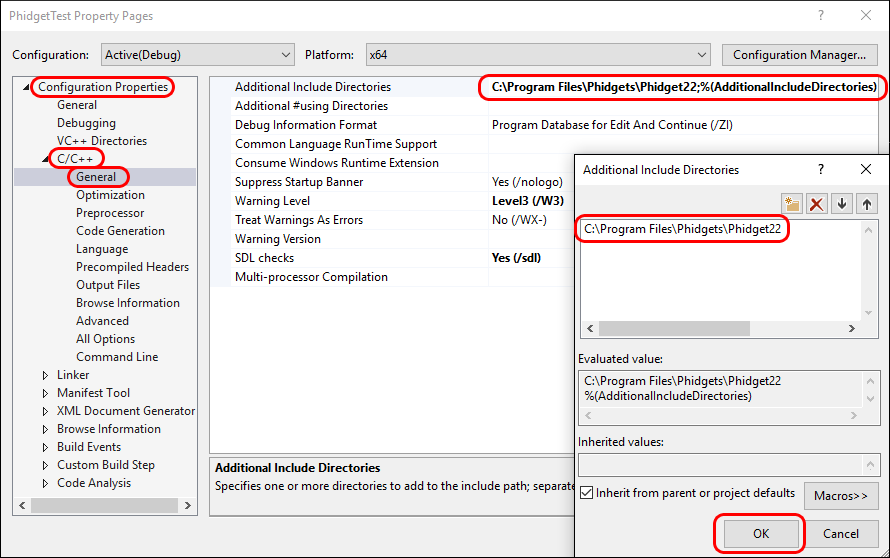
Go to Configuration Properties -> C/C++ -> General and add this to the additional include directories:
C:\Program Files\Phidgets\Phidget22
Language C VS step6.jpg
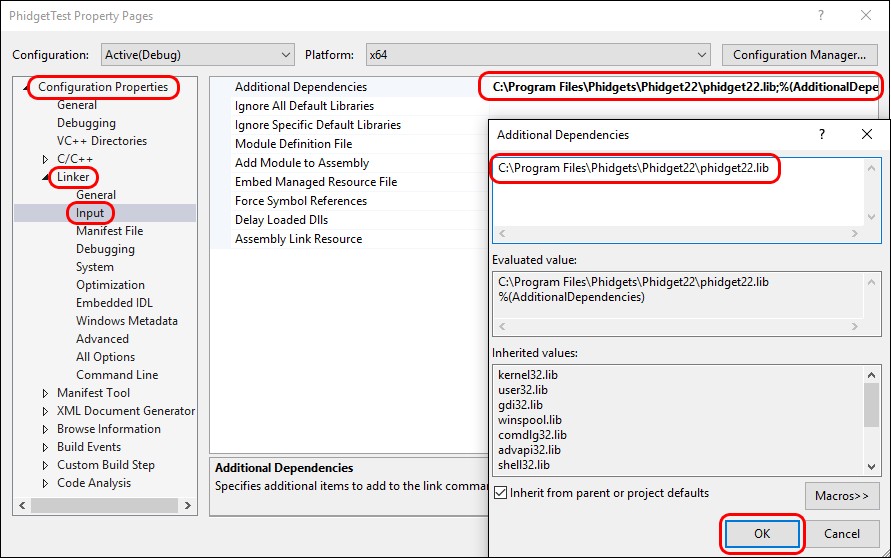
Go to Configuration Properties -> Linker -> Input and add the appropriate line to additional dependencies:
C:\Program Files\Phidgets\Phidget22\phidget22.lib #(for 64-bit systems)
C:\Program Files\Phidgets\Phidget22\x86\phidget22.lib #(for 32-bit systems)
Language C VS step7.jpg
Lastly, include the Phidget library at the beginning of your program:
#include < phidget22.h >

PhidgetSBC Web Interface

Instructions

Example Code

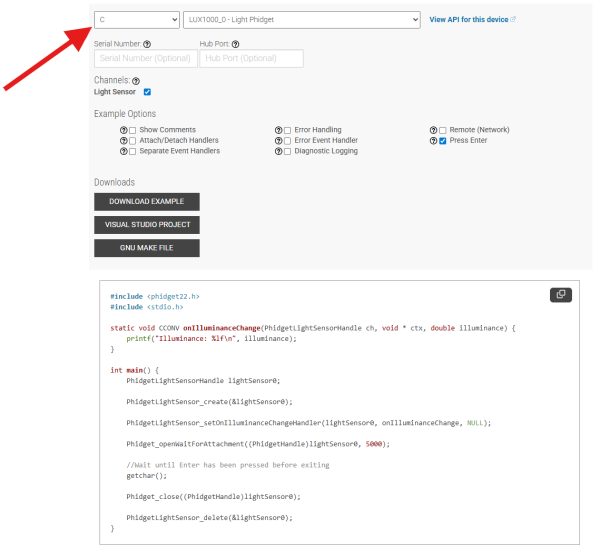
Navigate to our Code Sample Generator to view and download code samples that are tailored to your specific device.
Language c codesample2.png

Phidget Programming Basics

To learn more about the structure of the example code, visit our Phidget Programming Basics guide.
API

Phidget22 API