|
|
| (199 intermediate revisions by 9 users not shown) |
| Line 1: |
Line 1: |
| | <metadesc>Communicate over USB with sensors, controllers, and relays with Phidgets! Program in macOS using a wide variety of programming languages.</metadesc> |
| [[Category:OS]] | | [[Category:OS]] |
| [[File:Icon-Mac-OS.png|64x64px|link=]] On Mac OS, Phidgets can be either plugged directly into a USB Port or run over a network using the [[#Webservice|Webservice]].
| |
|
| |
|
| __TOC__
| | ==Quick Downloads== |
| | Our libraries support macOS 10.11 and newer. |
| | * [https://cdn.phidgets.com/downloads/phidget22/tools/macos/Phidget22ControlPanel.dmg Phidget22 Control Panel (macOS 10.15 and newer)] |
| | * [https://cdn.phidgets.com/downloads/phidget22/libraries/macos/Phidget22.dmg Phidget22 Installer (macOS 10.14 and earlier)] |
|
| |
|
| Phidgets are designed to run on '''Mac OS 10.4 or newer''', and can run on PPC, 32-bit, and 64-bit systems.
| | ===Other Resources=== |
| | * [https://cdn.phidgets.com/downloads/phidget22/libraries/macos/Phidget22_macosdevel.zip macOS Development Files] |
| | * [{{SERVER}}/downloads/phidget22/libraries/macos/Phidget22/ Previous Releases] |
|
| |
|
| ==Getting Started (Libraries and Drivers)== | | ==Getting Started with macOS== |
| | ===Install=== |
| | To get started, download the appropriate [[#Quick Downloads|package]] for your machine from the list above. This will install the Phidget Control Panel and the Phidget Network Server. These are powerful tools that will help you develop your Phidget applications. |
|
| |
|
| If this is your first Phidget, we highly recommend working through the Getting Started guide [[Device List|for your specific Phidget device]]. If you already have the Preference Pane Installed and know how to use it, then you've already followed the guide and are ready to learn more about the workings behind the Preference Pane, the Phidget Webservice, and more - all specific to Mac OS.
| | ===Phidget Control Panel=== |
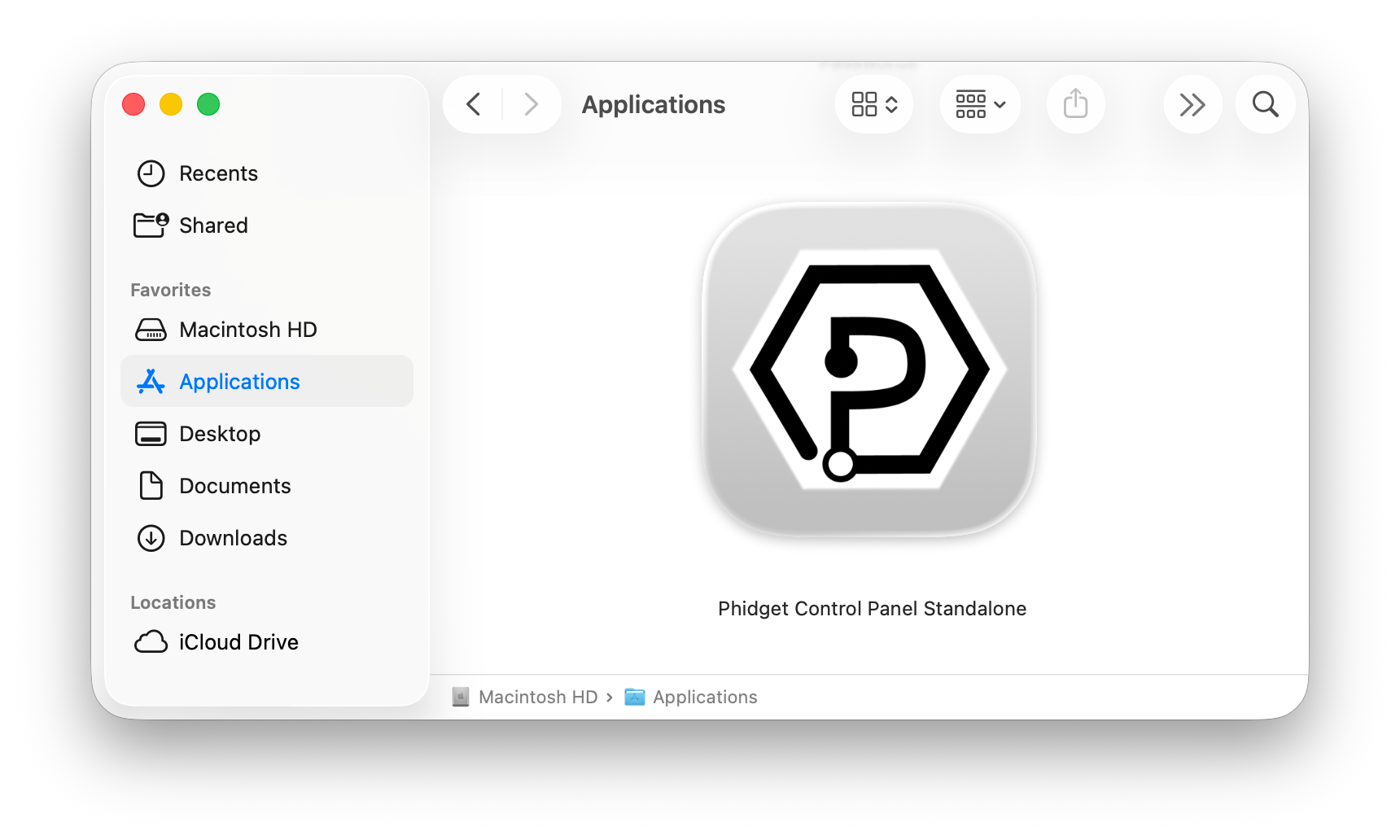
| | After downloading, drag the application into your Applications folder: |
| | [[Image:Macos_standalone_install.png|link=https://cdn.phidgets.com/docs/images/c/c8/Macos_applications_controlpanel.png|center|600px]] |
|
| |
|
| If you are already a pro, and just want the drivers:
| | You can then find the application in the Applications folder by searching for ''Phidget Control Panel''. |
| | [[Image:Macos_applications_controlpanel.png|link=https://cdn.phidgets.com/docs/images/c/c8/Macos_applications_controlpanel.png|600px|center]] |
|
| |
|
| *[http://www.phidgets.com/downloads/libraries/Phidget_2.1.8.20120216.dmg Mac OS Installer]
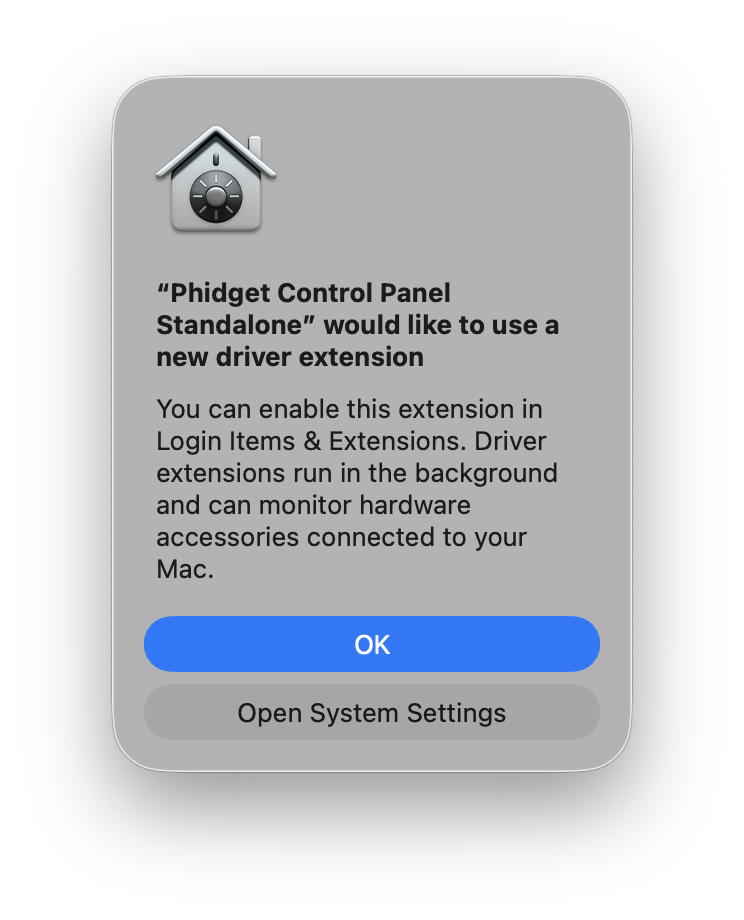
| | When you open the application for the first time, you will see the following notice: |
| | [[Image:Macos_install_extension.png|link=https://cdn.phidgets.com/docs/images/9/9e/Macos_install_extension.png|300px|center]] |
|
| |
|
| For special cases where you cannot install the Phidget installer please see the [[#Advanced Uses]] section.
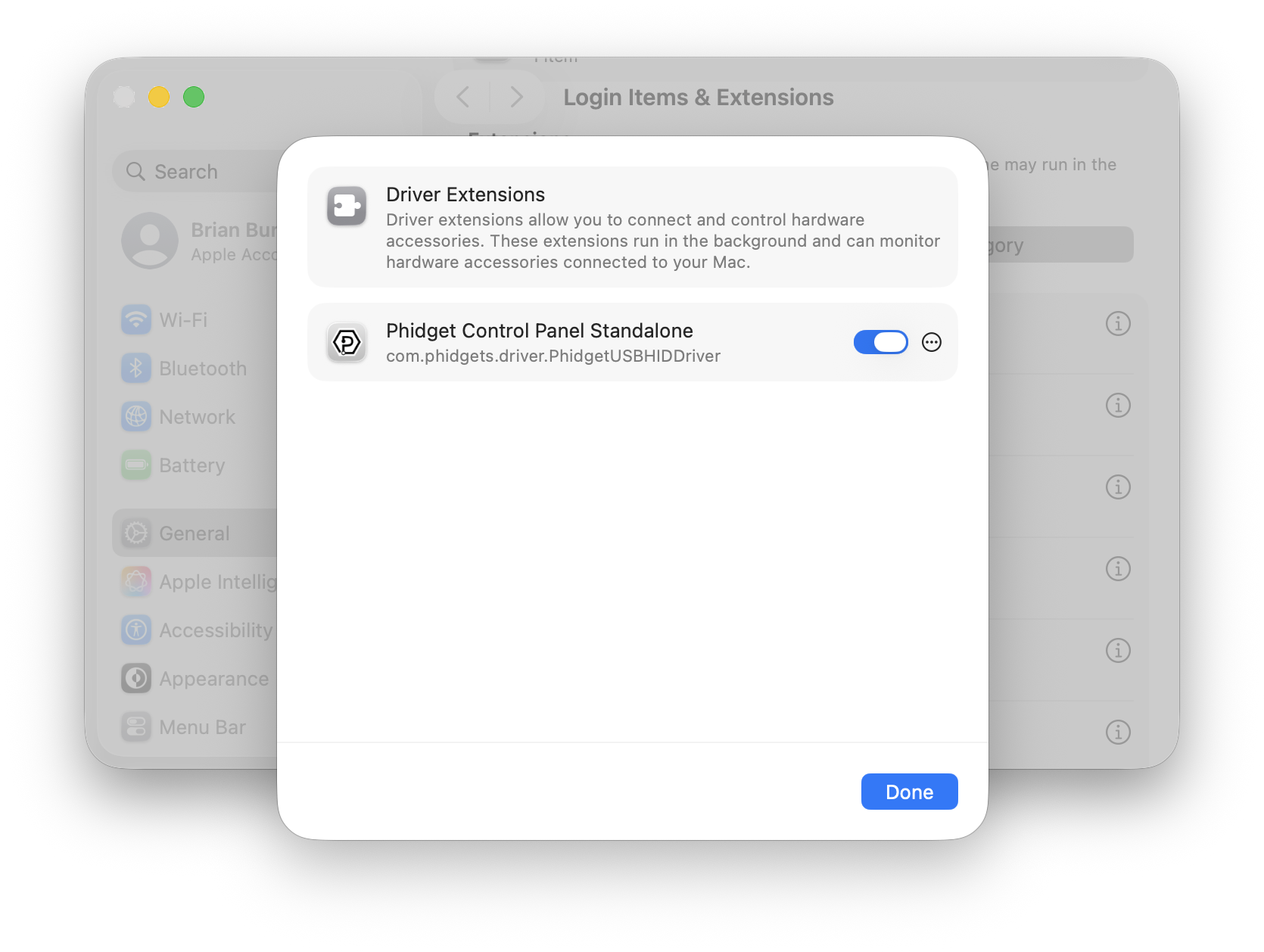
| | Follow the link in the pop-up, or navigate to ''System Settings > General > Login Items & Extensions > Extensions'', and give permissions: |
| * [http://www.phidgets.com/Drivers_Info.html#osx Software License]
| | [[Image:Macos_install_extension_permission.png|link=https://cdn.phidgets.com/docs/images/a/ac/Macos_install_extension_permission.png|600px|center]] |
| | <center>''Note: The driver extension is only required for legacy USB Phidgets running a HID USB stack. Refer to your product’s specifications page for information about its USB stack.''</center> |
|
| |
|
| ===Installing===
| |
|
| |
|
| An in-depth description of what the installer does, what the files do, and where they go by default.
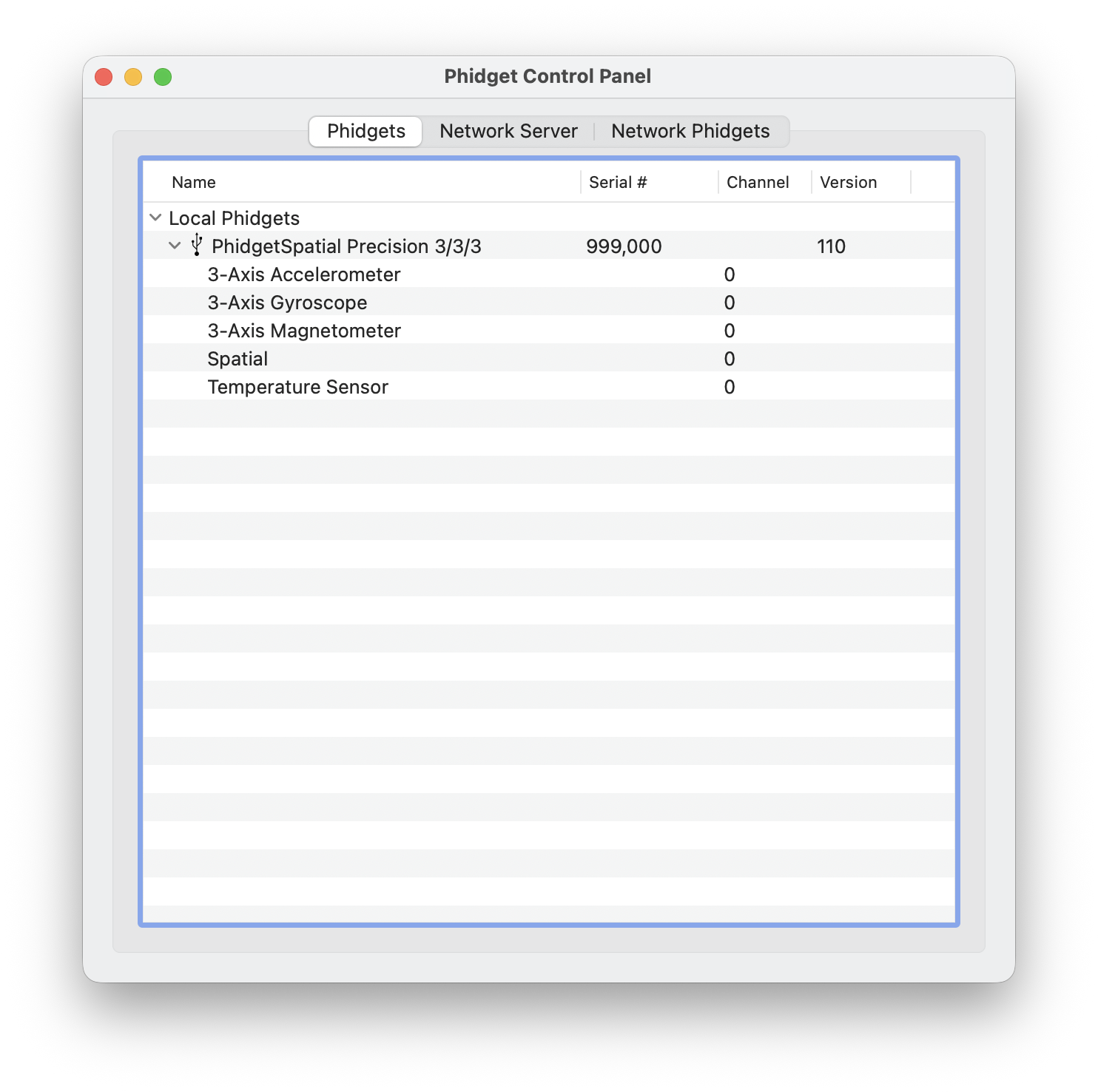
| | After running the application, you will see all the Phidgets that are plugged into your machine, as well as any Phidgets that are on your network. |
| | [[Image:Os_macos_controlpanel.png|600px|link=https://cdn.phidgets.com/docs/images/a/a1/Os_macos_controlpanel.png|center]] |
|
| |
|
| This is NOT the place for Manual Installation Instructions, those instructions go in the [[#Advanced Uses]] section below.
| |
|
| |
|
| ====Phidget Preference Pane====
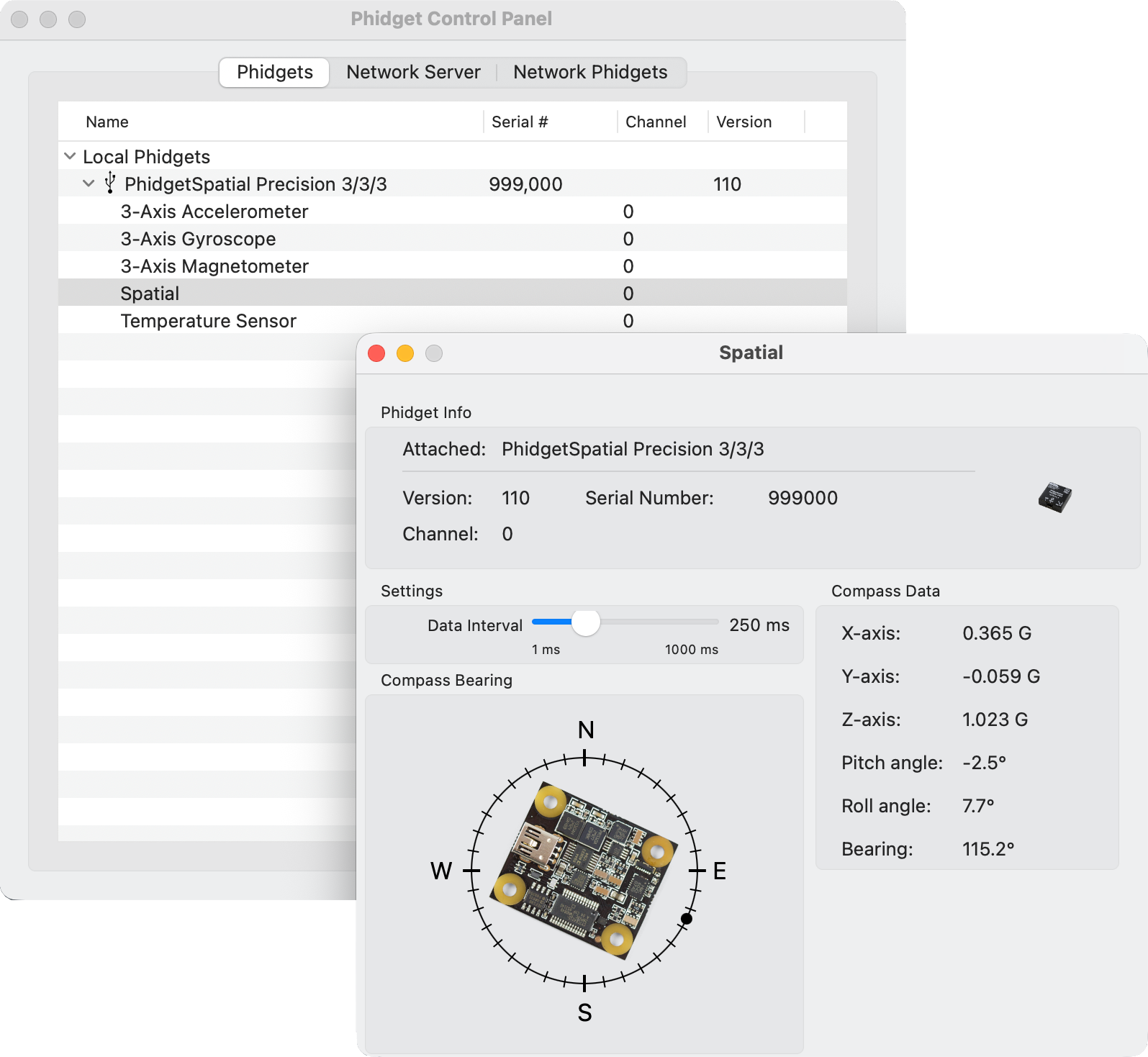
| | Click on the arrow beside a device to expand it so that you can see all available channels. Double-click on one of these channels to open up a window that lets you interact with it. |
|
| |
|
| Explain the preference pane, on a concept level.
| |
|
| |
|
| Advanced uses (modifying, manual installation, etc) go in the advanced section below.
| | [[File:Os_macos_controlpanel_example.png|link=https://cdn.phidgets.com/docs/images/3/37/Os_macos_controlpanel_example.png|center|600px]] |
|
| |
|
| Not the go to option for controlling your device, refer users to the Getting Started guide for their Phidget...again.
| |
|
| |
|
| It is important to keep in mind that when an example Phidget application is opened from the control panel, it holds a lock on the Phidget. Is this also true on Mac? If so, explain that this prevents any other program from accessing the Phidget. Please ensure that this example application is closed when you are running your own applications.
| | The Phidget Control Panel can be used for testing devices, updating firmware, enabling a Phidget Network Server, and more. Visit the [[Phidget Control Panel|Phidget Control Panel page]] for more information. |
|
| |
|
| ===Checking=== | | ===Programming=== |
| | When you are ready to develop your own applications, visit our [{{SERVER}}/docs/Programming_Resources programming resources page] and select your programming language to get started. |
|
| |
|
| Summarize that we will be using code and the device manager to confirm and troubleshoot the installation, if needed.
| | ==Software License== |
| | | By downloading the installer and/or development files, you agree to adhere to the terms of the [{{SERVER}}/documentation/Licenses/Phidgets_EULA.pdf Phidgets End User License Agreement]. The Phidget libraries and development files are covered by the The 3-Clause BSD License. |
| ====Software====
| |
| | |
| This should walk you through compiling and running basic code against the libraries as simply as possible. Find an instance that requires no additional programs to run, and that will work with any Phidget, if possible. Recommended HelloWorld and gcc.
| |
| | |
| The point of this is to give the user tools to identify problems with the library setup that are not due to low level driver conflicts. The process should be described here (with the conclusion being the success of the check), followed by a referral to the Troubleshooting section (and content there) if failure results. See the [[OS - Linux#Software]] section for an example.
| |
| | |
| ====Hardware====
| |
| | |
| This should show you how to use the "About This Mac" program to make sure the Phidget is attached in hardware, and what to do if not.
| |
| | |
| ====Troubleshooting====
| |
| | |
| Make an in-depth point by point section with some of this content plus more:
| |
| | |
| *Confirm prerequisites
| |
| *Walk through ALL known conflicting drivers
| |
| *Suggest attributes of unknown conflicting drivers
| |
| *Get people to the troubleshooting page if a non-OS problem is suspected
| |
| | |
| See the [[OS - Linux#Troubleshooting|Linux Troubleshooting]] page for a briefer example. It is expected that with driver conflicts, this section will be much larger, with screenshots, etc. If you need to cover troubleshooting a problem with the webservice, you should put the content in the Webservice section below, and link to it.
| |
| | |
| ==Programming Languages==
| |
| We recommend the following languages for OS X:
| |
| * [[Language - Applescript|AppleScript]]
| |
| * [[Language - C/C++|C/C++]]
| |
| * [[Language - Cocoa | Cocoa]]
| |
| * [[Language - Flash AS3]]
| |
| * [[Language - Flex AS3]]
| |
| * [[Language - Java | Java]]
| |
| * [[Language - Max/MSP|Max/MSP]]
| |
| * [[Language - Python | Python]]
| |
| * [[Language - Ruby|Ruby]]
| |
| | |
| You can also use these languages, but they do not support [[General Phidget Programming#Event Driven Code | event driven code]], and must use [[General Phidget Programming#Logic Code | logic code]] only:
| |
| | |
| *[[Language - MATLAB|MATLAB]]
| |
| *[[Language - Simulink|Simulink]]
| |
| | |
| ==Webservice==
| |
| | |
| Short description of the webservice on Mac OS (i.e. which files are the drivers, note that it is automatically on, etc)
| |
| | |
| Drivers for the Phidget Webservice on Mac are already included in the [[#Getting Started (Libraries and Drivers) | Drivers]] above.
| |
| | |
| If you have the Preference Pane installed, you already have the Webservice drivers installed.
| |
| | |
| ===Turning the Webservice On and Off===
| |
| | |
| Detailed instructions, both at runtime, and disabling from boot entirely.
| |
| | |
| ===Setting Up the Webservice===
| |
| | |
| How to find the port, computer IP, computer bonjour name, etc
| |
| | |
| ====Using the Webservice Without Bonjour====
| |
| | |
| Detailed instructions on how to change your code to work with IP addresses
| |
| | |
| ===Using the Webservice===
| |
| | |
| A walkthrough in C (using gcc) of how to write (i.e. modify) a remote program and screenshots of it running on localhost (127.0.0.1)
| |
| | |
| ===Debugging the Webservice===
| |
| | |
| Examples of common errors in webservice-using code
| |
| | |
| Is there a way to enable debugging like there is on Linux?
| |
| | |
| ==Advanced Uses==
| |
| | |
| ===Manual File Installation===
| |
| | |
| A reminder of the installer and what it does, and how to do it manually when wanting to distribute our libraries with your code.
| |
| | |
| ====Description of Files====
| |
| | |
| All files with the Preference Pane and their default installation locations.
| |
| | |
| ====Special Cases of Library Install====
| |
| | |
| Cover how customers can distribute Phidget libraries with their code, refer them mostly to their appropriate language page.
| |
| | |
| Content copied from the old page:
| |
| | |
| If you wish to only install the things you need, please refer to your language page for instructions on how to manually install the libraries for your language.
| |
| <br/> also explain even more special cases on 64bit systems, if applicable(ie, c.
| |
| | |
| ===Other Advanced Uses===
| |
| | |
| Additions to this list should be things we find people request over tech support. Ask Brian for more!
| |
| | |
| ==Phidgets Preference Pane==
| |
| Explain the control panel
| |
| The examples in the preference pane are as is, and are intended for demonstration purposes. They are not suitable for user applications.
| |
| | |
| It is important to keep in mind that when an example Phidget application is opened from the preference pane, it holds a lock on the Phidget. This prevents any other program from accessing the Phidget. Please ensure that this example application is closed(the Phidgets Preference Pane can still be running) when you are running your own applications.
| |
| | |
| ==Common Problems and Solutions==
| |
| | |
| *List relevant problems from "Common Problems and workarounds" doc
| |
| *List common problems for this OS from support forums
| |
| | |
| ==Limitations==
| |
| List any limitations associated with running Phidgets with this OS.
| |
Quick Downloads
Our libraries support macOS 10.11 and newer.
Other Resources
Getting Started with macOS
Install
To get started, download the appropriate package for your machine from the list above. This will install the Phidget Control Panel and the Phidget Network Server. These are powerful tools that will help you develop your Phidget applications.
Phidget Control Panel
After downloading, drag the application into your Applications folder:
You can then find the application in the Applications folder by searching for Phidget Control Panel.
When you open the application for the first time, you will see the following notice:
Follow the link in the pop-up, or navigate to System Settings > General > Login Items & Extensions > Extensions, and give permissions:
Note: The driver extension is only required for legacy USB Phidgets running a HID USB stack. Refer to your product’s specifications page for information about its USB stack.
After running the application, you will see all the Phidgets that are plugged into your machine, as well as any Phidgets that are on your network.
Click on the arrow beside a device to expand it so that you can see all available channels. Double-click on one of these channels to open up a window that lets you interact with it.
The Phidget Control Panel can be used for testing devices, updating firmware, enabling a Phidget Network Server, and more. Visit the Phidget Control Panel page for more information.
Programming
When you are ready to develop your own applications, visit our programming resources page and select your programming language to get started.
Software License
By downloading the installer and/or development files, you agree to adhere to the terms of the Phidgets End User License Agreement. The Phidget libraries and development files are covered by the The 3-Clause BSD License.